FingerTec have updated Face ID 3 firmware to include the much anticipated feature: Per Day Verification Type as well as an additional Verification type - Face or Password & Card.
Feature Description
With Per Day Verification, user can now set a specific verification style for a particular day and time. For example, the usual Monday to Friday can be customized to “Face Only” during office hours (8am – 5pm), and “Face & Card” for out of office hours (5pm – 8am) while Saturday and Sunday can be arranged to “Face & Card” for the whole day.
This feature is suitable for company who wishes to strengthen their security after working hours and during rest days.
Feature Settings
To enable this feature in Face ID 3, first you need to update the firmware to version 4835-01 or later. Then download a tool from the link below in order to enable this function.
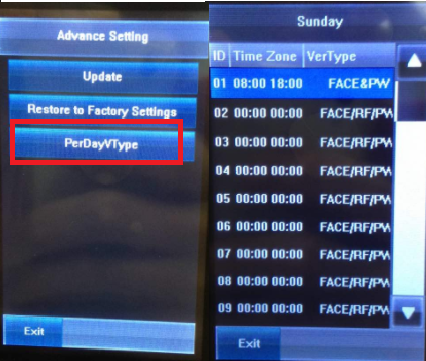
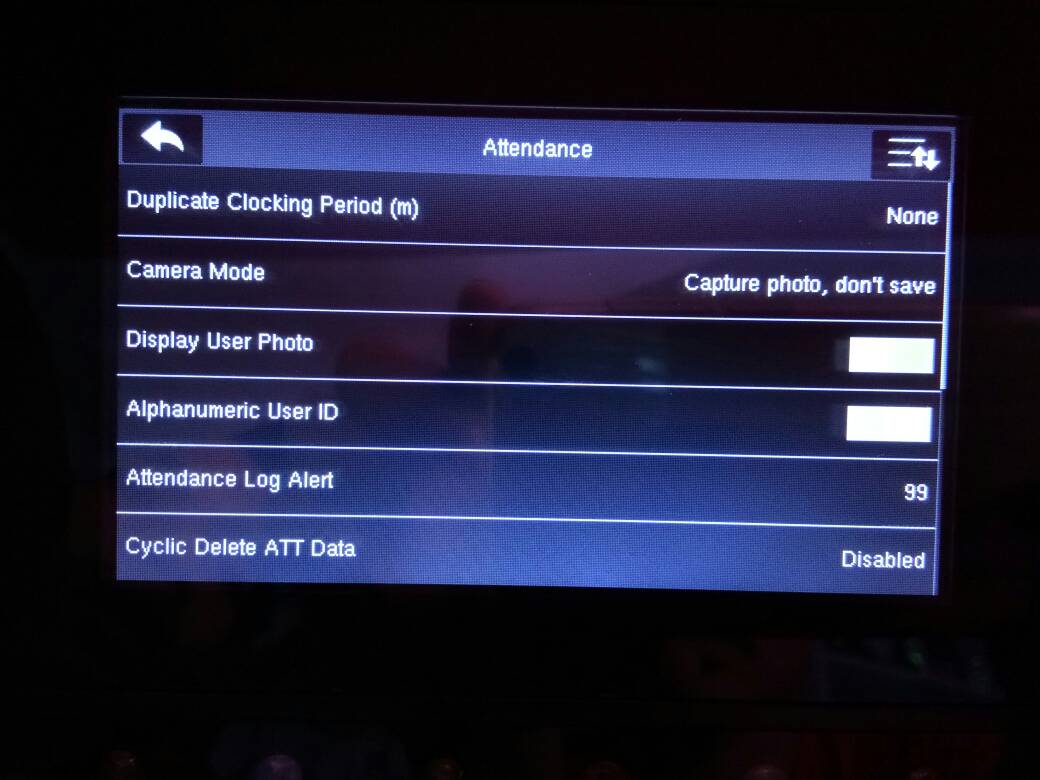
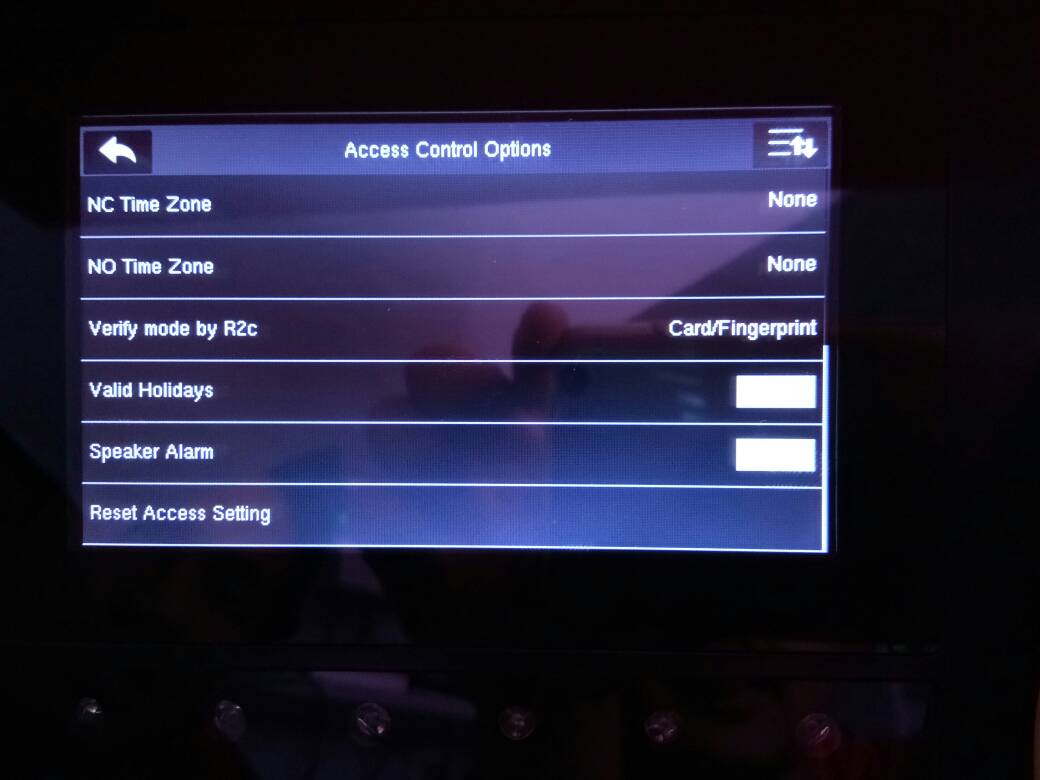
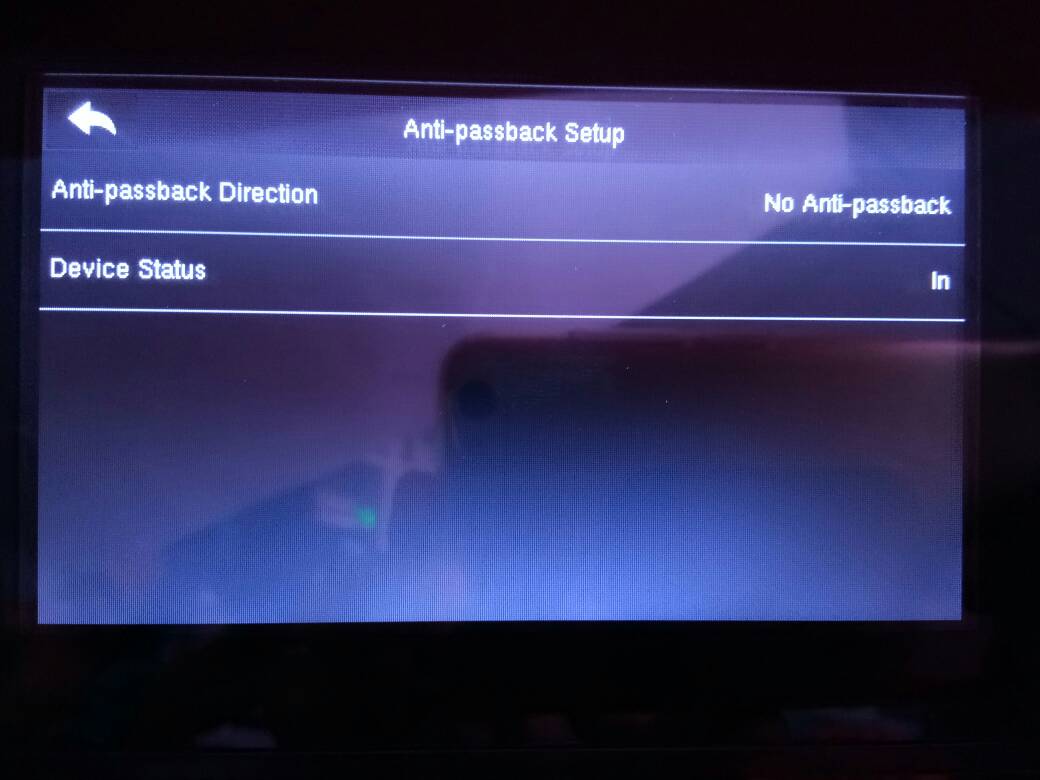
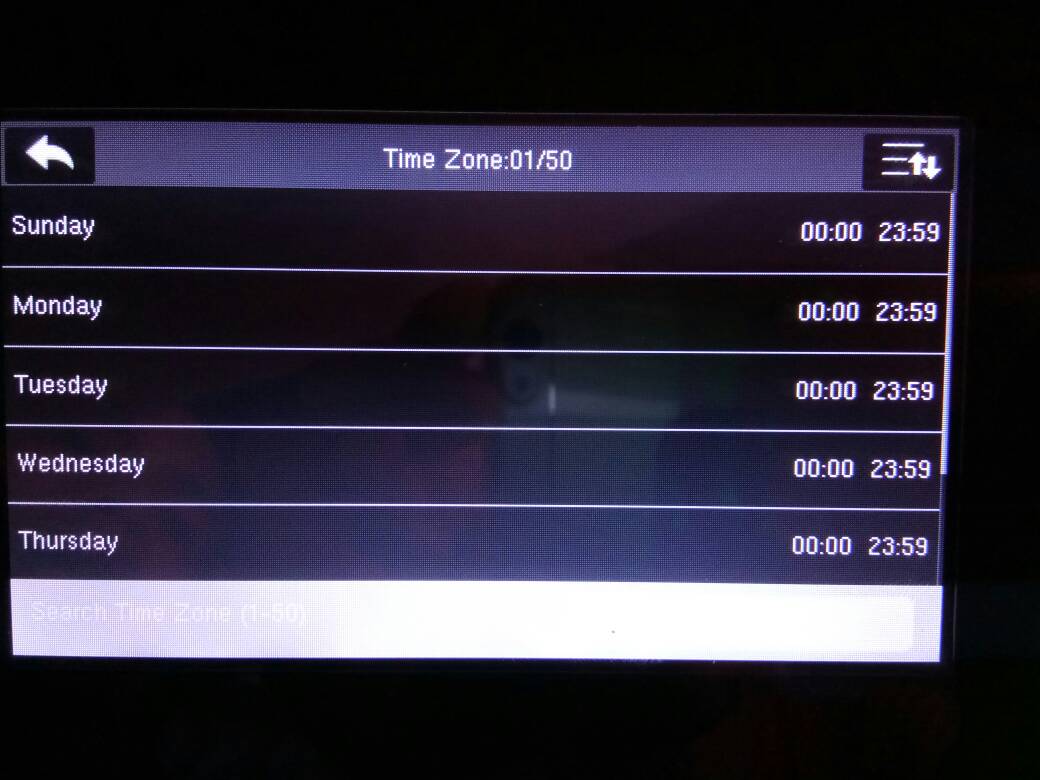
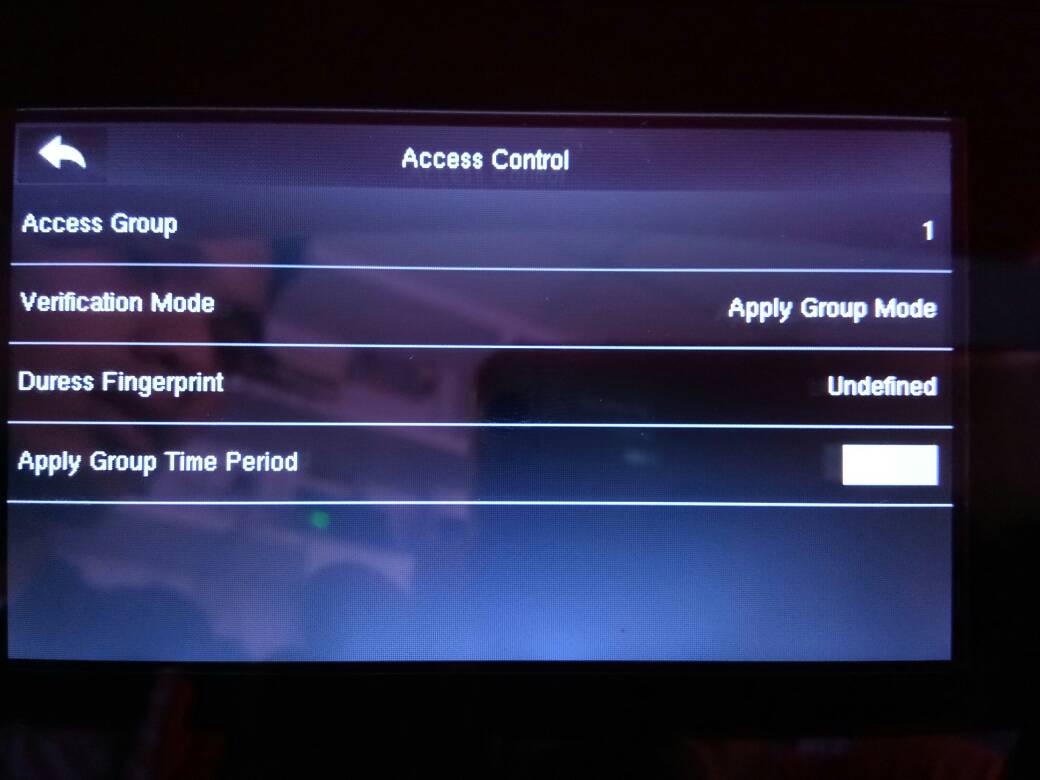
The settings of this feature can be manually set in the device [System > Advance Setting > PerDayVType] as shown in the picture below.
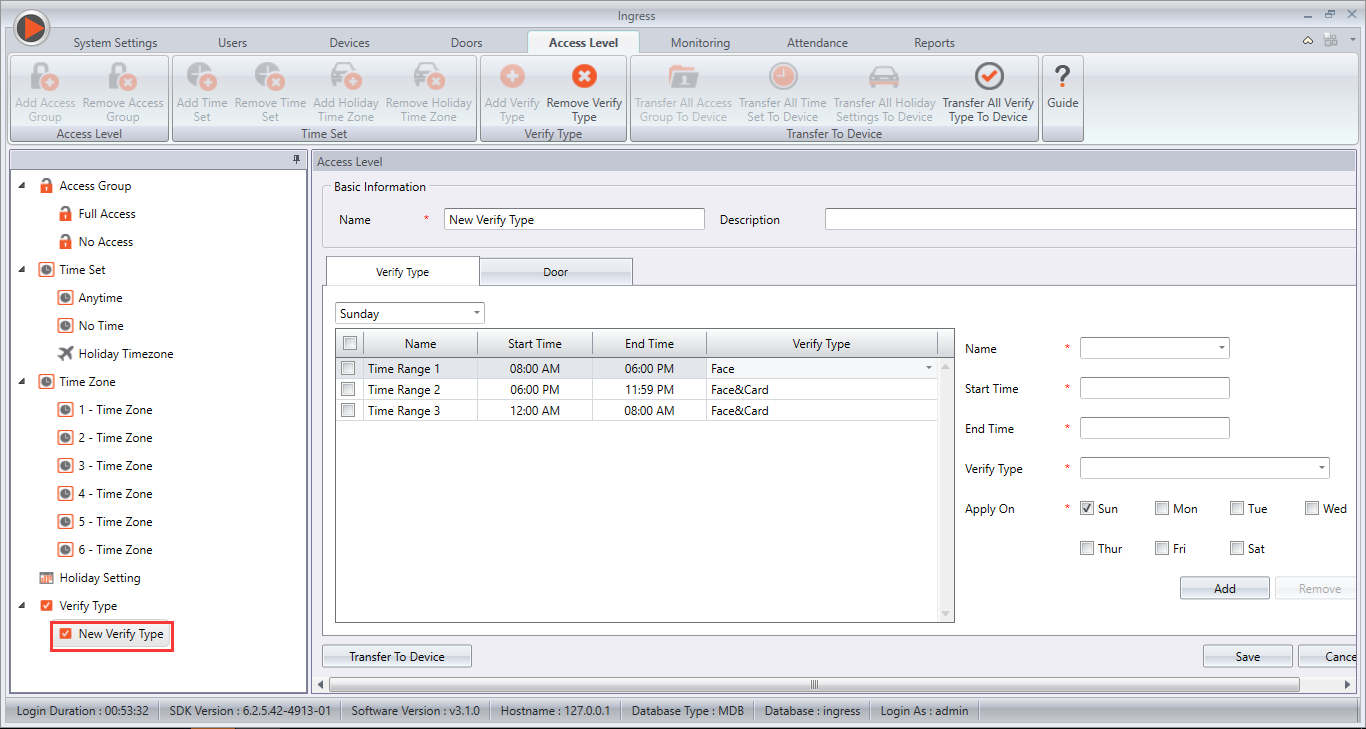
Alternatively, if the Face ID 3 is connected to Ingress Software, the settings can then be done under Access Level > Verify Type. After setting up the verify types and time zone, please make sure to Add Door and synchronize the device in order for it to take effect.
Remark: If PerDay Verification Type is turned ON, group and individual verification type will not be active. If timezone is not set in PerDay Verification Type, default type will be selected instead, which is Face, Password or Card.
Introduction
Most
of our clients have switched from TCMS V2 to Ingress. Therefore, for those who are using door access
terminals such as AC900 FEM565 / R2
FEM565 / KADEX FEM500, they will need to update their devices with a unique
firmware to fully utilize the door access features in Ingress.
Benefit
The
firmware update will let users utilize the door access features on their
existing terminals through Ingress.
Process
1)
Download the firmware update tool*
2)
Close PC’s Wifi connection / anti
virus / firewall before running the .exe file
3)
Key-in the IP Address
4)
Choose the GroupVerType timer with
Ingress.
5)
Click Connect > Update >
Restart.
*Please refer to your Reseller for this firmware update.
In
case you want to switch back from Ingress to TCMS V2, you can roll-back the update
by choosing the GroupVerType timer with TCMS V2.
Previously,
our Face ID terminal camera will automatically perform facial identification
during the verification process and or in the situation when users can be
detected within the vicinity of the terminal.
Responding
to our customers’ feedback, our R&D team have come out with a new firmware
enabling users the option to select whether they want the terminal to
automatically perform face identification.
You can download the latest face ID 3 firmware
here.
New
Feature
In
addition to that, we have also come up with a new feature for Face ID 3. This
feature makes it compulsory for users to select any status key on the screen of
the terminal (i.e. Check-in, OT-out, etc.) before switching on the camera for
verification.
Go
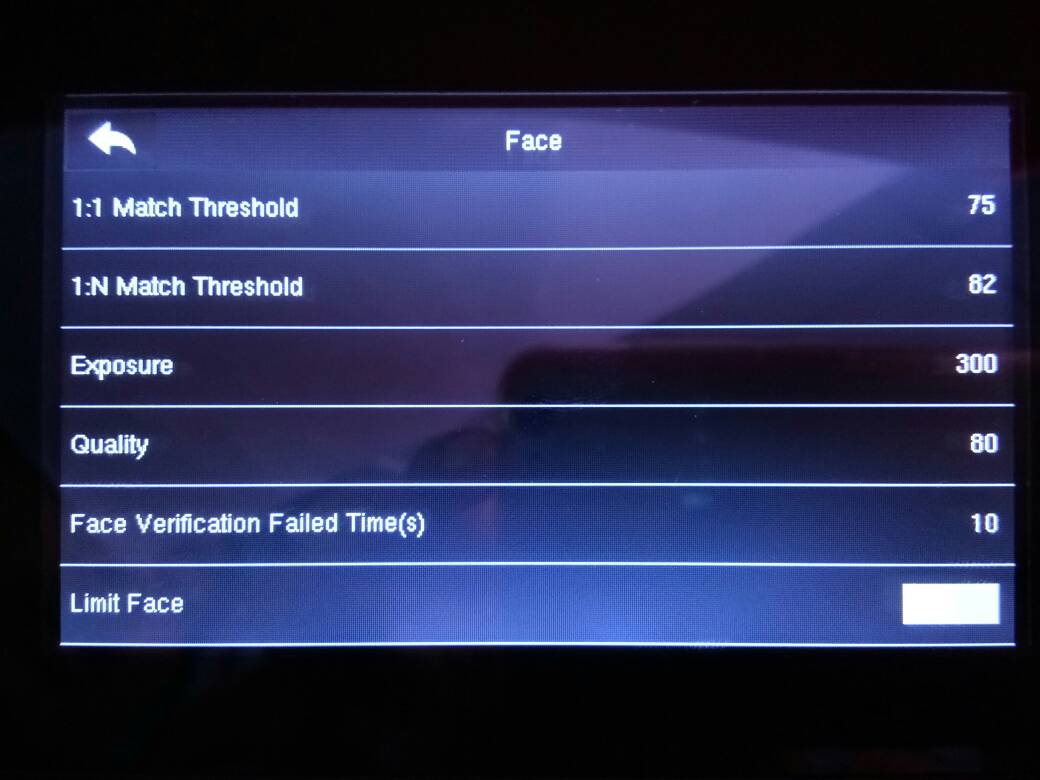
to Menu > System > Log Settings > Limit Face > Select either ‘Yes’
or ‘No’.
If
‘Yes’ is selected, users must press the status key before verification in order
for the camera function to be activated.
If
‘No’ is selected, the camera will automatically scan the users even though they
are just merely passing by. However, this function will speed up the
verification process as you do not need to press any key before verification.
Previously, it was reported that it would be a delay in door release when the card was produced in front of the R2 and Kadex terminal.
FingerTec
has released the new firmware for both R2 and Kadex to solve this issue.
You can now download the Kadex's & R2’s latest firmware here.
Now you can pair a Thermal Receipt Printer with Face ID 3! A receipt can be printed after every clocking in is done at a Face ID 3 terminal. Currently, the thoroughly tested model of a Thermal Receipt Printer that works with Face ID 3 is the EPSON TM-T88IV (sold in Malaysia). However, the same printer model might consist of different configurations in different countries.
To enable the printer option with Face ID 3, you need to update the device with the latest Firmware. Please refer to the steps below:
FingerTec has developed a new, added safety feature for Face ID 3 and Face ID 4/4d! When a face template fails to be identified by a terminal after a certain period of time, a photo of the face will be captured and stored. Below are some sample screenshots for a failed verification:
 |
| Failed verification in Face ID 3 |
 |
| Failed verification in Face ID 4 |
This is useful as administrators can trace back and determine the failure frequency of a particular individual by using FingerTec's TCMS V2 software.
The fail time period of each terminal is set to 10s by default. However, the time period is adjustable. To do so, simply follow the steps below:
Menu > System > Log Settings > Face Fail Time > Enter desired
duration
The latest firmware update for Face ID 4, R2 and m-Kadex has now been released to include bug fixes, new features and enhancements. To download them, click here. Read below for an overview of what is included in each update:
Face ID 4
Firmware version:Ver 8.0.0 (Build 359)
- Upgrade Door Event Function to support offline mode
- Integrate False Log Function
- Resolved bugs found when connected with TimeTec
R2
Firmware version: Ver 2702-04
- Resolved device transaction data's slow return time to TimeTec
- Resolved R2c's no response issue
m-Kadex
Firmware version: Ver 6.23 (build 2880-01)
- Upgrade to support usage of Period Door Open function with Adaptec Plus
Initiated & written by: Jazz