How to Resolve Error During Restoration of MySQL Database in Ingress

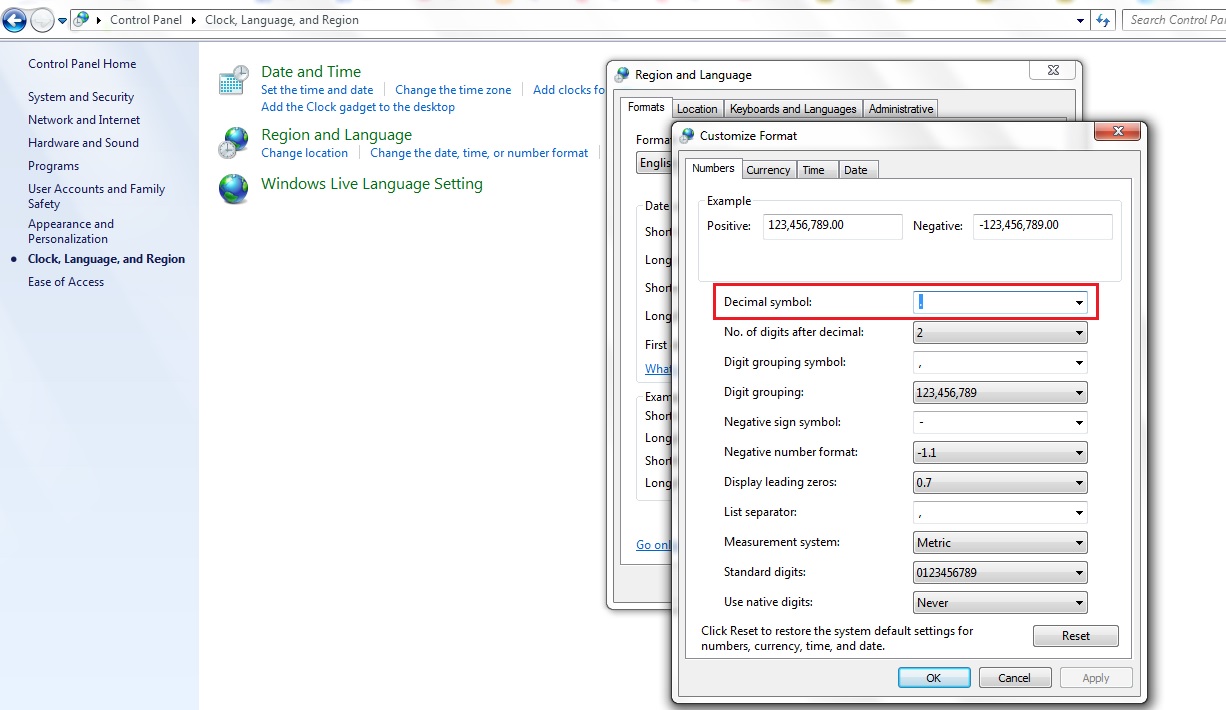
When you encounter an error message during the restoration of Ingress MySQL Database, it is due to the Decimal Symbol in the PC setting. If the decimal symbol is a comma, you need to change it to decimal point.


To change the decimal symbol, go to Control Panel > Region & Language > Format > Additional Setting > Decimal Symbol > Change to decimal point > Restart PC.


After that, please run the ingress DB installer and restore the Ingress Software Database again.


Microsoft Access Database Simplifies Ingress Implementation

Ingress now is available with a different database format, Microsoft Access which will be utilized as the default database for Ingress Software in the near future.


Since its initial release, Ingress has been designed to work with the MySQL database which is known to be powerful, reliable and widely used by many other systems. However, the downside of the MySQL Database is that the configuration requires advanced IT knowledge and expertise, which is scarce in SMEs without IT departments or personnel.

Acknowledging this challenge, our R&D had been putting in efforts to link up Ingress software with Microsoft Office Access database. Basically, this method will run the FingerTec Ingress software installation file to install and create the Microsoft Access database by itself. This is a one-kick-to-go process which pose no challenge to anybody.

Without having to install any additional components, the Microsoft Access database can run by itself. The database file with the extension of .mdb is automatically generated in Windows OS. However for those with IT knowledge and expertise, it is highly recommended to install the Microsoft Access database along with the Microsoft Jet Database Engine which provides a graphical user interface to manipulate data or to produce your own reports.

The Microsoft Access database easily integrates with other software in Windows OS. For example, it is possible to connect payroll solution to the database to obtain attendance information that is produced by Ingress software to assist with report preparation. The database can also be utilized along with the Microsoft .NET Framework development.

This database can grow up to 2GB which is more than sufficient for most SME businesses.  The backup and restoration of the database is provided as part of the Ingress software for easy housekeeping without having to install any other software and it can also support multiple-user logins from within the same network.

Nonetheless, there are some areas that require precaution when running the Microsoft Access database.

First, the database file cannot expand beyond 2GB. When the database reaches its max storage limit, data delay will appear in the software. Therefore, consistent housekeeping of database is crucial to avoid any interruption in the flow in of data.

Secondly, there is only one MDB file which is used to save and store all data (tables, queries, forms, reports, macros and modules). Therefore, please make sure that it is secure from external interruptions. Expending the one-database-file size would slow down the performance of queries and reports.

Finally, it is not advisable to use this database for multiple user logins via server-client concept. This corrupts the MDB file easily. Thus, it is preferable to instead utilize the database as a single installation into one(1) computer for single/one(1) person operation. However, different login authority can be assigned to different users such as the system administrators, operators or HR personnel for them to login with different usernames and passwords into Ingress to do their job.

With the availability of the Microsoft Database, we hope that we have solved the quandary of Ingress deployment for most companies and the acceptance of Ingress will not be an issue anymore.


Microsoft Access database
MySQL database
Installation
Easy
Database file created by Windows OS automatically
Moderate
IT expert is required to install the database
Server installation
Yes
Yes
Client installation
No
Yes
Extension
.mdb
.sql
Storage limit
2GB
2GB
Housekeeping
Yes
Yes
3rd party tool to manage
Optional
Microsoft Jet Database Engine
Yes
SQL Yog
Capability for server-client operation
No
Yes
Suitable for
Company without IT personnel/department
Company with multiple system running on MySQL

You can now click http://www.fingertec.com/download/ingress-MDB.zip to download the Ingress with Microsoft Access database

TimeTec Mobile - Clock In Attendance with Geo-Location

TimeTec Mobile comes complete with a GPS locator that tags the exact location at the time of the attendance clock-in, minimizing the chances of data dishonesty.

Below is the settings and comparison between attendance with geolocation and without geolocation.

Attendance with Geolocation
When a user signs in to TimeTec Cloud via Mobile, the system will ask the user if they would like to use their current location.

If Yes is selected, the system will ask users if they wish to enable their GPS for location accuracy.


When you have successfully clocked in, the system will show the following message.


Attendance without Geolocation

If the user does not wish to enable their location for all their transactions using TimeTec Mobile, they can opt to select NO instead when the system asks if they wish to enable their current location.

When you have clocked in and disabled the geo-location function, the system will show the message as per below.


Clarification on TimeTec Mobile Time and Date

Regardless of the time and date of the phone, the clock in will observe the TimeTec Cloud server timing even if their phones are located at a different time-zone.


Shut Down Ingress Properly If You Login Through A Client Server To Avoid Being Block Access

As a server-client software, users can login to Ingress server via Ingress clients installed at any other computers. To secure the system, Ingress server always makes sure there is no duplicated login credentials from different computers running at the same time. Ingress will block access if it detected the login credential is still in-use from any client.

 
In case you do not sign out properly from a client, for example you clicked the X button on the right top of Ingress to shut down the software, Ingress server will block you from accessing the system by using the same credential next time you want to access the system. This is because, Ingress considers that you are still in the system because you did not sign out properly. To resolve this issue, please restart the Ingress server to clear its cache.

 
And next time you sign out, please make sure that you use the Shut Down button.

Verification Fail Alarm in FingerTec Access Control Devices

FingerTec’s access control devices are equipped with a Verification Fail alarm feature. The Verification Fail alarm will trigger the device’s alarm (internal or external alarm) if a user failed to verify for a pre-determined number of times. This feature is made to warn the administrator that the device is being vandalized or if someone is trying to break in into a building. Assuming that you had set the Alarm threshold to allow a maximum of 3 tries, if a user fails to verify after 3 times, the alarm will be triggered.

To set up this feature, you can refer to the following steps. This may vary depending on the model of the device you are using.


Monochrome Terminals (Kadex, R2, AC900)

You can select the Alarm Count Option following the steps below.

Menu> Options> Access Options > Alarm CNT > Define the value

*To disable this feature, you can set the value to 0.


Color Screen Terminals (Q2i, Ikiosk 100+)

You can set this feature in 1:1 Match Retry Times, and Password Retry Times in Display option:

Menu> System> Display > 1:1 Match RetryTimes > Define the value (1-9)

Menu> System> Display > Password RetryTimes > Define the value (1-9)

*Please note that for colored screen devices, the Retry Times cannot be disabled. You can only set it to the maximum value, which is 9. This will give the users enough time to verify.


FaceID (FaceID 2,  FaceID 3, FaceID 4d)

You can configure this feature in Access Parameter Settings:

Menu> System> Access Control Settings > Access Control Parameters > Failure Alarm Thr > Define the value (1-9)

* Please note that for FaceID series, the alarm threshold cannot be disabled. You can only set it to the maximum value, which is 9. This will give the users enough time to verify.


TimeTec Cloud - Post Attendance to Payroll is Now Available in Unipay & MYOB (Australia Only)

TimeTec Cloud provides 26 types of readily formatted reports which you can view, print and save in various file formats like .pdf, .xls, .doc, .rtf and html formats for printing and integration purposes.

For the convenience of our users, we have introduced a new option that allows you to transfer the details of your employee’s attendance to selected payroll software. The attendance data from TimeTec Cloud can be exported directly into software such as Unipay and MYOB. However, this option is currently available for users in Australia only.  
To enable this option, kindly ensure that you select “Australia” in the field indicated as shown in the image below.


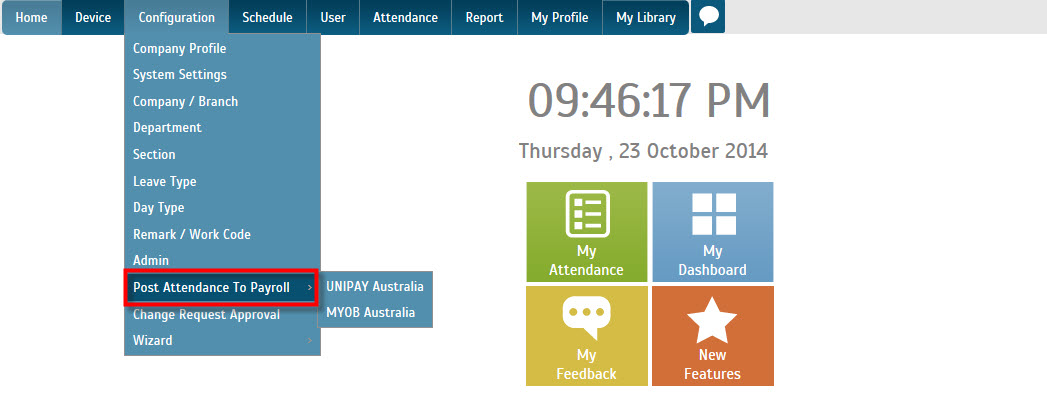
Once you clicked the submit button, the “Post Attendance to Payroll” option will be made available under the Configuration tab.
 

Enable this function to post attendance details of your employees to Unipay or MYOB directly.