Effective
immediately, AC900 devices can now be paired with R2c readers. However, this is
only possible for AC900 devices with a core board that is version FEM565. When purchasing a brand
new AC900 terminal, remember to notify the sales person that the terminal is to
be paired with R2c as the slave reader.
If you are already
using a AC900 device at your place, please check the core board's version (either FEM500 or FEM565) before pairing it with an R2c reader. You can check this info by using the FingerTec Device Info tool (Click HERE to download).
To Enable AC900 to
pair with R2c, Press Menu > Option > Access Option > 485 Reader Fun.
> Y or N > Set to Y > Save > Restart both the AC900 and R2c.
For your reference,
below is an installation diagram for the AC900 and R2c devices with the new
AdapTec Plus.
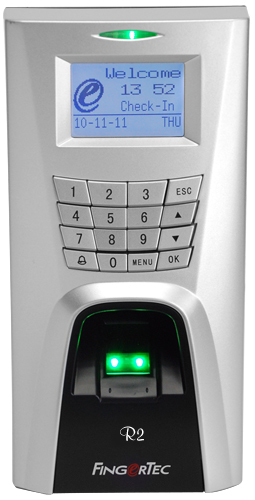
Previously we have discussed on how to modify the setup for 2 master terminals to use it as master-slave terminals. You can read the full article here. Today we will be demonstrating how to connect the 2 units of R2 (565) terminals to work as master-slave terminals. To use 2 units of R2 as master-slave terminal, you will need to connect the 2 terminals together according to the connection diagram below:
Terminal configurations:
At R2 (565) Master
- Press Menu > Option > System Option > Wiegand > Input setting > FP device > input format = WG26 with ID > Esc > Input = User > Esc & Save
At R2 (565) Slave
- Press Menu > Option > System Option > Wiegand > Output setting > Output format = WG26 with ID > Esc > Output = User > Esc & Save
- Press Menu > Option > Comm Option > Adaptec Plus = N > Esc & Save
Note: If the Wiegand option does not appear, please confirm that your R2 terminal is FEM 565 and not FEM 500. If the Wiegand Option is still not appearing, please check the settings at Menu > Option > Access Option > 485 Reader Function = N > Esc & Save > Restart Terminal, or contact support@fingertec.com for further assistance.
Initiated & Written by Azim
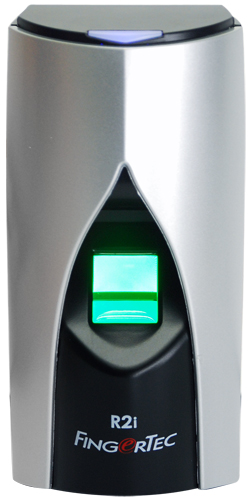
FingerTec R2 & R2i is a unique IN - OUT access control solution. The R2i is a cost effective exit reader that does not perform any verification; instead, it communicates with the master R2 terminal to verify the user before unlocking the door for exiting.
Recently there have been some feedback from our esteemed customers regarding some difficulties while using the R2 & R2i. To use the R2 & R2i together, a few settings must be configured correctly.
FingerTec has compiled a list of possible scenarios that the users might face while using the R2 & R2i. Resellers are advised to take note of the following solutions in order to reduce the down time while providing efficient support to end-users.
- Problem 1: The R2i is unable to detect the fingerprint.
- Solution 1: Please check the R2 (master device) setting. Make sure the option with R2i is set as Y. Press Menu > Options > System Opt > Adv Option > with R2i set as Y.
- Solution 2: Check the R2/R2i communication cable. Make sure it is properly connected.
- Solution 3: Check scanner prism. Make sure the prism is clean. Replace the prism if it is scratched or cracked.
- Solution 4: Update the latest firmware. You may download the latest firmware here.
- Solution 5: Replace with a new R2i unit. If all the above solutions fail to work, please replace with a new R2i unit.
- Problem 2: The R2i is hanging.
- Solution 1: Update the latest firmware. You may find the latest firmware here.
- Solution 2: Check the R2/R2i communication cable. Make sure the cable length is not more than 1 meter long. The maximum length for the cable should be 1 meter only.
- Problem 3: The R2i has a slow response time.
- Solution 1: Remove all data in the R2 (Master Device) and update it with the latest firmware. To remove the data in R2, Press Menu > Options > System Opt > Adv Option > Clear All Data. Make sure you have backed up all the data in the terminal into the TCMS V2 before clearing the data. To update to the latest firmware, you may download the latest firmware here.
- Problem 4: The R2i can detect fingerprint but the R2 doesn’t verify the fingerprint.
- Solution 1: Check the scanner prism. Make sure the prism is clean. Replace the prism if it is scratched or cracked.
- Solution 2: Update with the latest firmware. You may download the latest firmware here.
- Problem 5: The R2i will only verify the fingerprint after 5-6 tries.
- Solution 1: Check the R2/R2i communication cable. Make sure it is properly connected.
- Solution 2: Check the scanner prism. Make sure the prism is clean. Replace the prism if it is scratched or cracked.
- Solution 3: Update with the latest firmware. You may download the latest firmware here.
- Solution 4: If all the above solutions fail to work, please replace with a new R2i unit.
If you are still experiencing problems with your R2i, kindly contact FingerTec’s Support Team at support@fingertec.com to assist you with your problem.
Important Note:
Starting from 10th November 2011, FingerTec R2 will come with a default firmware that is R2i enabled. However, the settings in the Advanced Options for R2i will be set to N (No). Only enable this option if the R2 is connected to the R2i and ensure that it is disabled if it is not connected to the R2i. If the option is enabled without being connected to the R2i, the R2 will automatically restart by itself with the error message “FP Reader Error”. To enable or disable this option Press Menu > Options > System Opt > Adv Option > with R2i set as Y (Yes) or N (No).
Initiated by: Henry Pang
Written by:Vincent Chan