Introduction
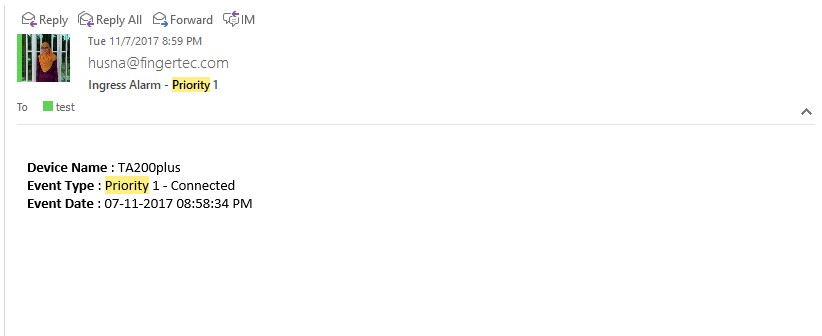
Meet our latest feature within the Event Alarm setting where you can receive notification regarding the device connection. Through this feature, the administrators will be notified when any of the devices lost connection and re-connected back to Ingress software.
Benefit
This feature is designed to ease administrators in monitoring the device connectivity.
Procedure
A) Configure the email setting
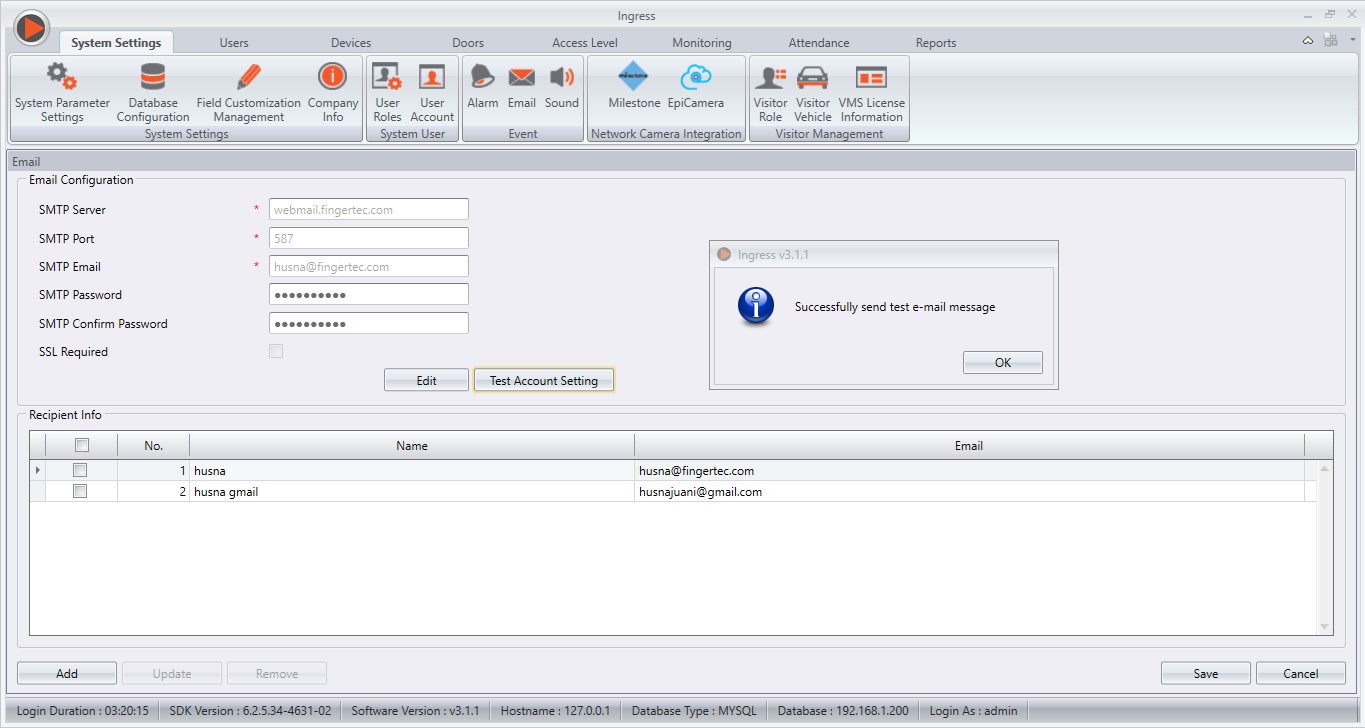
1) First, you need to configure your email account within Ingress in order for it to send notification via email. To do so, go to System Settings > Email > Edit > Edit Email Configuration > Save > Click Test Account Settings.
2) In the recipient info, click Add > configure your preferred email > Save
B) Configure the Alarm Event setting
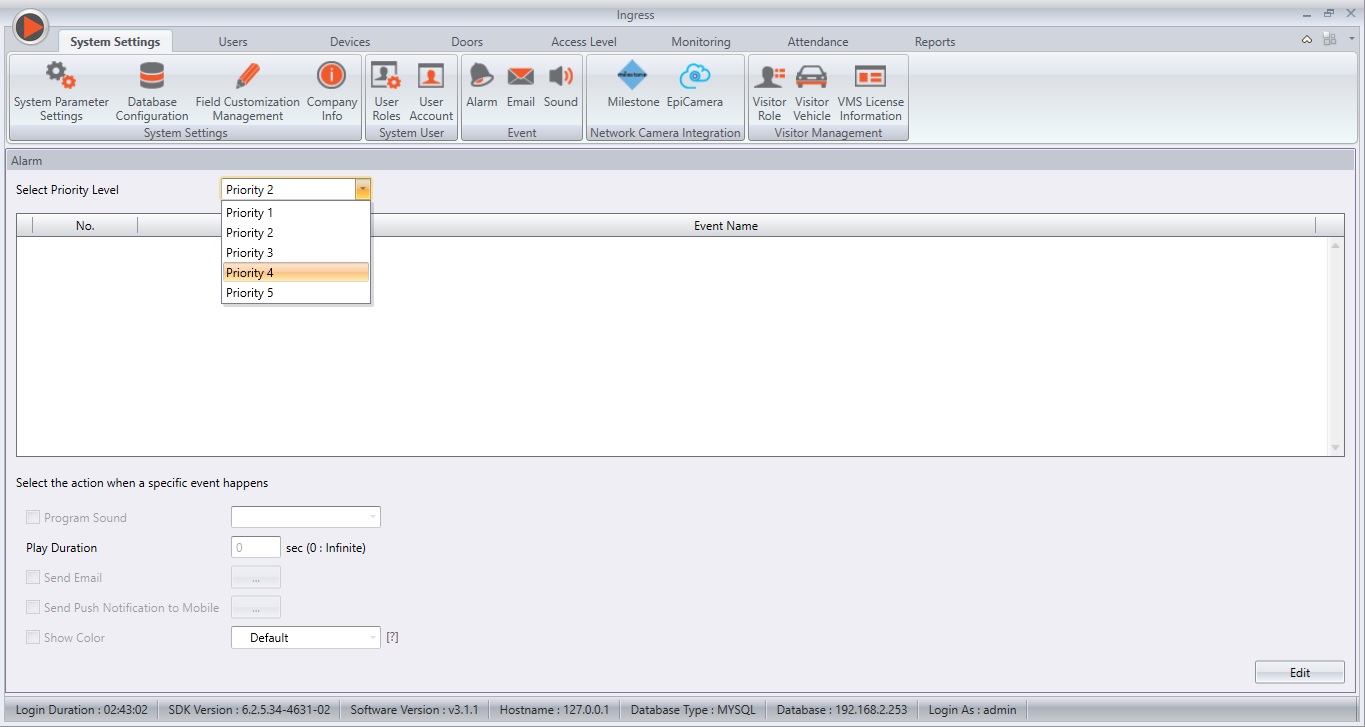
1) Go to System Settings > Alarm > Select the priority level
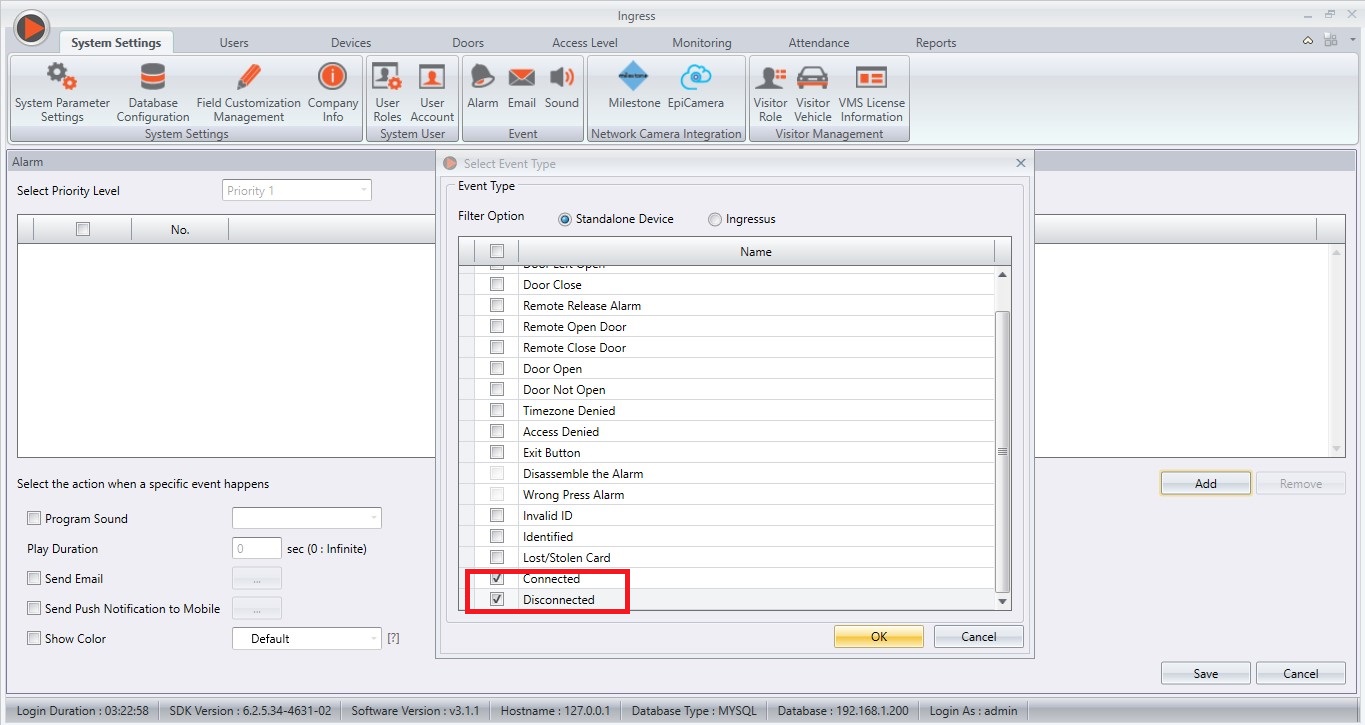
2) Click Edit > Add > Select filter option for either Standalone device or Ingressus > Tick: Connected and Disconnected > Press OK
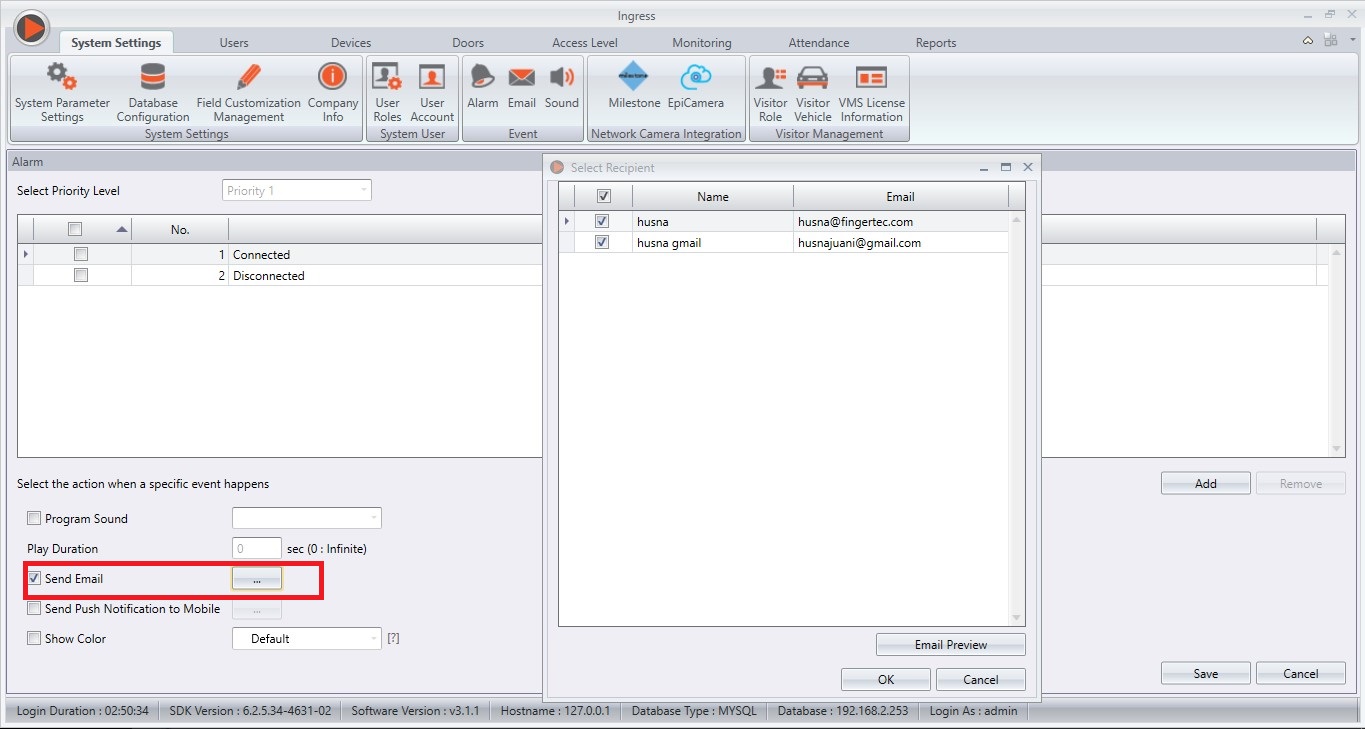
3) Tick Email and browse the recipients that you want to notify
Result: The recipient will then receive notifications regarding the device connection status
Introduction
The TA100C (FMM) is a
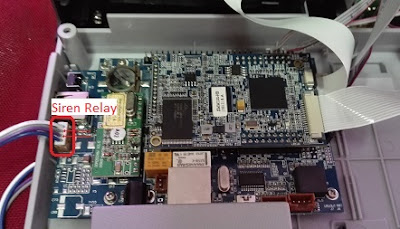
biometric terminal for time attendance that includes an internal siren and
allows the connection of external sirens for an effective alarm system. This
system can also be scheduled to signal events within the working schedule such
as starting work time or end of break. The two types of sirens that can be
connected to the TA100C (FMM) are:
- 12Vdc for small
industries or office use
- 240Vac for big
factories with a noisy environment
To compensate for the
additional power required for the external sirens, the Adaptec TA can be used
as a power supply and backup in case of power failures, ensuring that your
alarm system is always running.
Benefits
Connecting your terminals to
the Adaptec TA ensures a stable and reliable power source for your system to
operate at optimum capacity. By connecting the terminal and external siren to the
Adaptec TA, the internal relay of the terminal will be protected from the high
voltage. If the voltage is too high, the fuse in Adaptec will break the
circuit, thus protecting the internal components of the terminal.
Adaptec TA has 2 power sources, 5VDC and 12VDC and you can
connect any of FingerTec terminals to Adaptec TA by selecting the correct
voltage. It also comes with a backup power in case of power failure.
Process
To connect the external siren to the terminal, follow the
steps below.
1. Open
the back casing of the TA100C (FMM) terminal.
2. Plug
in the connector of the external siren into the MCU Board.
3. Follow
the wiring diagram to connect the terminal to Adaptec TA.
4. Change
the External Bell Relay settings in the terminal device itself.
Go to Menu > Personalize > Bell Schedule
> Options > External Bell Relay > NC2
5. To
add a new bell schedule, go to Menu > Personalize > Bell Schedules >
New Bell Schedule > Set
the option accordingly:
·
Bell
Status: To turn the bell on or off.
·
Bell
Time: Set the time for the bell to ring automatically.
·
Repeat:
Set the bell to repeat on certain days or every day.
·
Bell
Type: You can set for the bell to be triggered from the internal bell or from
an
external bell that is wired to the device.
·
Ring
Tone: Select your preferred ringtone that will emit from the bell.
·
Internal
Bell Relay: Specifies the time duration for the alarm to ring (ranges from 1s
to999s).
·
External
Bell Relay: Specifies the time duration for the alarm to ring (ranges from 1s
to999s).
Many access control softwares provide real
time monitoring as a standard security feature. Security personnel often spend
their time in front of monitors to monitor real-time events and video footages to
guard against theft and maintain the security of the premises. Prior to the
advent of electronic security systems, this was one of the most basic human-dependent
security monitoring method that utilizes the traditional security model. This led to human errors and incompetence playing
a major role in the security concerns of the access control system. Thus, a good
access control system comes with an integrated automatic notification system to
inform the security manager in case of emergencies or abnormal scenarios.
Ingress can work with your SMTP email
server to send notification emails to the person
in charge of security or the system administrator. You can define the types of
abnormal scenarios detected by Ingress, for example break-ins, door breech and
etc to inform the security manager.
First of all, you must setup your SMTP
email server under System Settings à
Emails
Start to edit the details of your SMTP
server by clicking Edit under Email Configuration. Save the
settings so Ingress can link up your SMTP server.
Click Edit under Recipient
Info to create email addresses of recipients. OK to save.
Second, you will need to define the
types of incident before system can send emails under System Settings à Alarm à
Edit à Add
The type of alarms are different for
Ingressus controllers and standalone devices. Select the type of your device,
for example standalone device.
Now pick the type of incidents from the
list. OK to save settings.
Check the checkbox Send Email to activate
Ingress to send email notifications. Click the browse button to select
recipients.
Last step, you can configure the content
of the emails by clicking Email Preview. Draft the content of
your email now. Click Save when you are done.
Because A Mere Second Could Pose Danger
to Your Property
Security is an important aspect in every organization nowadays.
Improper security measures may cause bigger problems such as robbery, data
theft or even endanger the safety of a person. Even with the proper access
control products installed, the security of a building may be compromised if
the door is not closed properly after a person has entered the premises. Hence,
it is an advantage when the access control device triggers the siren when the
door is not shut properly.
As we all know, Fingertec’s standalone access-control devices are
equipped with the function to trigger the internal or external alarm siren when
the door is not closed within the pre-defined time. However, not many know that the same can be
done for Ingressus, via the Ingress software. Simply follow the steps below to
activate the external siren for during the exit delay period.
Alarm System Requirements
The requirement for this setup is a door, which has been installed
with Ingressus that is paired with any of Fingertec’s slave devices and a door
sensor.
Connect and Power Up
The External Siren
First of all, you must connect an external siren to the
Auxiliary output port at Ingressus.
Please note that Ingressus does not supply the power to the
siren, hence an external power source will be needed to power-up the siren. The
siren must be connected to NO and COM port of AUX output at Ingressus. Refer to
below image for clarification.
Configuring the Door
Sensor Type and Delay Time
Next, you will have to configure the door sensor type and
delay time, so that the siren will be triggered when the door is not closed
within the defined time. Simply follow these steps below in Ingress software
Doors > Select
door name > Click “Edit” > Set “Lock Open Duration” to desired time >
Set “Door Sensor Type” to “Normal Close” > Set “Door Sensor Delay” to
desired time > Save > Sync to device
Setting Up The Fire
Alarm Zone
After setting up the door, you will need to configure the
Fire Alarm zone to trigger the Auxillary Output when Ingressus detects that the
door has been left open exceeding the “Door Sensor Delay” time. Follow these
steps below to configure the Fire Alarm Zone:
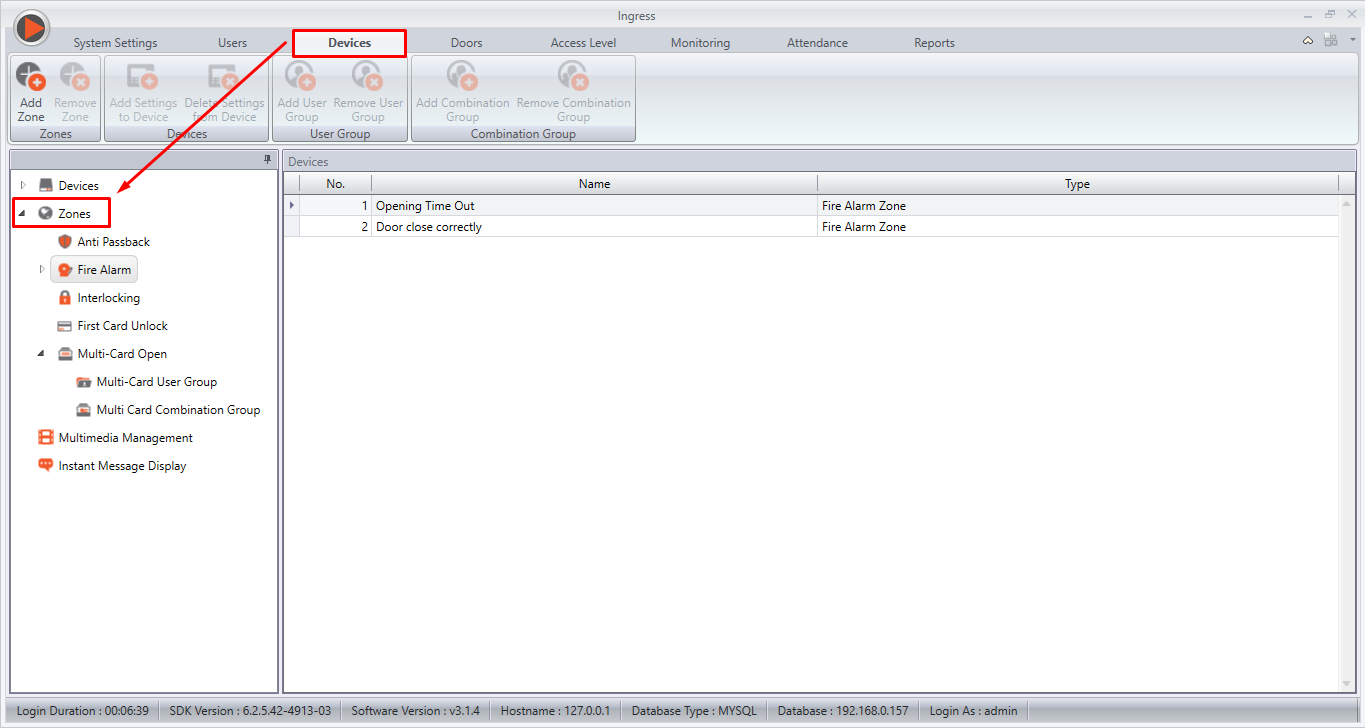
Zone (Ingressus) >
Fire Alarm > Right Click > Add Zone > Rename to desired name >
Right Click > Select device (Ingressus) > Click at device name > Click
“Edit” > Tick at “Fire Alarm” > Set “Trigger Condition” to “Opening
Timeout” > Set “Input Point Address” > Tick the desired output at “Output
Point Address” > Set “Action Type” to “Open” > Set the “Delay” to desired
value (The amount of time the siren triggers) > Tick “Stop alarm once door
is closed” > Save > Sync to Device
Our R&D have come out with a tool for H2i users to
remove the sound of alarms with ease, as the H2i terminal does not come with a
screen.
To download the tool, please click here.
*Please note that when this update is performed, the alarm
will not be triggered in the event of:~
1. Door
Forced Open
2. Failed
verification after a certain number of time.
3. Device
being forcefully removed as such the tamper switch is released.


 INTRODUCTION
 (Figure 1)
 (Figure 2)
 (Figure 3)
 (Figure 4)
 (Figure 5)
 (Figure 1)
 (Figure 2)
 (Figure 3)
 (Figure 4)