Showing posts with label enhancement. Show all posts

TimeTec Leave - Leave Restriction Enhancement


Introduction
Earlier this year, we have enhanced the Leave Restriction features. Previously, the feature only limits the number of users who can request to be on leave on the same day. We have enhanced the feature by adding a new setting which will restrict employees from applying a certain leave type before they have fully utilized another leave type, e.g: the employee must use his Replacement Leave before he can apply for Annual Leave. The 2 restriction types are:

    1. On Leave Restriction - limits the number of leave applications for a specific leave type,                                                 department, date range.
    2. Leave Type Restriction - restrict which leave type must be utilized before a certain                                                         leave type can be applied.

Process
Details of this new and improved feature is detailed out below: 

On Leave Restriction 
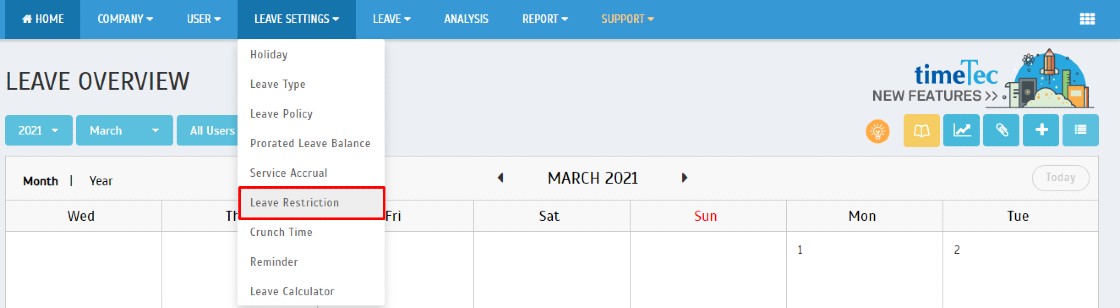
1. Go to LEAVE SETTINGS > Leave Restriction

2. Along with the introduction of the new restriction type, we have updated the Leave Restriction interface which now has two separate tabs. Existing settings are located on the first tab ‘On Leave’, where we have also added an ‘Enable’ column. Admins can now enable/disable the restriction settings as and when necessary. Click the ‘Pencil’ icon to edit the leave type and click ‘+’ icon to add a new leave type.


3. To add a new ‘On Leave Restriction’, click on the “+’ button, select the Leave type, Organization Structure, Max Daily Request, Date Range, and click the ‘Tick’ icon to save


Leave Type Restriction
1. Restrict employees from applying a certain leave type before they fully utilize another leave type, e.g: Employee must use up all Replacement Leave before he can apply for Annual Leave.
2. Go to ‘Leave Type’. Click the ‘+’ icon to add a new leave type.  


3. Select the Leave Type to be restricted and the leave type that must be utilized fully. Click the ‘Tick’ icon to save.

Leave Application – Error Message (Leave Type Restriction Applied)
Below is an example of the error message appear once the Leave Type Restriction Applied


Note: If some of the screenshots or steps viewed here are different from the ones in the current system, this is due to our continuous effort to improve our system from time to time. Please notify us at info@timeteccloud.com, we will update it as soon as possible.

Ingress Release Note (v3.1.3.6)


In this release Ingress v3.1.3.6, there are 23 new features and enhancements, and also 9 bugs fixed.


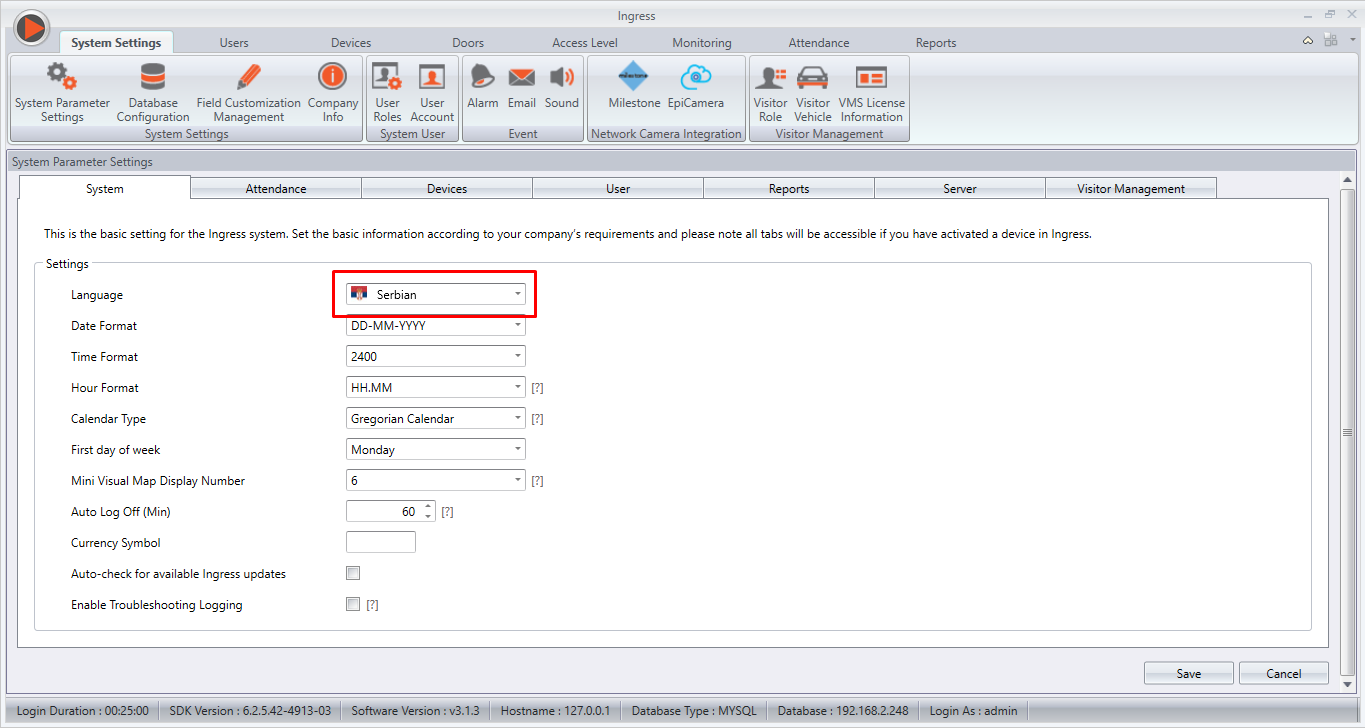
1. Added new language – Serbian.


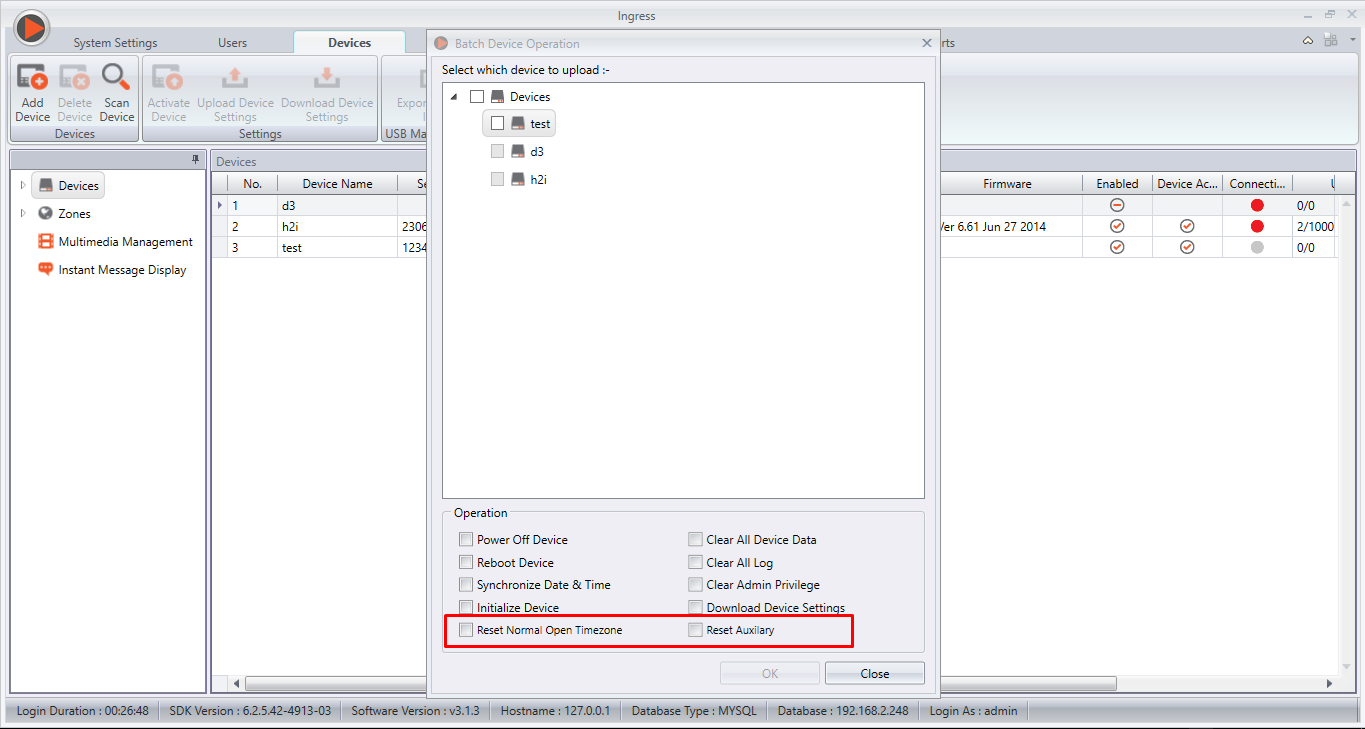
2. Added 2 new operations in Batch Device Operation, under Device Module; Reset Normal Open
Timezone and Reset Auxiliary. Note that these 2 operations are applicable for Ingressus controller
only. These functions will ease the process of resetting multiple Ingressus after a Fire Alarm is
triggered.


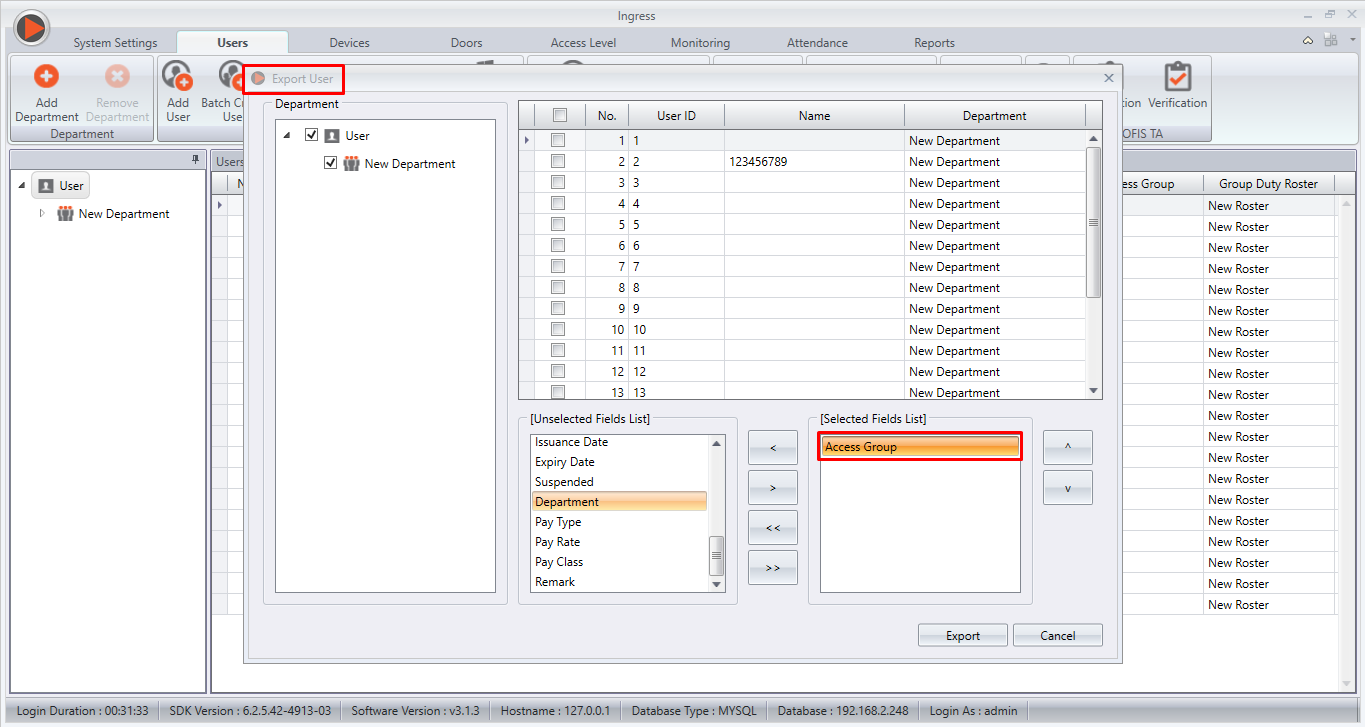
3. Added a new field in Export User, "Access Group".


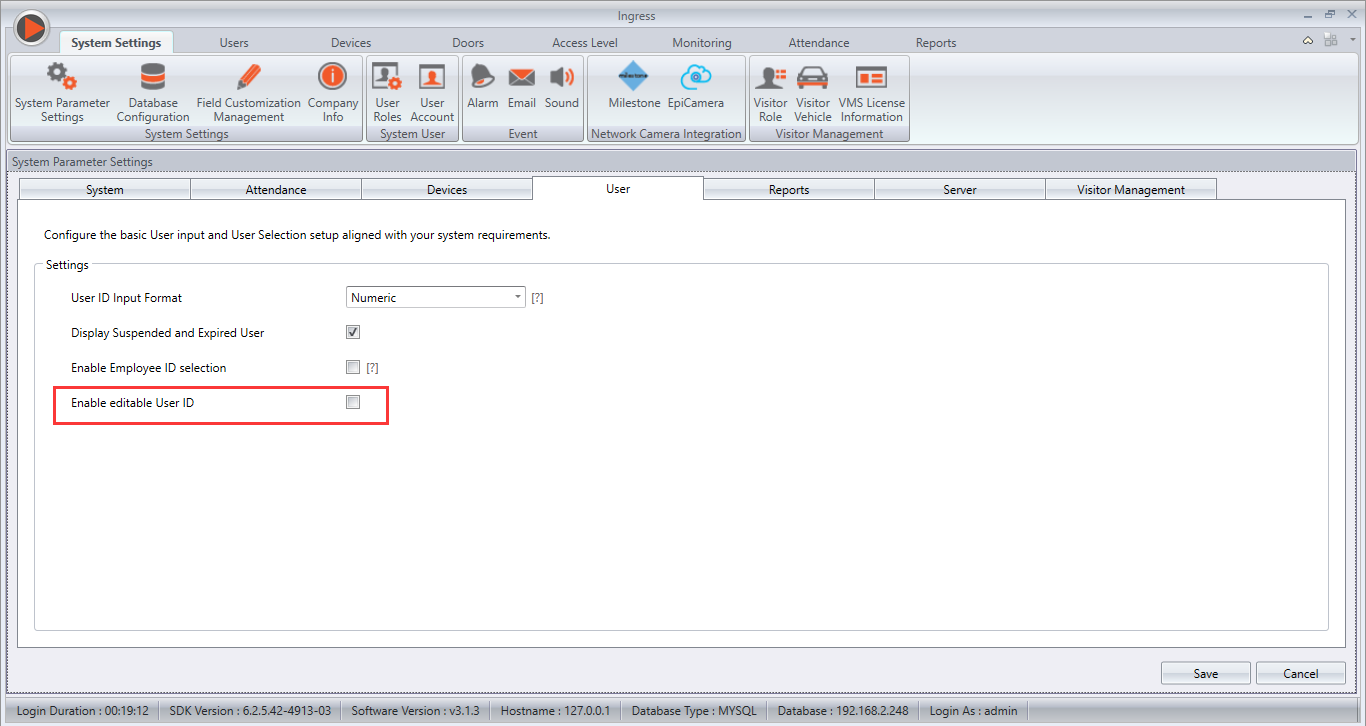
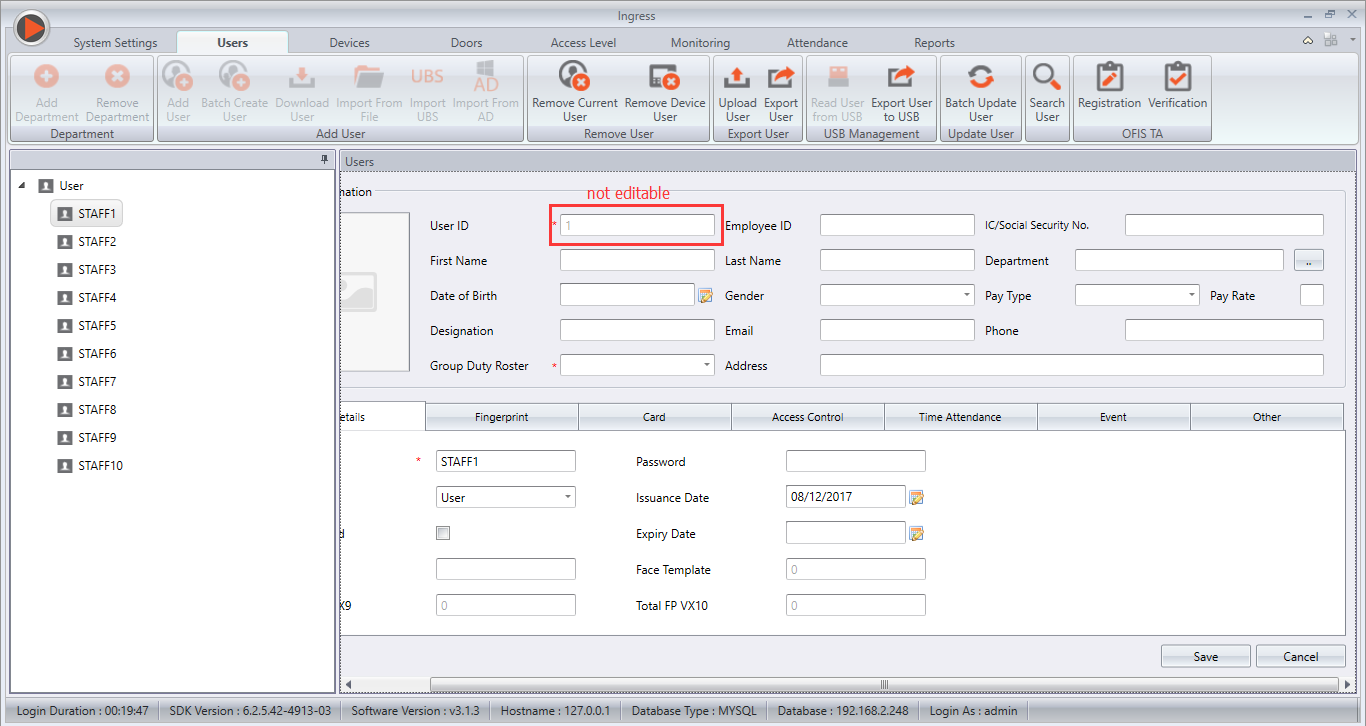
4. Added a new option to allow User ID to be edited in the System Settings. By default, the
setting will not allow the User ID to be edited. Tick at the option to make it editable.

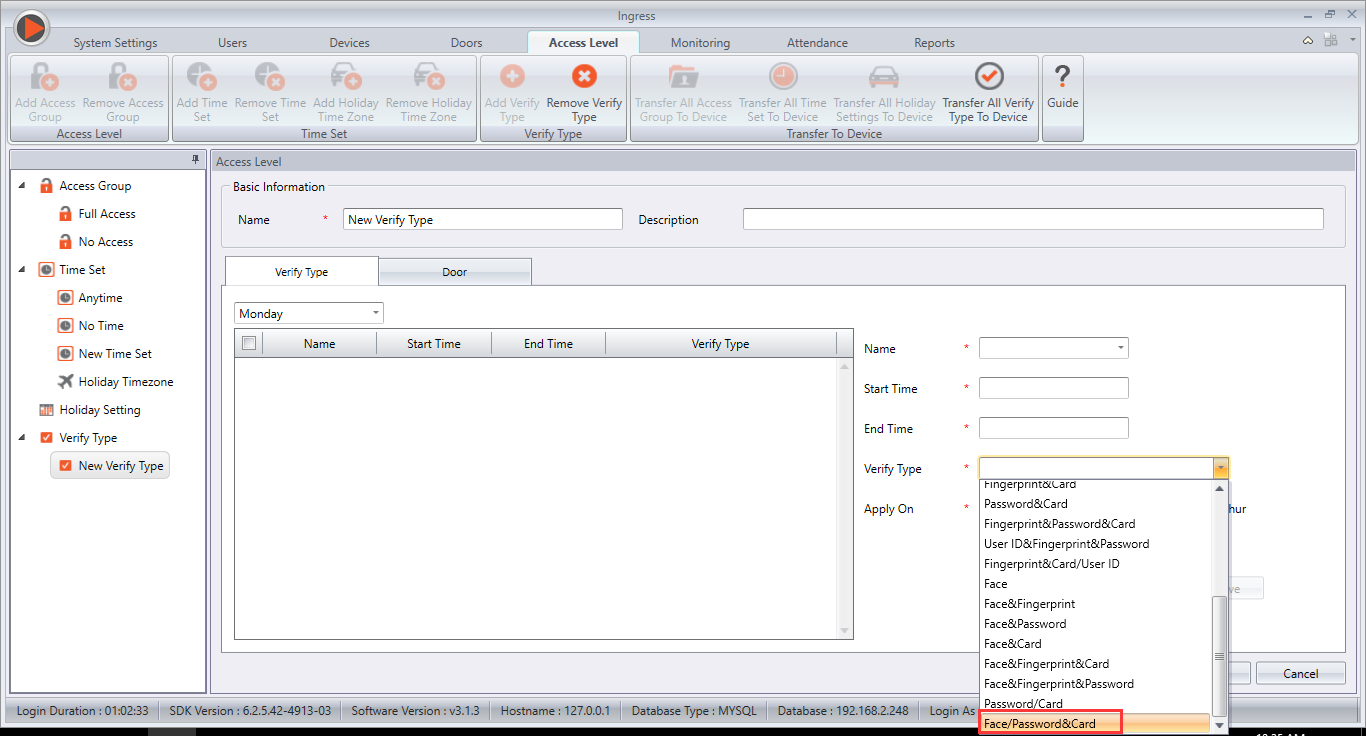
5. Added a new verification type option in Verify Type for specific day verification, namely
Face/Password & Card.


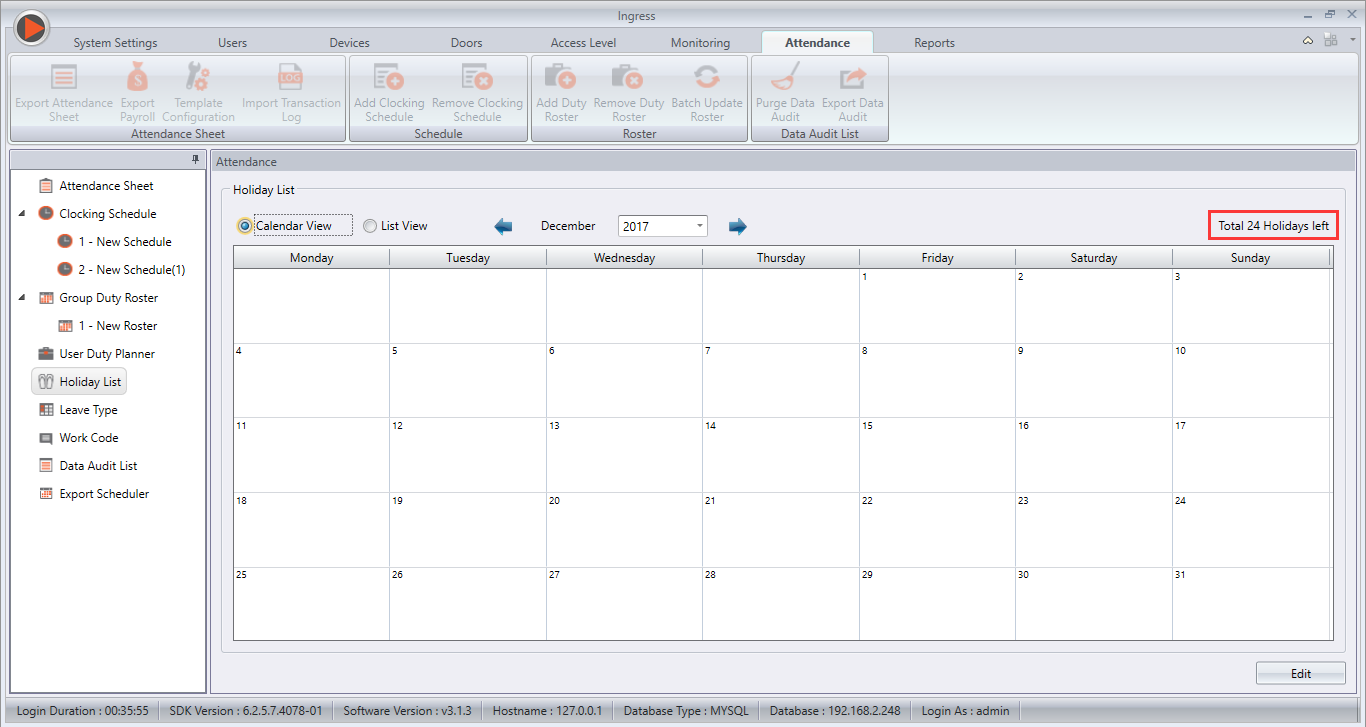
6. Ingress can support up to a maximum of 24 holidays in a year. In this new version, we have
added an indicator to show the balance (number of holidays) that can be added in the system
for user’s reference.


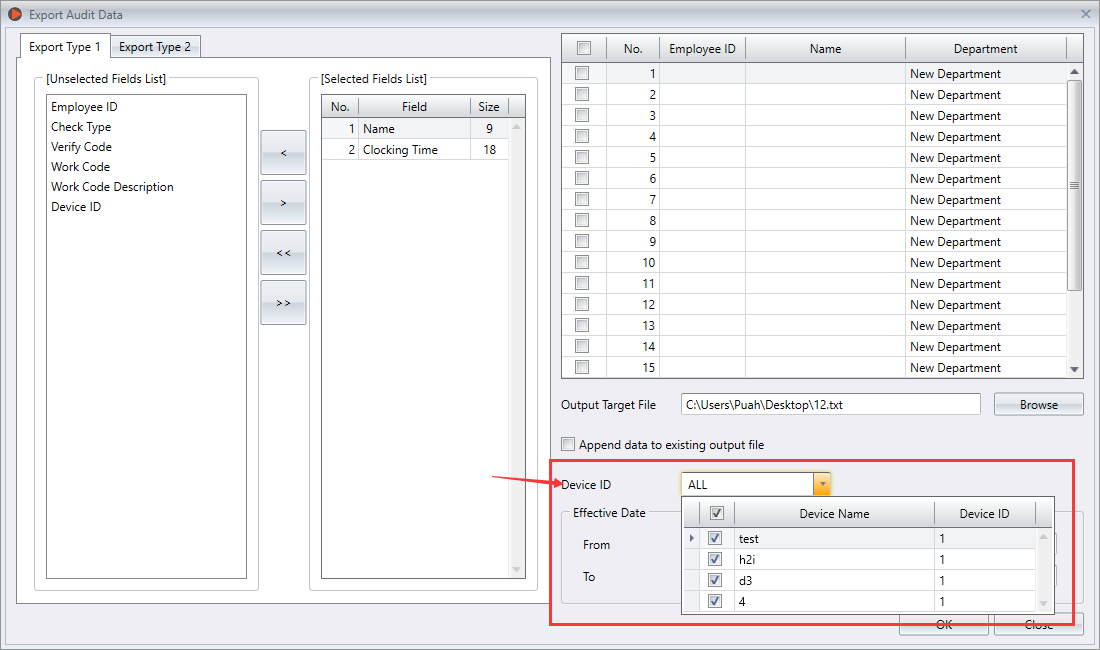
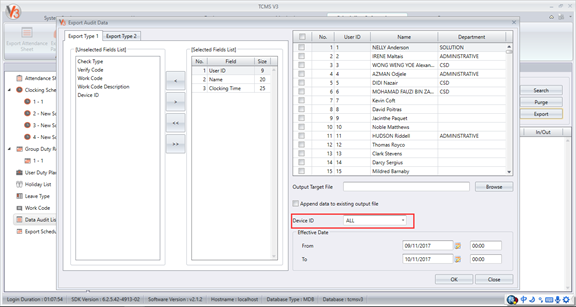
7. In the previous version, user can only select users in the Export Audit Data. However, in this
latest version, we have added a new section in the Export Audit Data, namely Device ID.
Through this option, user can now choose whether to export audit data by selecting certain
users or devices.


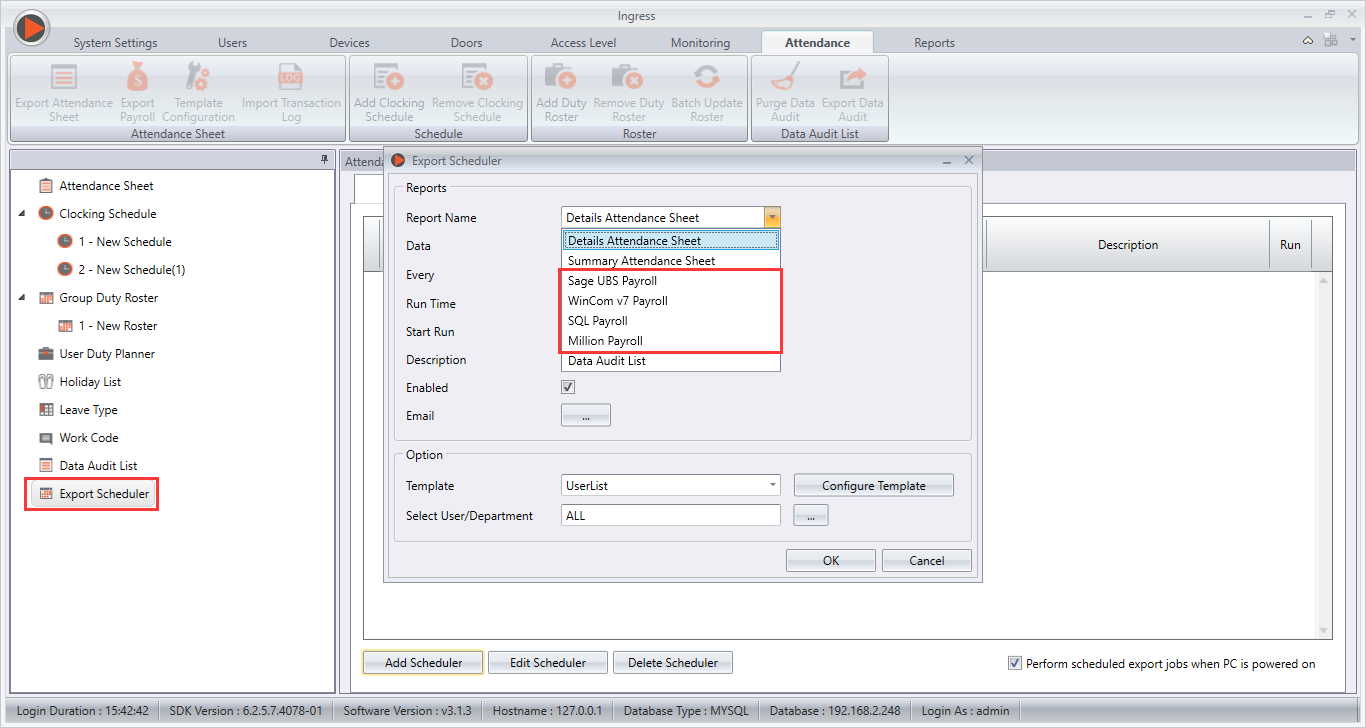
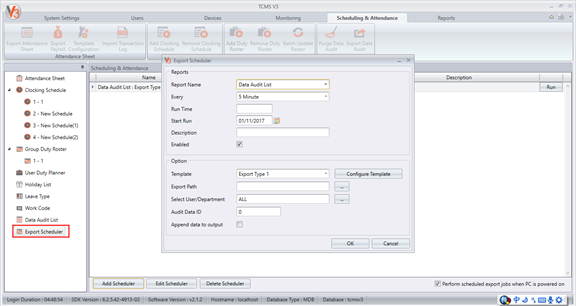
8. New payroll options added in Export Scheduler where the users can select the payroll option
and set the schedule to export data.


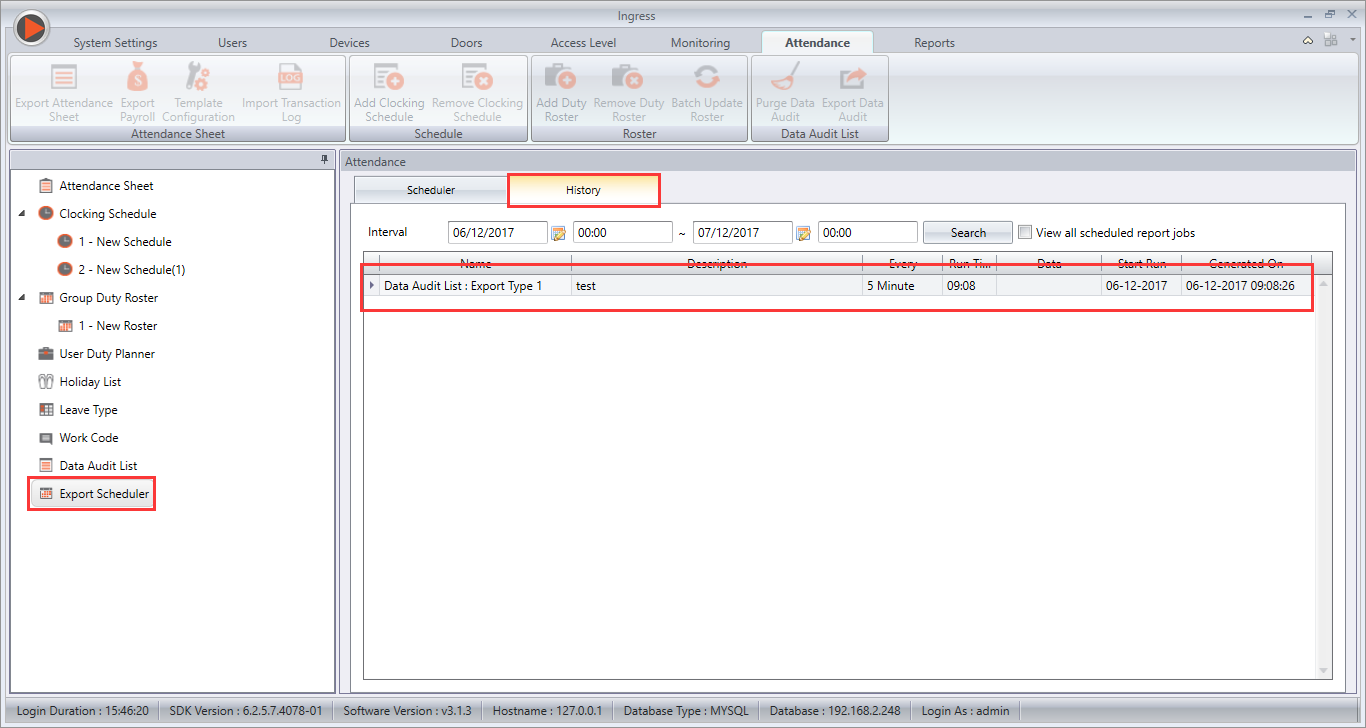
9. New History tab in Export Scheduler. Click at the History tab to view all the scheduled reports
and its details.


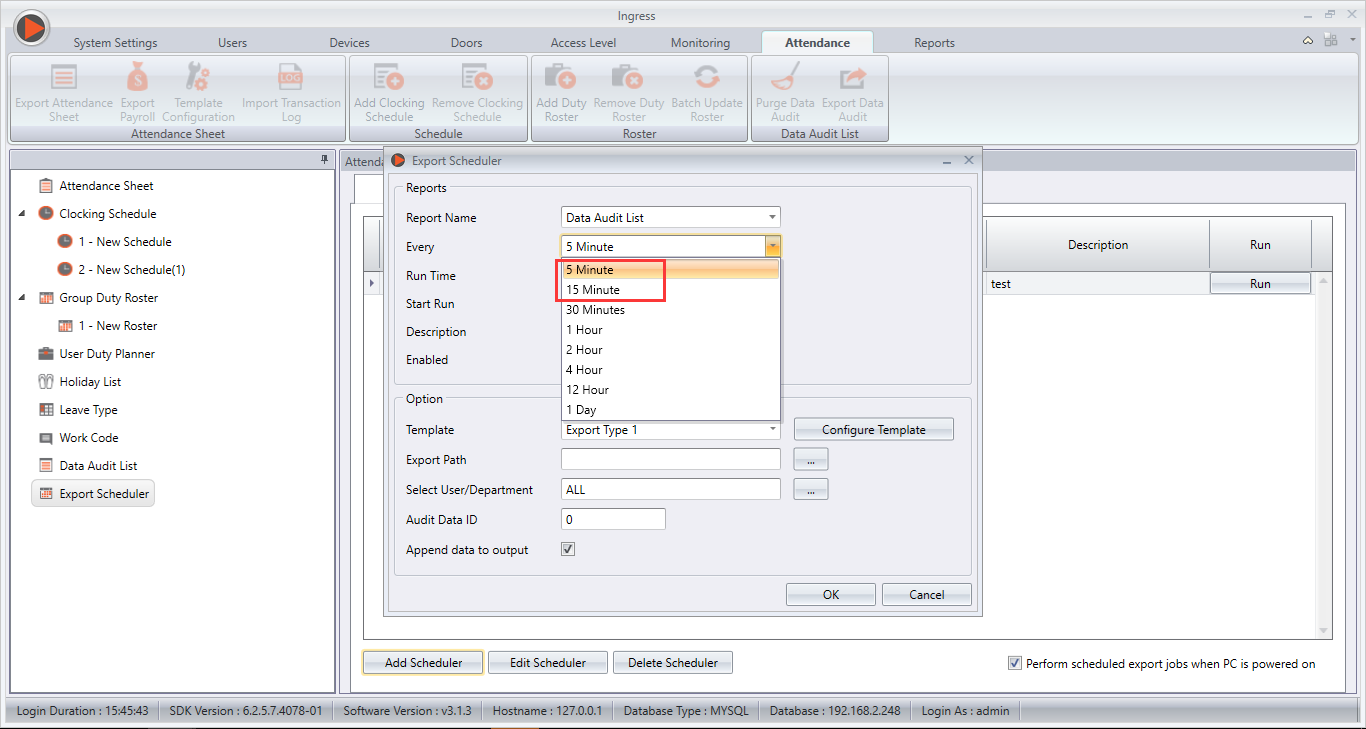
10. Added export interval of "5 minutes" and "15 minutes" in the selection for Data Audit List
Type II in Export Scheduler.


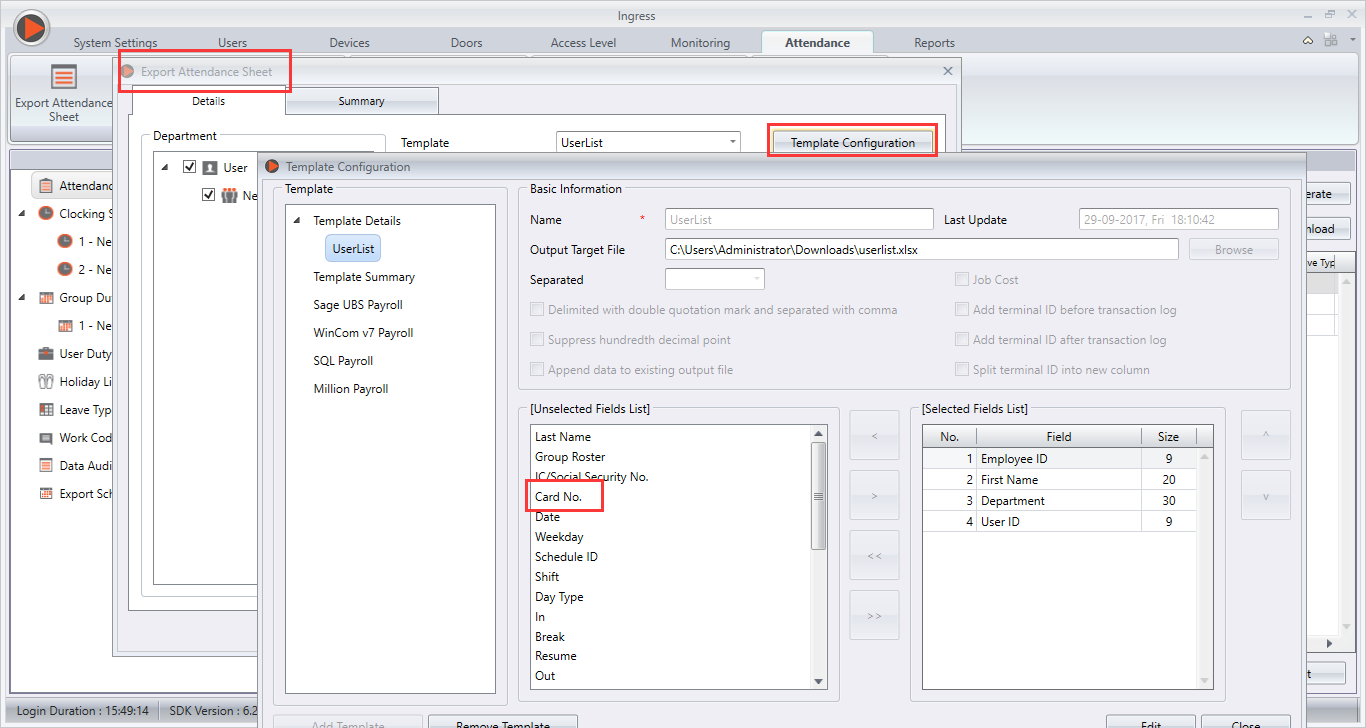
11. Included "Card No." field in the Userlist template for Export Attendance Sheet configuration.


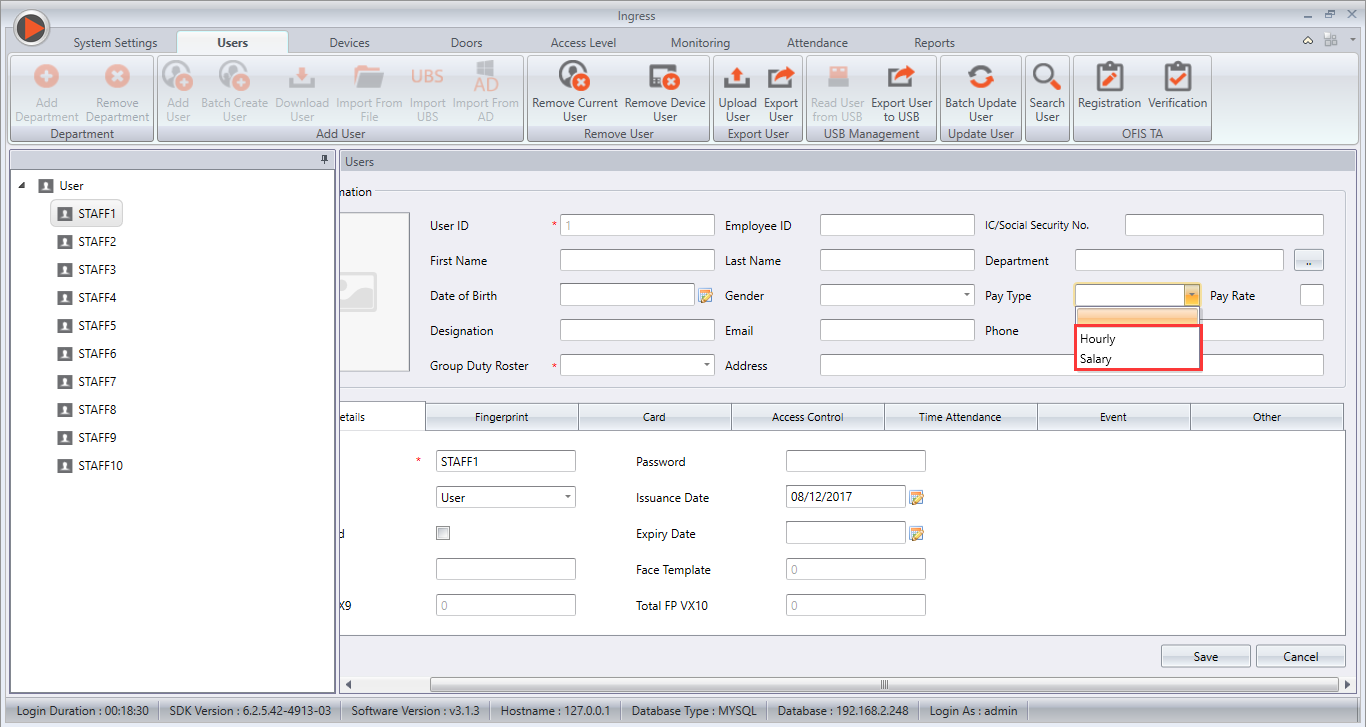
12. We also have added an option to export Sage UBS according to pay type: Hourly or Salary.


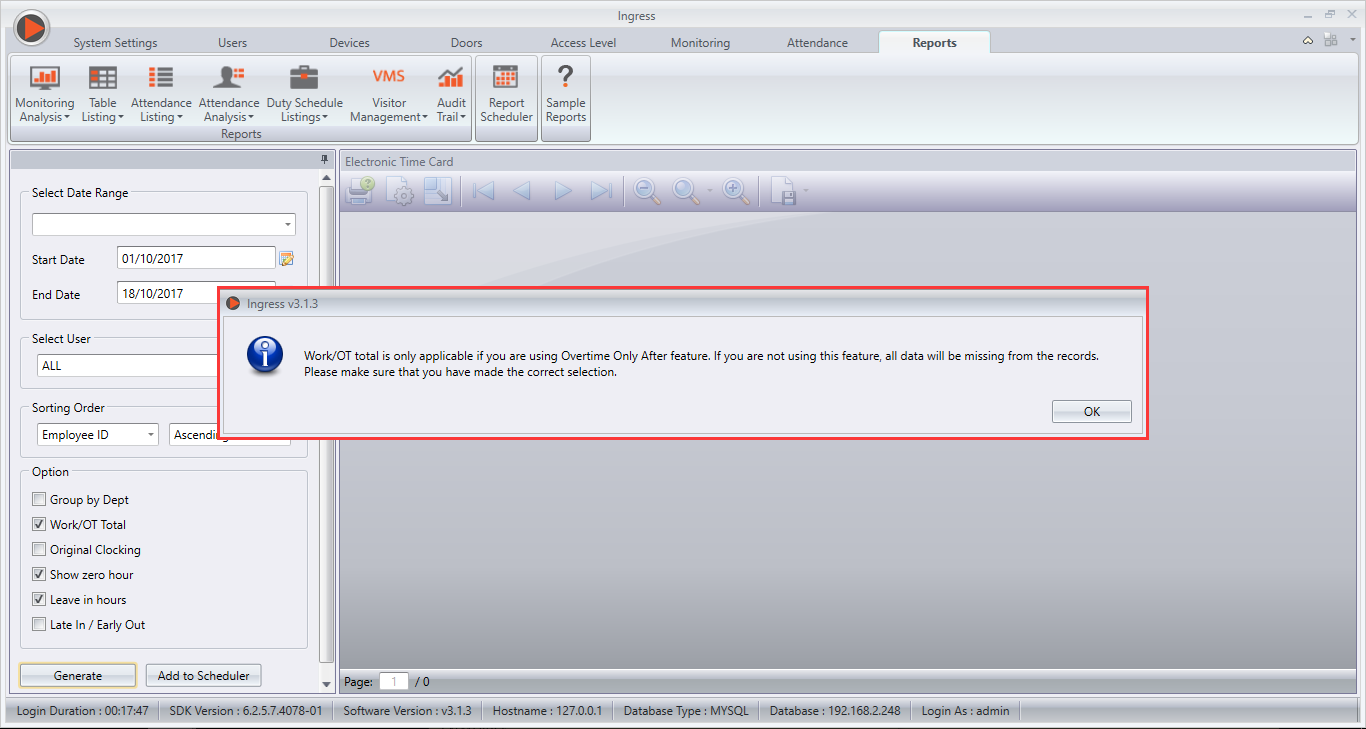
13. Added an alert message notification when user tick Work/OT Total option when generating
Electronic Time Card report.


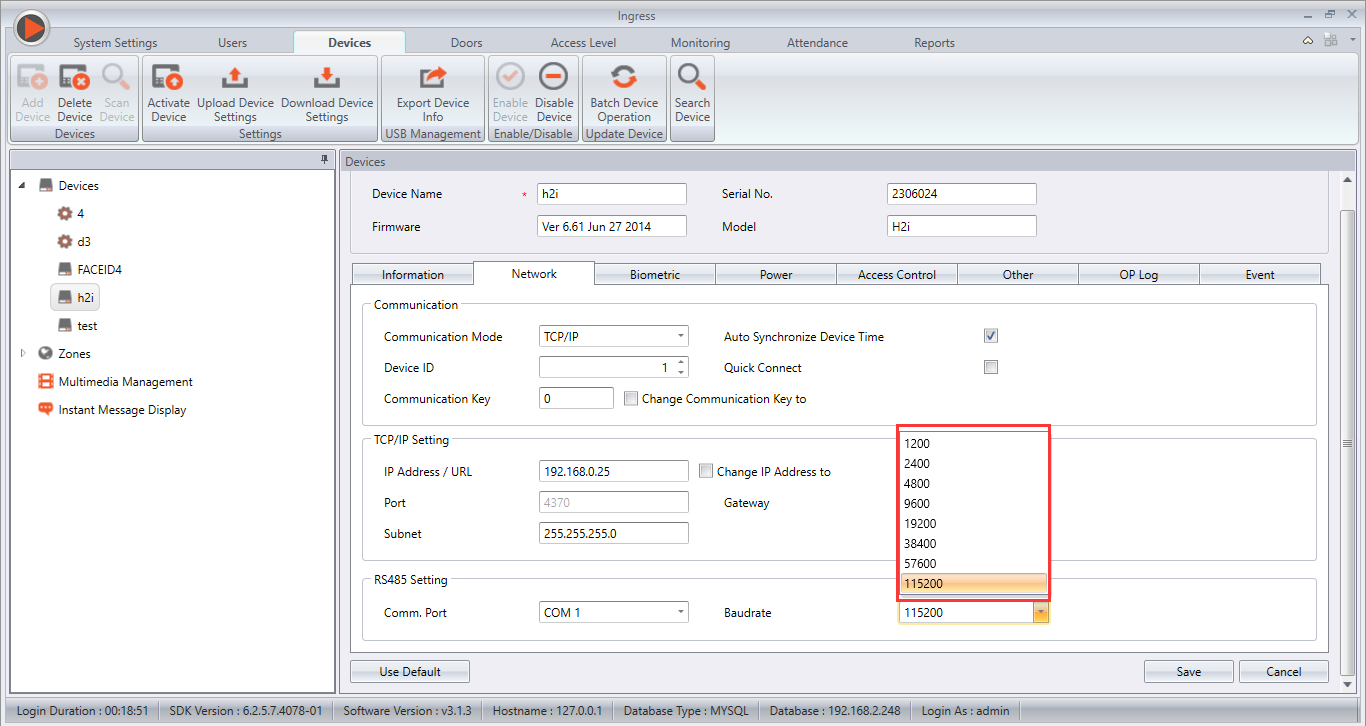
14. Include a new Baudrate option "19200" for RS485 Settings in Devices module.

15. Added a new option to include break hour in Schedule Setting on Attendance Module.
(Please refer to No. 19 for more information)
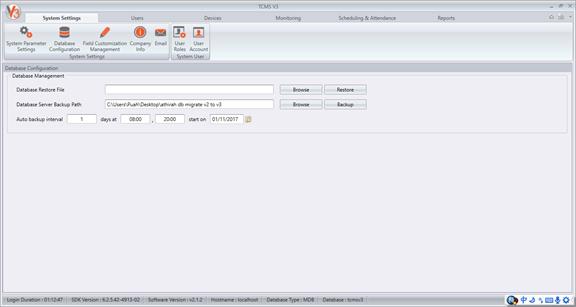
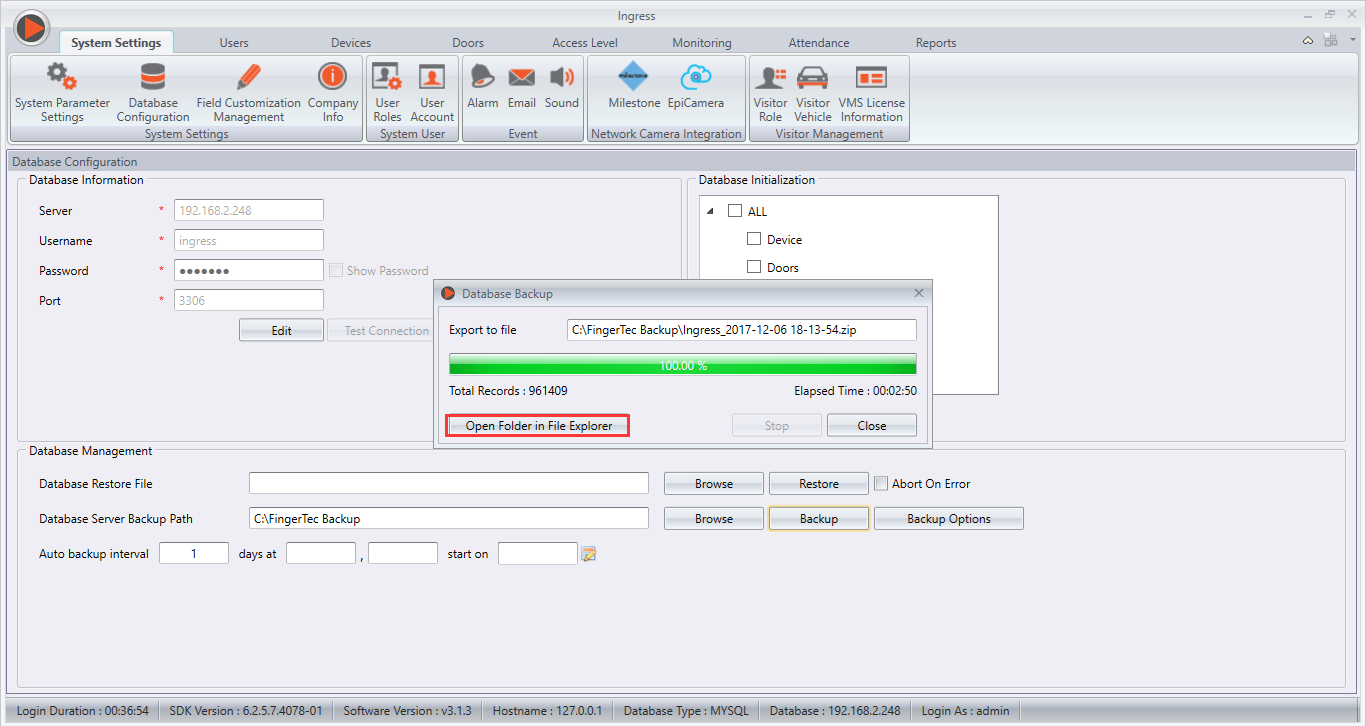
16. Allow user to open the folder where the database was backed up, after the backup process
is done.


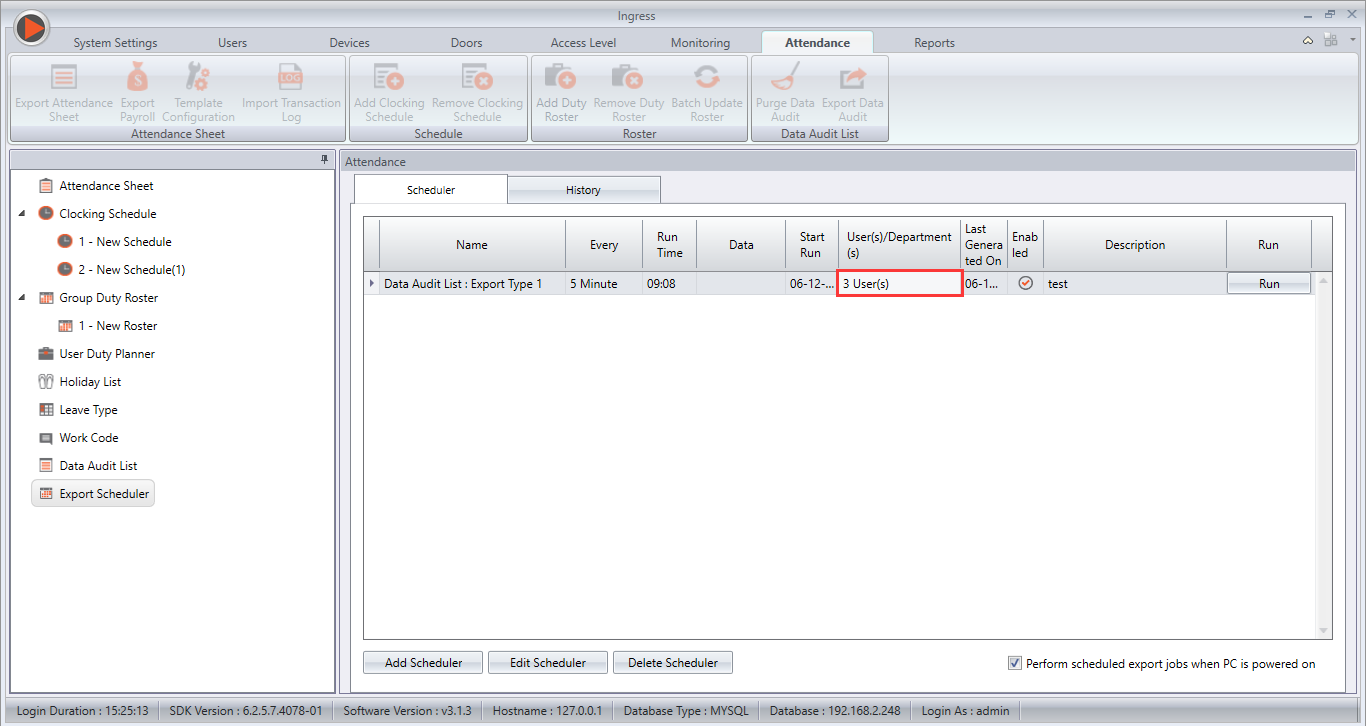
17. Display the total number of Users/Departments in Export Scheduler.


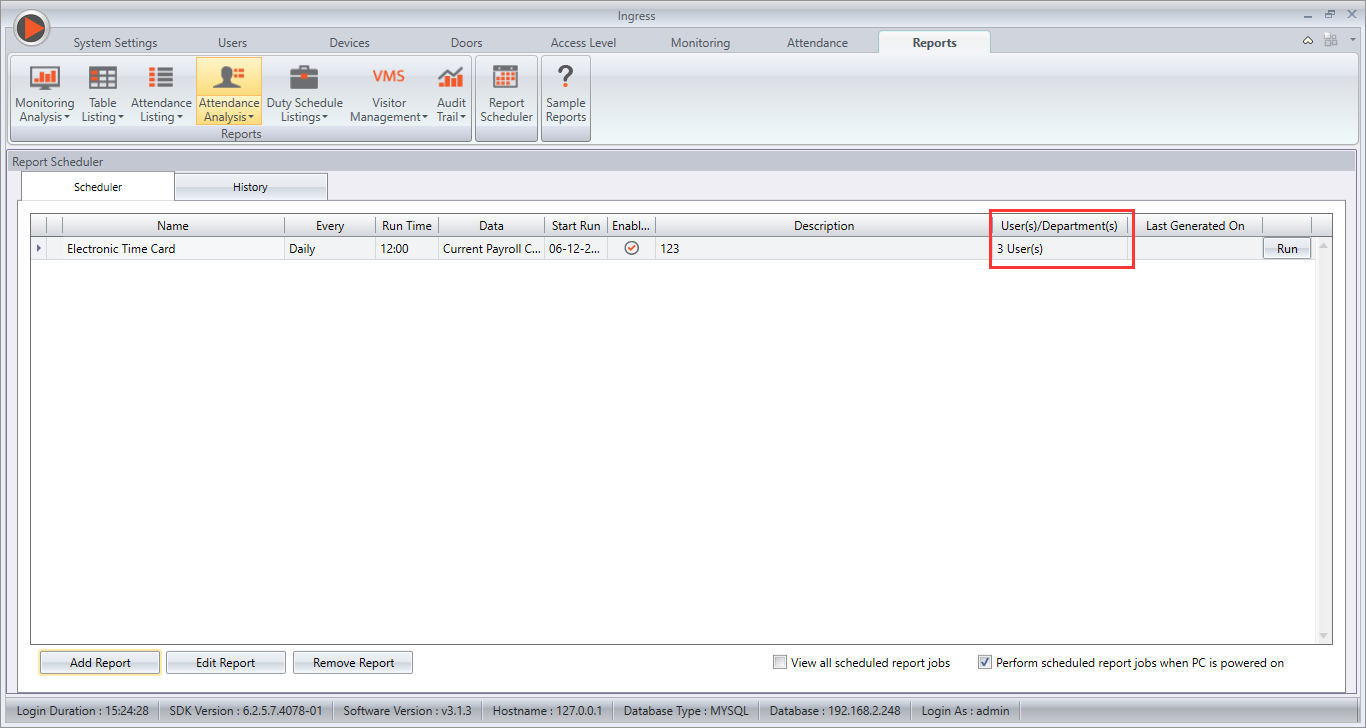
18. Display the total number of Users/Departments in Report Scheduler.


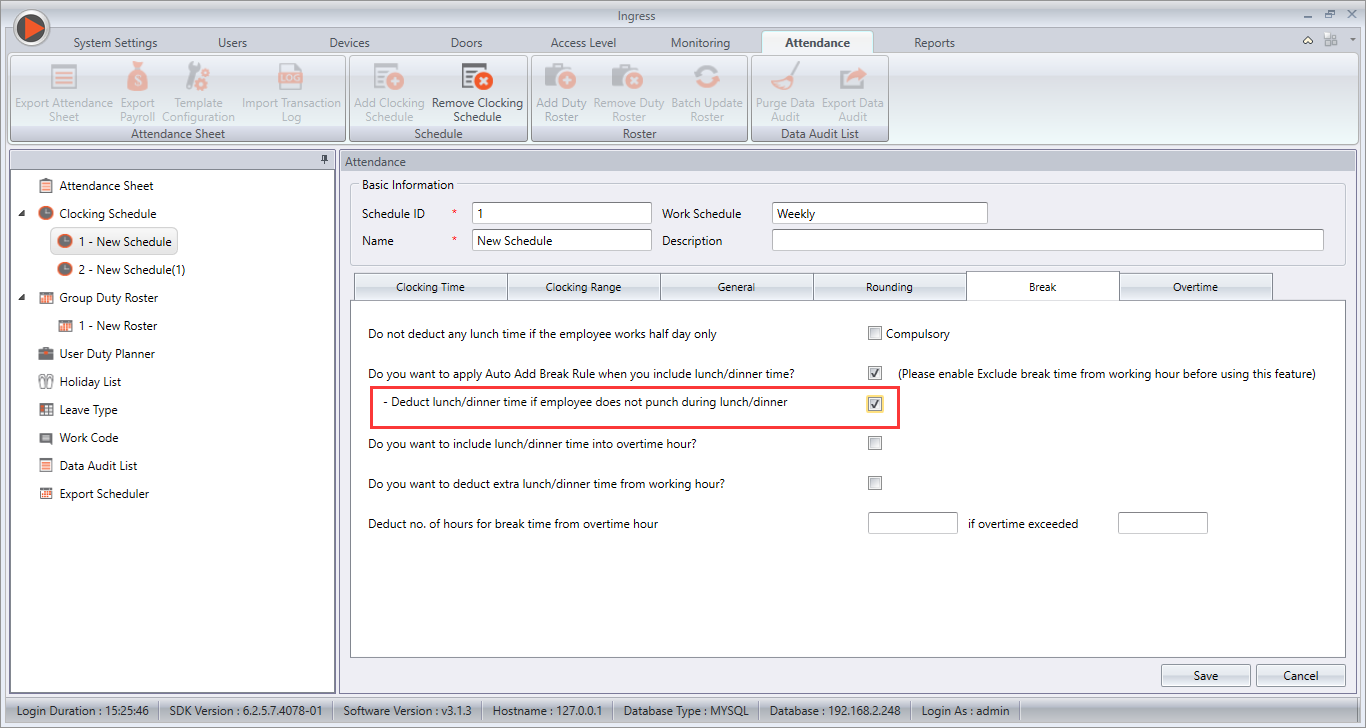
19. Enhanced Auto Add Break rule: Deduct lunch/dinner time if employee does not punch
during lunch/dinner. Previously, if a user does not clock for lunch/dinner, the time will be
added to his/her work time. With this new option, the user can now choose to deduct lunch/dinner
time even if there’s no clocking at Break Out & Resume In column.


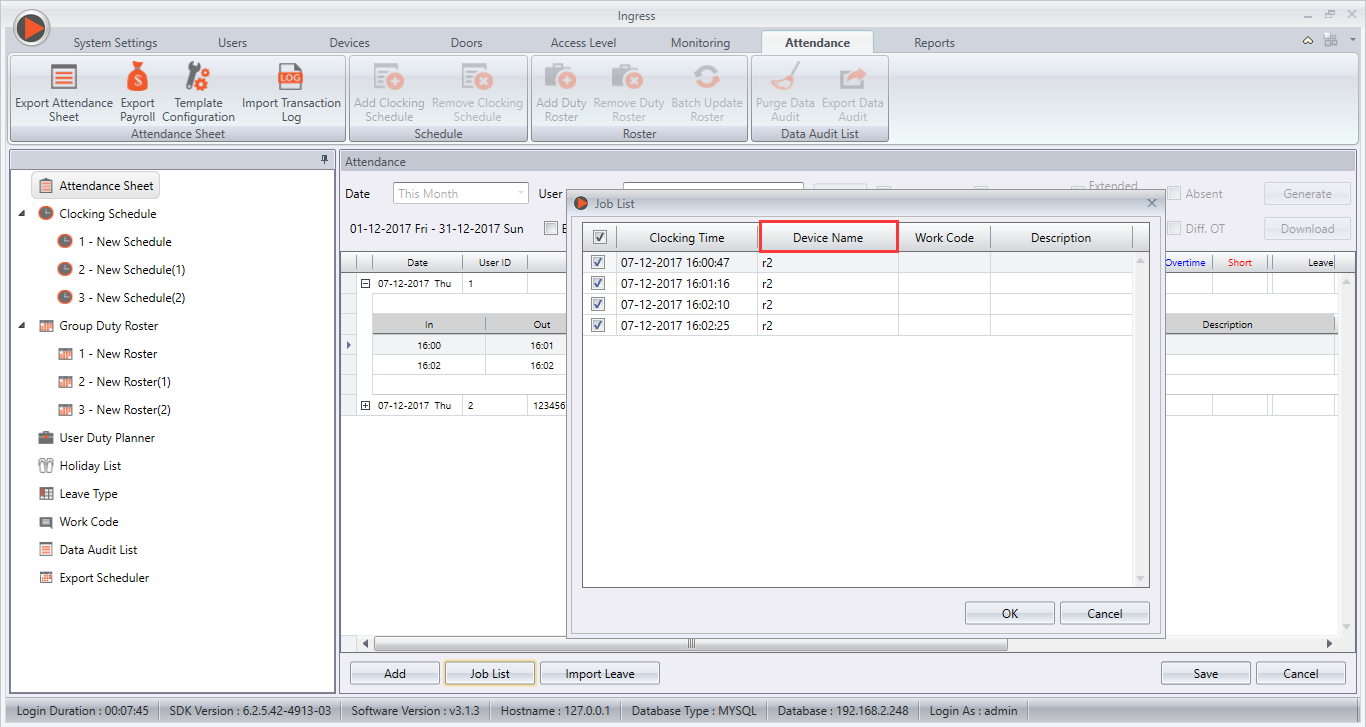
20. Enhanced Job List Attendance Sheet clocking data information to include the device info.


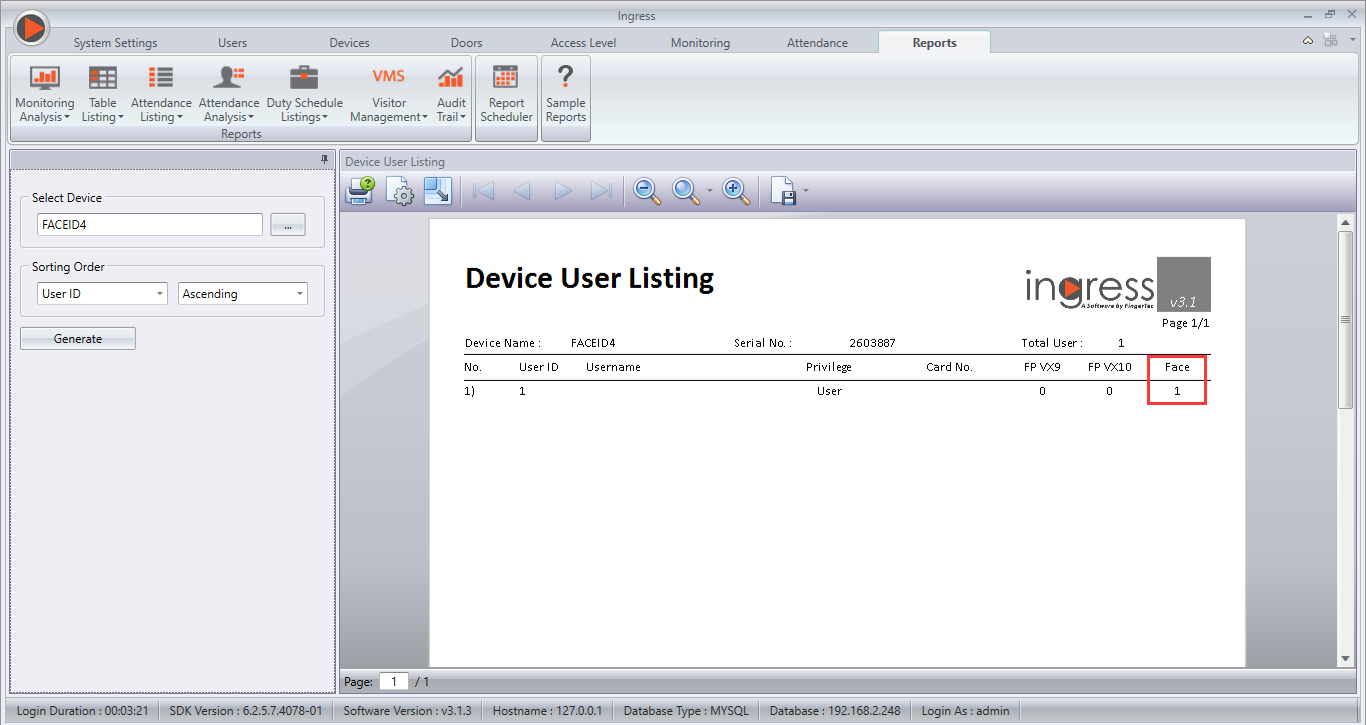
21. Enhanced Device User Listing report to display the face template count.


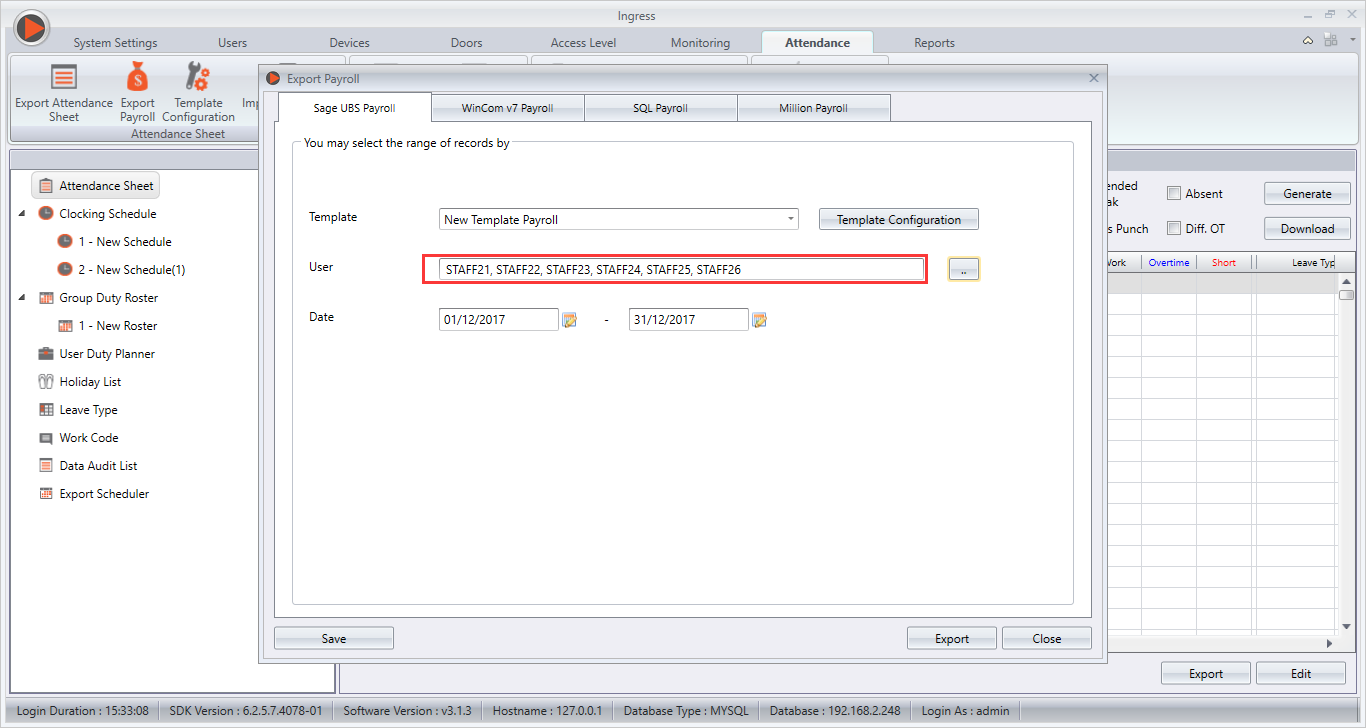
22. Enhanced to recall saved users according to customized template within Export Sage UBS.


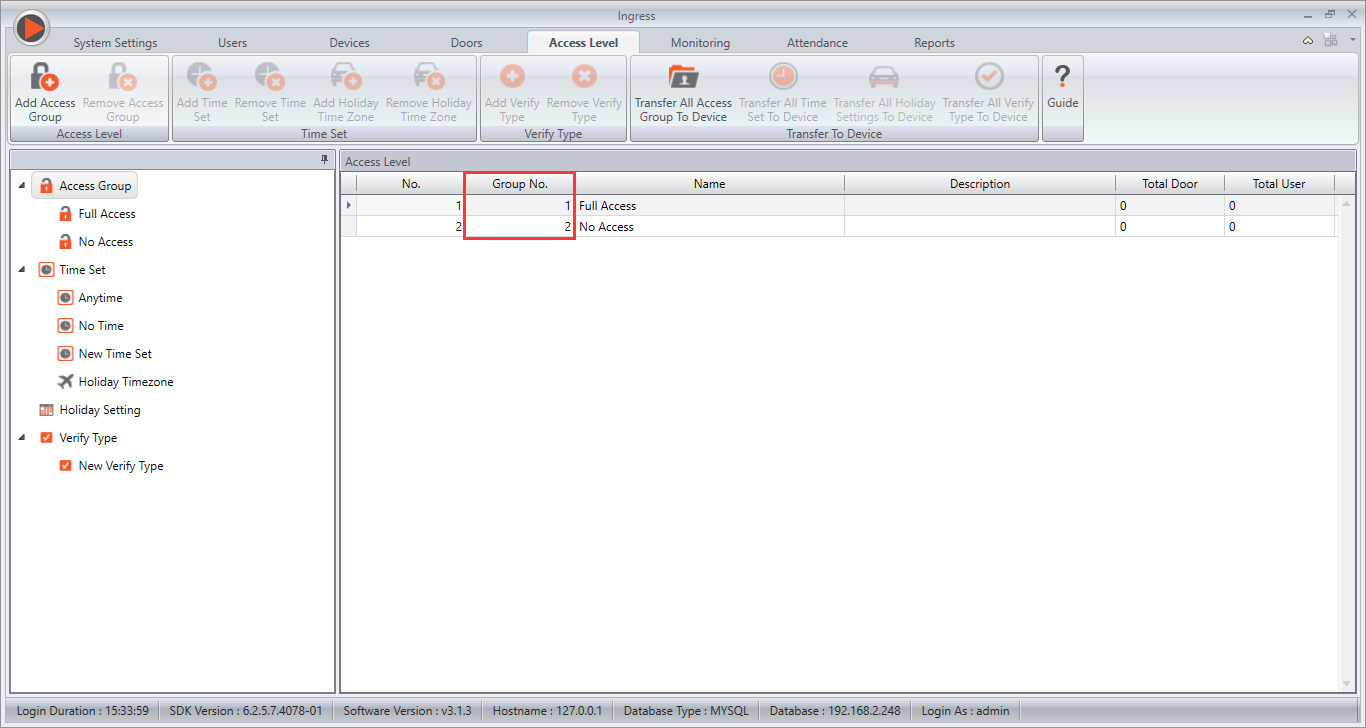
23. Display Group No. for each access group in Access Level module.


1.Fixed no absent value for Leave Type on Workday when exporting Attendance Details.
2.Fixed batch update large number of users to multiple devices.
3.Fixed Job Cost Analysis Report to display all clocking records within 1 minutes with difference
in seconds.
4.Fixed Correction report to display the original data when "Original Clocking" option is selected.
5.Fixed the problem to add email address containing " - " in Company Info.
6.Fixed the problem to import User from USB file to software.
7.Fixed TA500 hang issue while downloading users info from the terminal.
8.Fixed the problem to Export User data to USB file for TA500.
9.Fixed the problem where system didn’t capture the edited record in Job List option.

Get the software update here.

TCMS V3 Release Note


New release for TCMS V3 v2.1.2.8 & V2.1.2.9 : Added and enhanced 16 features and fixed 6 bugs.
1.   (New) Export Scheduler for Attendance in Attendance Module.
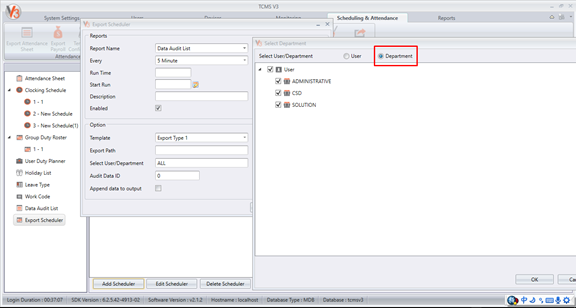
2.       (New) Filter By Department option in export scheduler (alternative for filter by user).

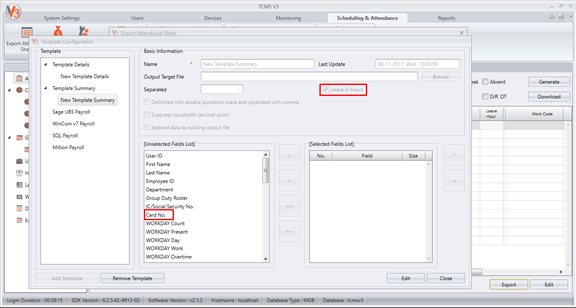
3.       (New) "Leave in Hour" option and "Card Number" field in Export Attendance Summary.
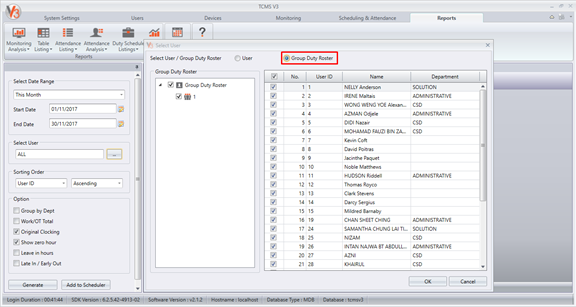
4.      (New) Filter By Group Duty Roster option in Report Module (alternative for filter by user or department).
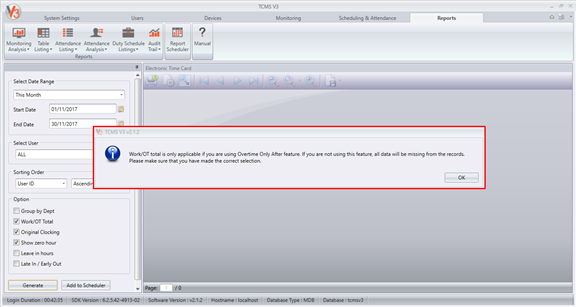
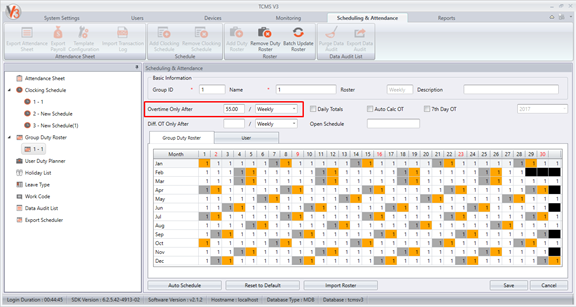
5.       (New) Message notification when generating report if ‘Work / OT Total’ option is enabled. Note that ‘Work / OT Total’ is only applicable if Overtime Only After feature is used. This feature can be configured within Group Duty Roster.
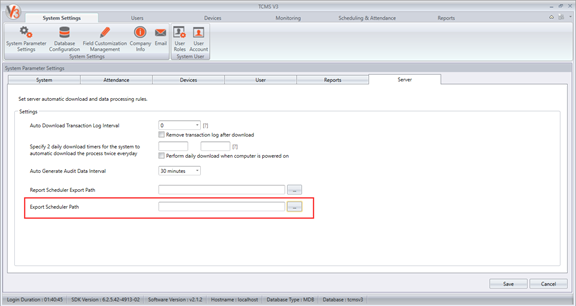
6.       (New) Export path for report when using Report Scheduler in System Settings' Server page.
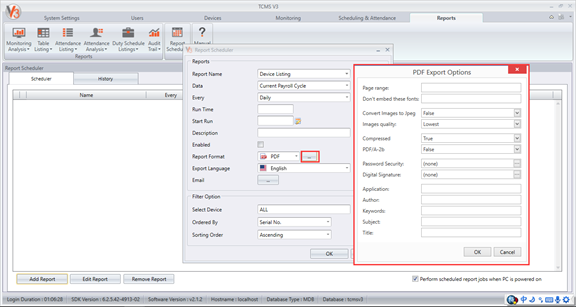
7.       (Enhancement) Allows configuration of advanced export format option in Report Scheduler.
8.      (New) “5 Minutes" and "15 Minutes" selection in Data Audit list Export.
9.     (New) Export Data Audit according to Device ID selection.
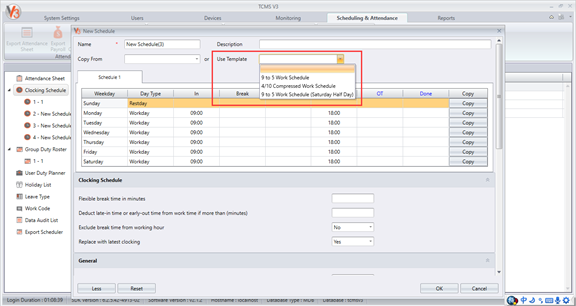
10.   (New) Predefined schedule templates for user to choose from when creating new schedules. Click ‘More’ button to expand the settings page.
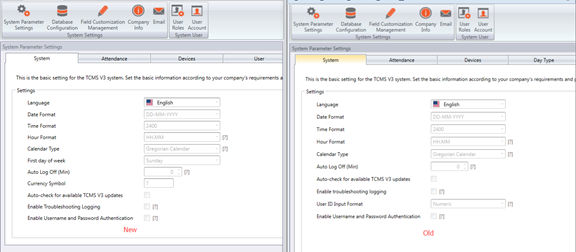
11.     (Enhancement) System Parameter Settings in System Settings Module. Side by side comparison is shown in the picture below.
12.     (Enhancement) User can define Monthly Payroll Cycle Start Date in System Settings, effective on Attendance and Report Module.
13.     (Enhancement) Support up to 2 Database backup intervals within System Settings Module
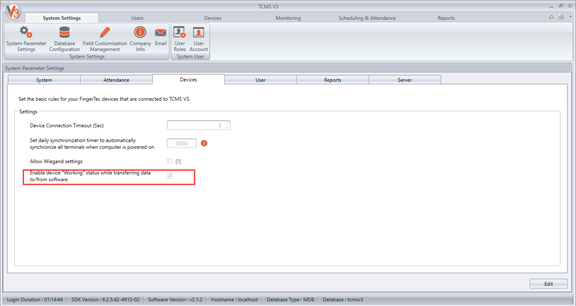
14.   (New) An option to Enable device “Working” status while transferring data to/from software in System Settings’ Devices page. Note:  This feature prevents users from clocking while the data is being transferred.


15.   (Enhancement) Revamp Status Log order to display process update at the top.
16.    (Enhanced) Saved attendance sheet search history by User Account. System will save the search history for Attendance Sheet and will open the last search history (by User Account) the next time user open the Attendance Sheet again. For example, if a user search the attendance sheet for Employee A, then the next time that user go to Attendance Sheet, the attendance data for Employee A will be shown.
Bugs Fixed
1.       (Fixed) Unable to open exported XLSX file in Attendance Sheet Module
2.       (Fixed) Download New terminal Captured Attendance photo to Data Audit list
3.      (Fixed) Unable to remove user's fingerprint in FMM device
4.       (Fixed) Error on calculation within Details Employee Time Card report
5.       (Fixed) Wrong User ID read from USB when downloading User from USB file
6. (Fixed) Wrong User Listing filtered by Department in Data Audit List.

Get the software update here.

TIMETEC TA ELECTRONIC TIME CARD REPORT ENHANCEMENT


Introduction
There are various types of report that can be generated in TimeTec TA for organizations to manage their workforce. The most popular report is the Electronic Time Card (ETC) which is a record comprising of employees’ detailed clocking activities in a month such as calculated work time, overtime, work hour shortage and etc. Below are the enhancements made:

New Features
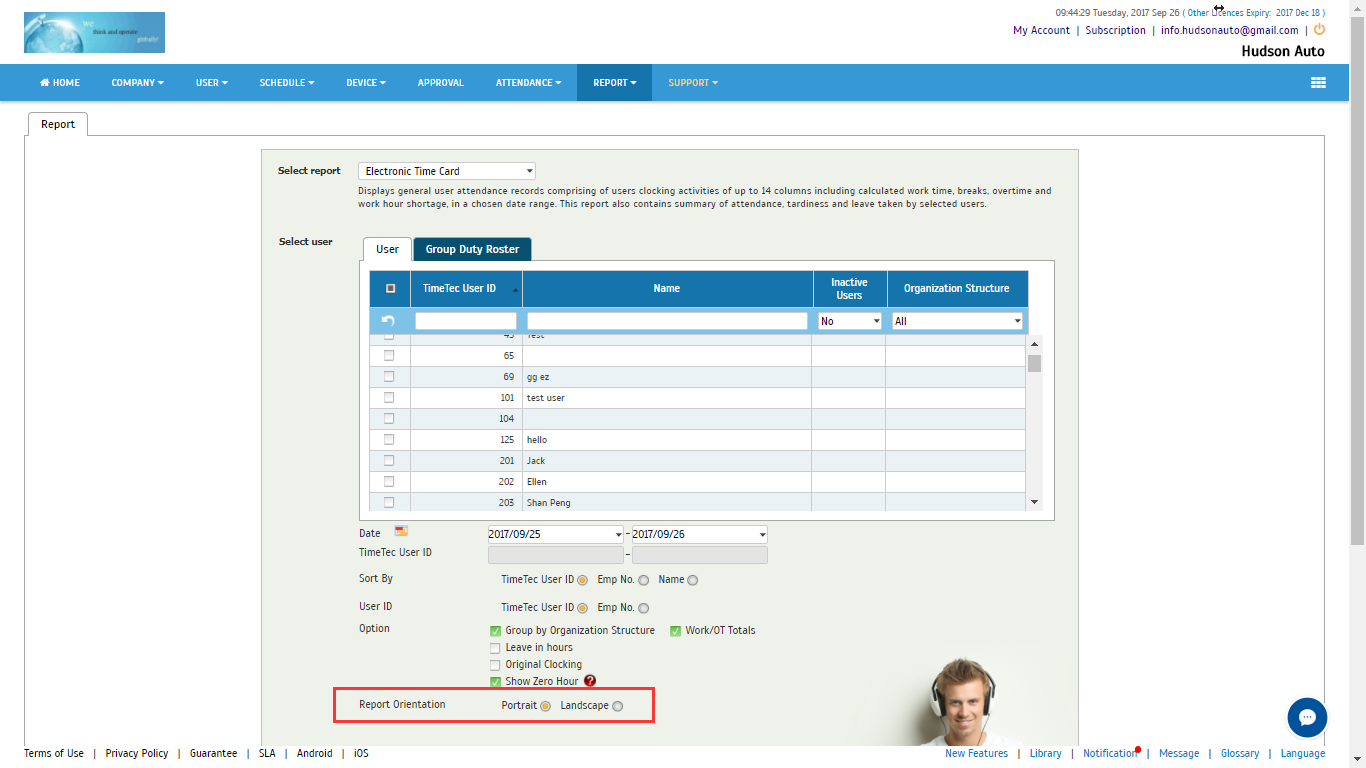
Previously, Electronic Time Card can only be generated in Portrait orientation. We have now allowed the report to be generated in Landscape orientation to accommodate customers’ need.

1.png

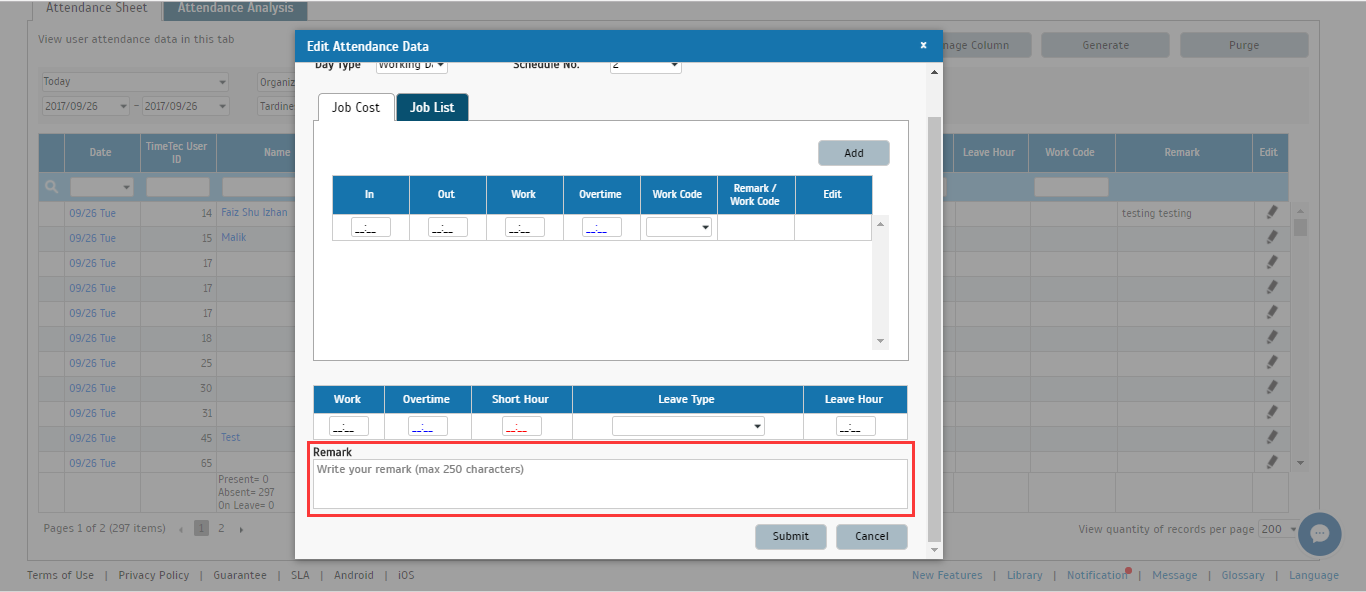
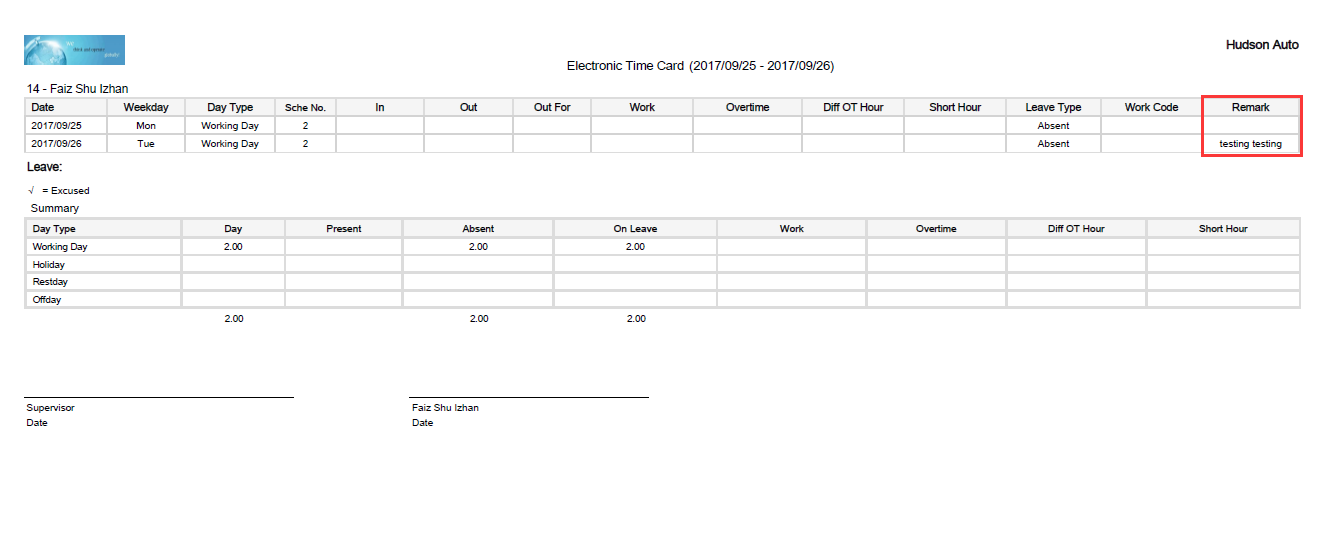
Remark can also be previewed in ETC reports now (ONLY in Landscape Orientation). Users can manually input the remark (max 250 characters) in the Attendance Sheet and it will automatically be displayed in Landscape generated ETC.

2.png

3.png