Showing posts with label database. Show all posts

How to perform Database Migration from Ingress/TCMS V3 to TimeTec TA


Introduction-
TimeTec has introduced a new feature to assist in moving your current Windows-Based data to our Smart Solution: TimeTec TA via migration tool.

The ‘Export’ function for migration to TimeTec TA is ONLY available in the latest version of Ingress/TCMS V3 Software listed here

The types of data suitable for migration are as follows:

i. Company Hierarchy (names of departments and sections)
ii. Attendance Rules and Calculations (clocking schedules, group duty roster, holidays, leave types)
iii. Employees’ Biodata (name, address, phone, designation, etc)
iv. Employees’ Verification Credentials (ID, fingerprints, password, card ID)

Below are the steps needed in order to carry out the migration:

Steps-
A) Export Database from Ingress/TCMS V3 Software
1) Launch Ingress/TCMS V3 Software and click on the Ingress/TCMS V3 logo > Migration Wizard > Export > Timetec TA.
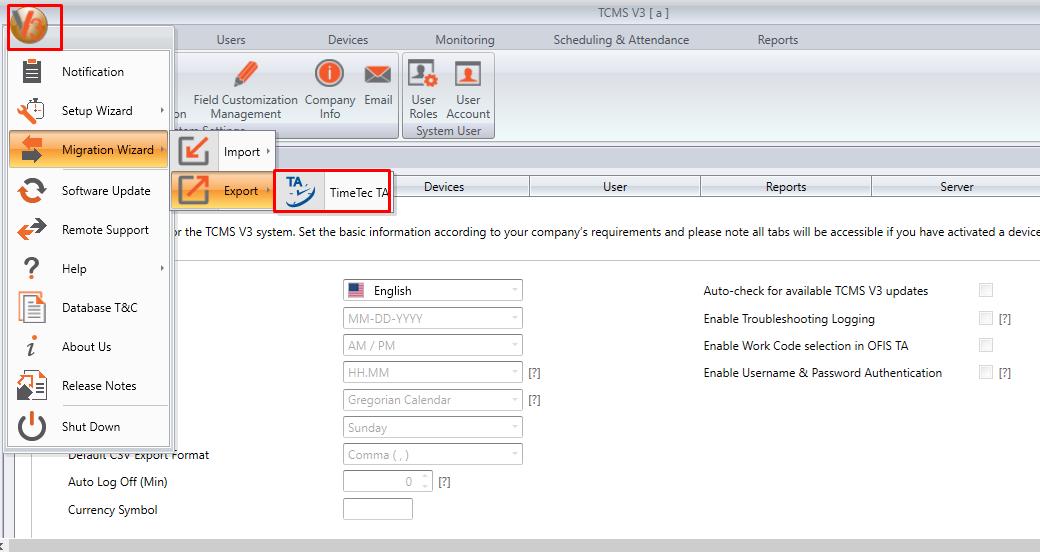

2) Browse path to locate your database file, and click Backup.
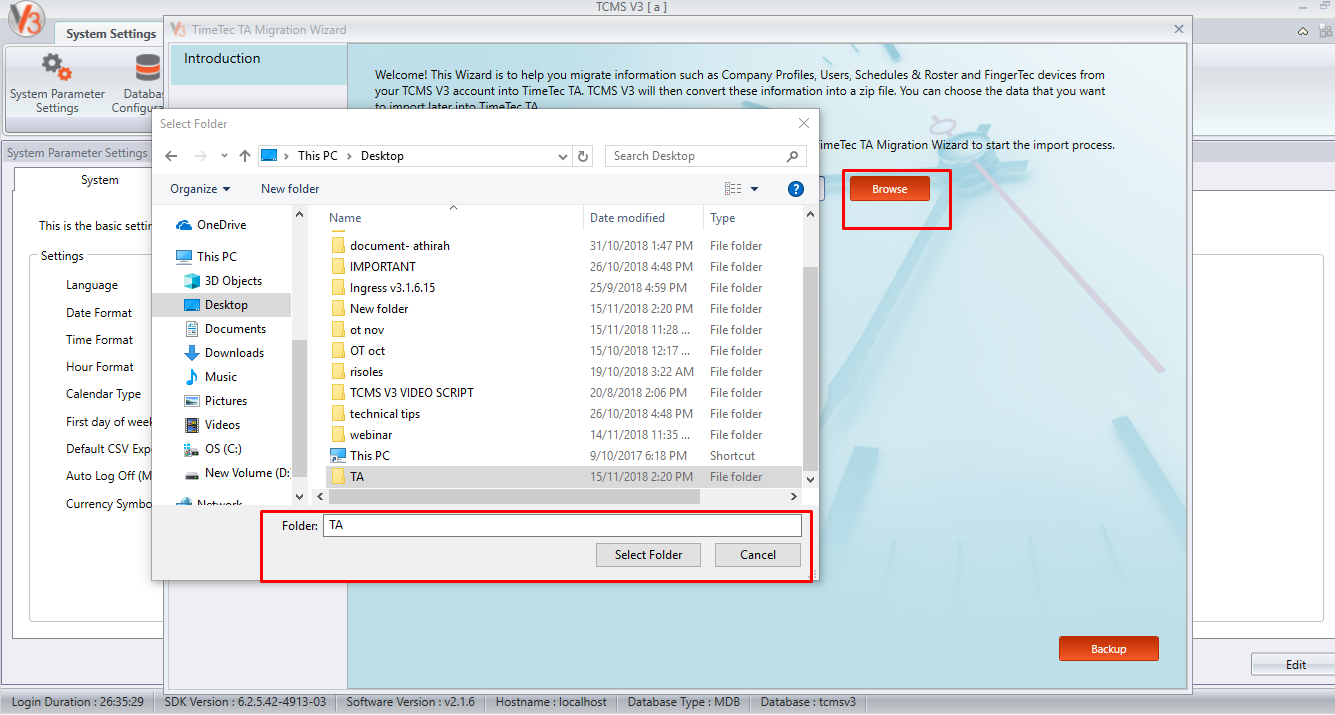

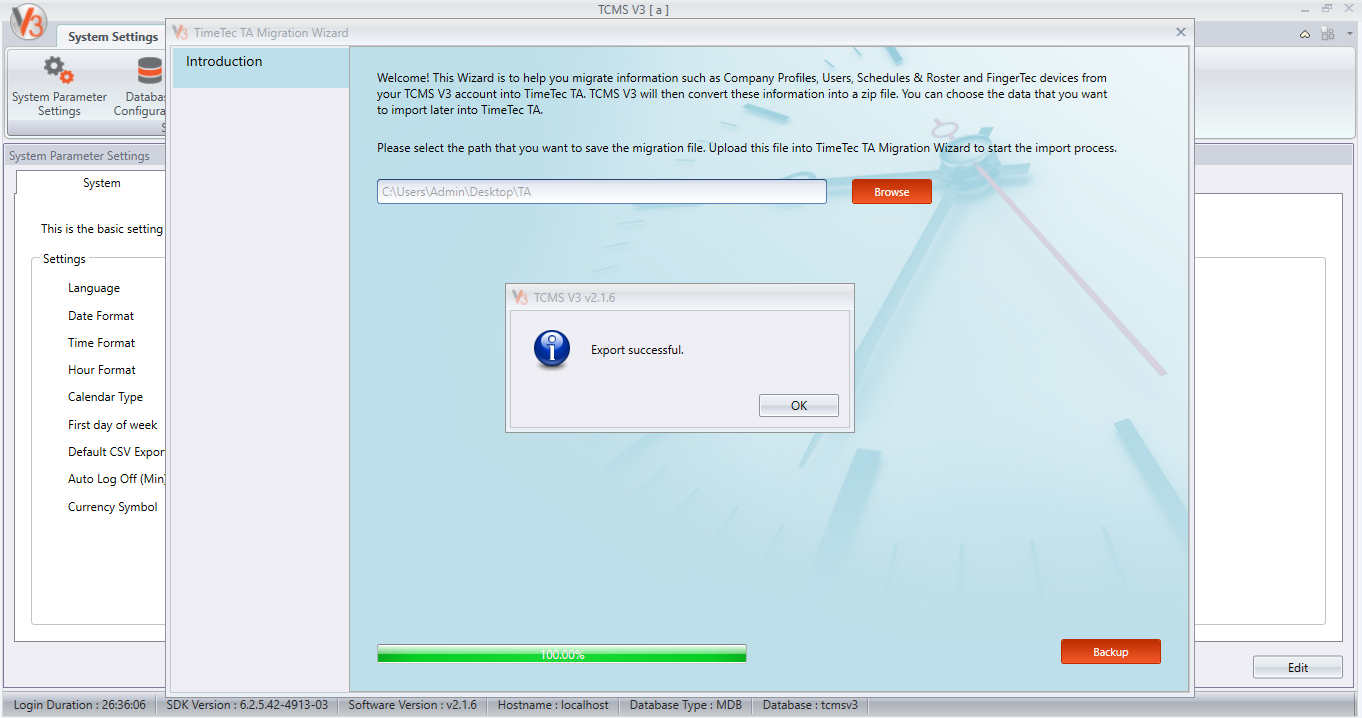
3) Once it is finished, the system will prompt an Export Successful message to notify the users.

B) Migration to TimeTec TA
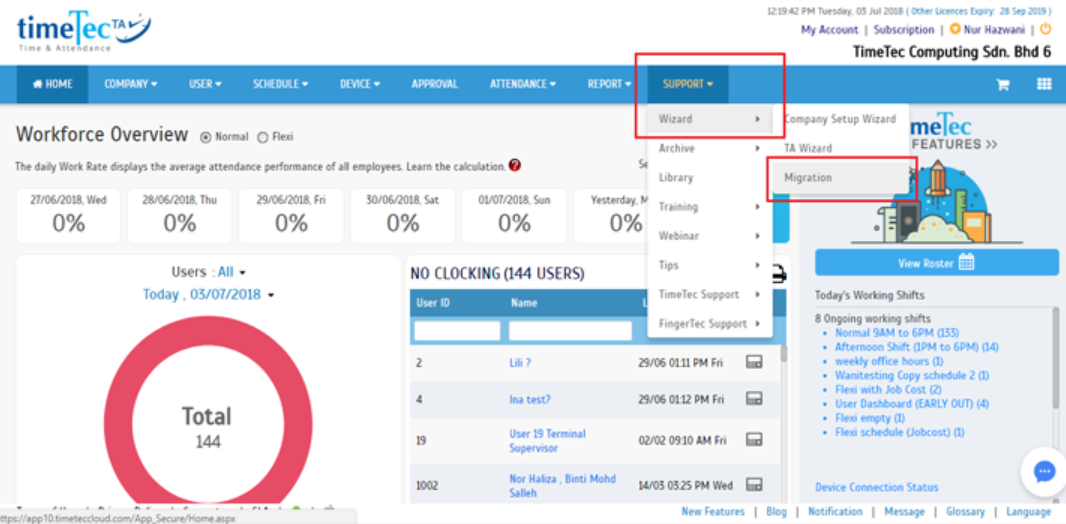
1) Login to your TimeTec TA account and move to Support > Wizard > Migration.

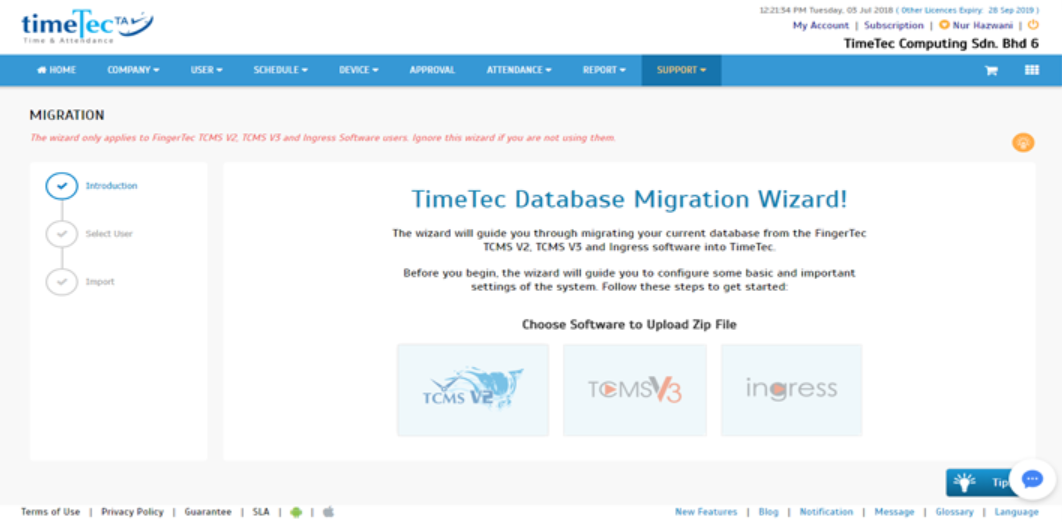
2) Choose the system to upload the file as well as browse the database that you’ve already exported in Step A.
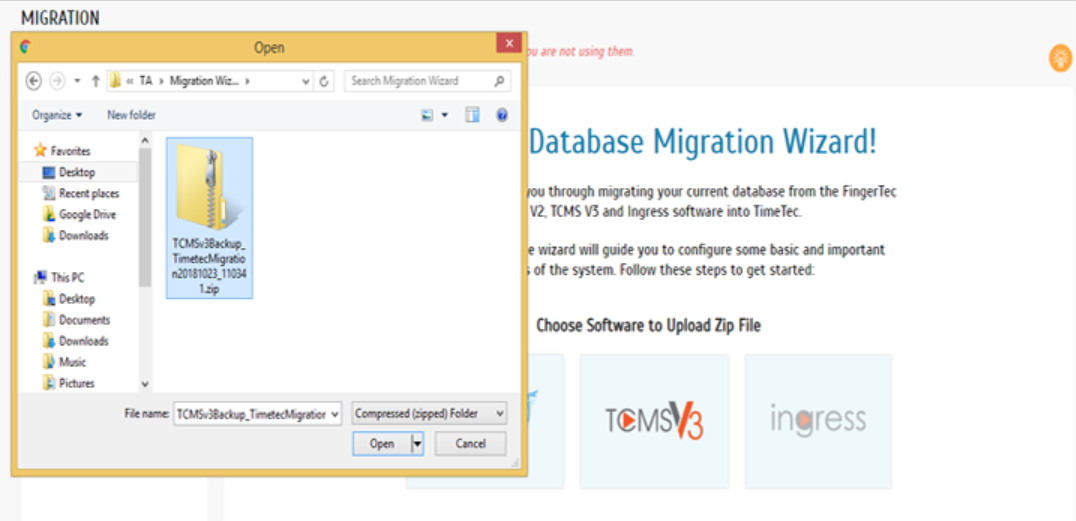

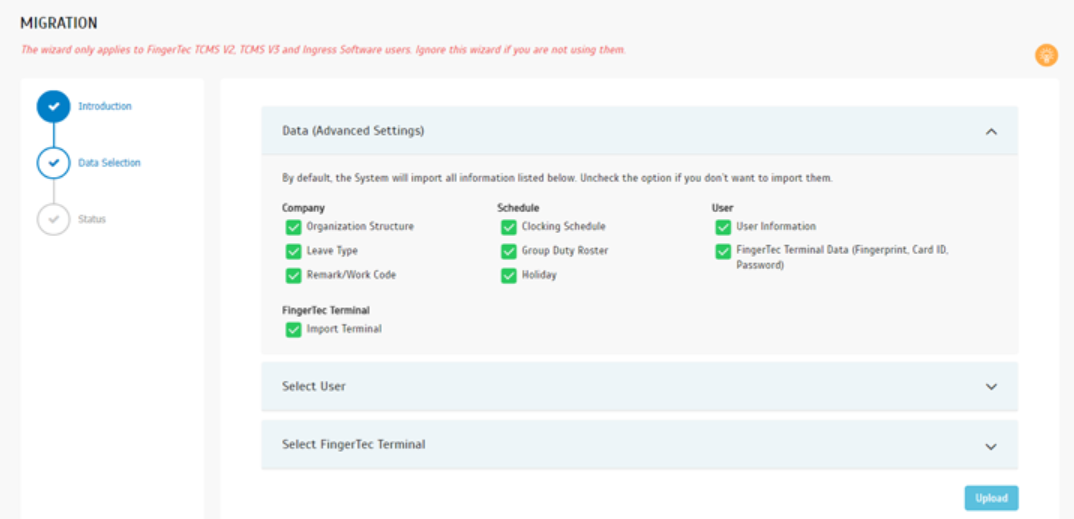
3) For the next step in terms of migration, which is Data (Advanced Settings Tab), you will need to select the type of information to migrate. By default, all items will be selected.

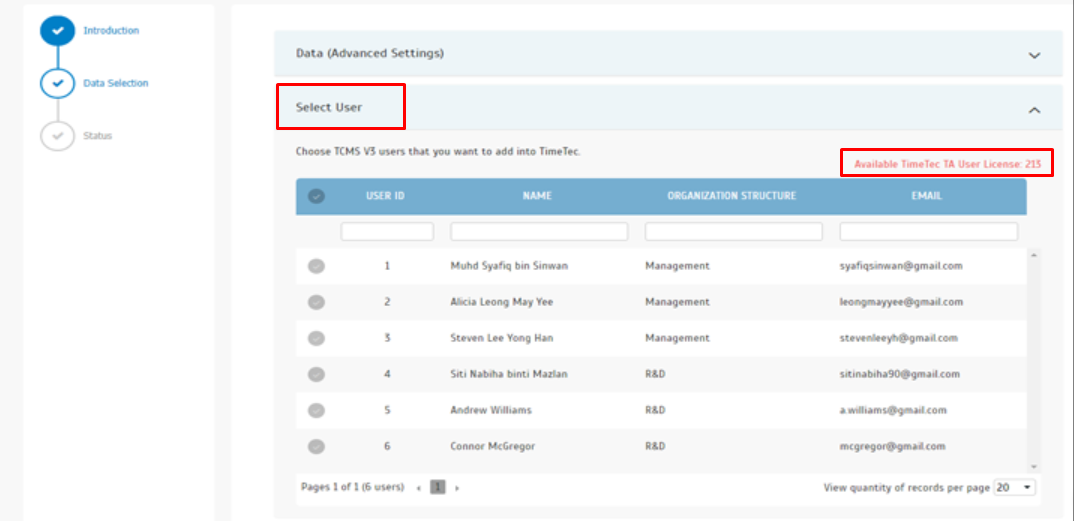
4) In Data Selection, proceed to ‘Select User Tab’, and select which user to be migrated along to TimeTec TA. Users will also be notified on the total license available as shown in the screenshot below.

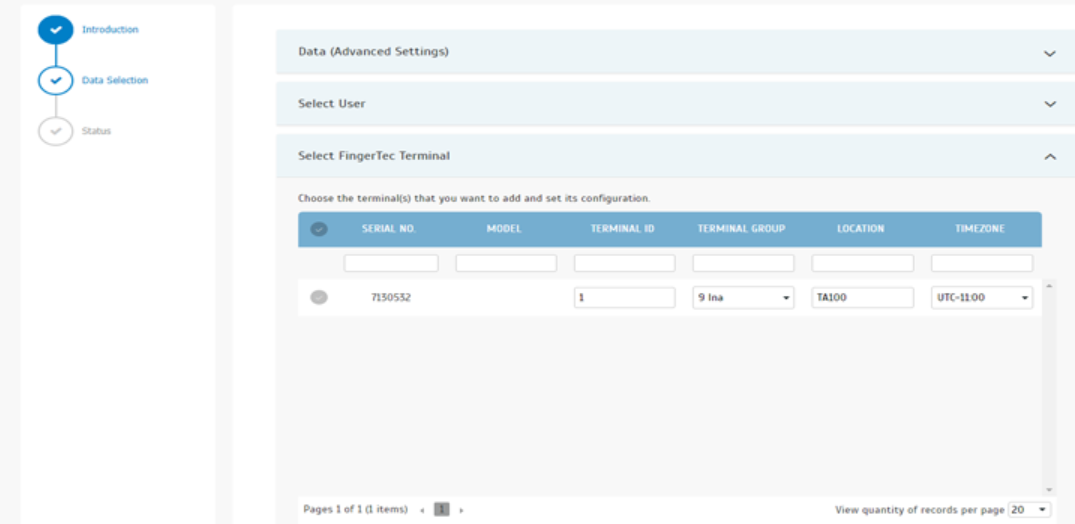
5) Moving on, is the Terminal Selection whereby users can select which terminal to be linked to TimeTec TA.

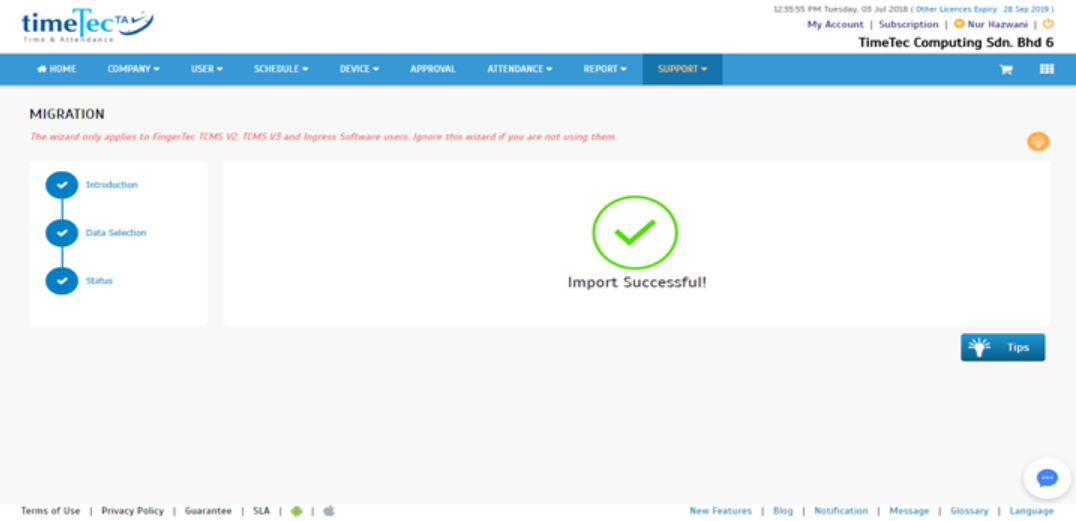
6) Last but not least, after finished selecting the data for migration, you may proceed and check the migration status here.

Note: If some of the screenshots or steps viewed here are different from the ones in the current
system, this is due to our continuous effort to improve our system from time to time. Please notify us at info@timeteccloud.com, we will update it as soon as possible.

6 Things You Need to Know about Ingress MySQL Database


Introduction
If you have some or absolutely no idea about MySQL database and how it works with Ingress, this is the right article for you to explore. It is well understood that by now there are countless articles written about MySQL database, and TimeTec Newsletter itself there are at least 30 articles that are touching on the same topic. In this article however, we will suggest on ways to communicate with Ingress MySQL database better.

1) Why MySQL?
Ingress software is designed to support 2 types of database, one is .MDB format, which is recommended only for small sized companies. Small size in case of Ingress is described as:
User count of 100 and device connection of maximum 10. However, if you are exceeding this limitation, your next destination is Ingress MySQL. Ingress MySQL gives the flexibility for users to connect Ingress software via Server-Client connection. Besides,  Ingress MySQL allows users to cater up to 5000 User count, 10 Concurrent Client Connections and 50 standalone terminals with Real-time Monitoring Connection or 250 Standalone terminals without any Real-time monitoring Option. See the difference?

2) What do we use the DB installer for? 
The simplest way to explain the use of DB installer is to connect the database from MySQL engine to Ingress software. MySQL is a separate database engine, or in simple words it’s a different database software which can store database in its designed format. Ingress connects to this database engine via IP connection and reads the data into the Ingress database tables. Hence, to make sure your MySQL database is connected to Ingress software and there are no errors while running the software and server, run the DB Installer.exe and complete all the three steps. Learn how to use DB Installer from this link: http://www.fingertectips.com/2016/02/9-common-mistakes-committed-in-ingress.html

3) Why do I need to Run DB Installer after software update? 
The first step you need to take when you are tackling software update is to make a backup of your database in the software. Then you can proceed with the software update and restore your backup from the older version to the latest. But please remember that when a software has new releases, it means that it is having some changes in the database tablings or schema. Therefore, everytime you are restoring database taken from an older version of Ingress software, it is necessary to run the Ingress DB Installer and complete the three steps to have all your database information and tables optimized and compliant to the latest version of the Ingress software. Here is a short list of issues you might face after updating your software to the latest version and restoration a backup from older version

- Missing Attendance Data after database restoration: the data
- Missing features or info from the software
- Unable to Save info in the software
- While running the software, Setup Wizards prompt voluntarily

To fix all of the above, after you run the software and restored the database, shut down the Ingress software and leave your Ingress Server running and execute the DB installer to complete all the 3 steps.

4) Lost MySQL Password cannot be retrieved
The title says it all. Whatever you do, don’t lose your MySQL password. You configure MySQL  password while running Ingress setup file for the first time. The Login and password are always set by the installer, and shall be kept somewhere safe for future reference.  This is because the lost MySQL password is almost impossible to retrieve. There are some articles on how to retrieve them (sample article: http://www.fingertectips.com/2014/08/resetting-your-mysql-database-password.html ). You are welcome to comment whichever of them worked for you, because none of them worked for us.

5) Manage your MySQL database
MySQL is password protected but it has a transparent database. This means that integration from MySQL database to a third-party system is easier than expected. All your database information, including tabling names and. etc can be viewed via GUI tools, such as SQLyog. Hence, third-party software will not only allow you to extract data, both raw and processed information easily but also it allows you to study and manage your database easier than ever. There are several features available, specially for programmers to learn their database but also their software details. Here is one example for all to refer to: http://www.fingertectips.com/2015/11/backuprestore-ingress-database-using_26.html

6) What should I do if my Ingress MySQL database is exceeding the introduced limitation of User count, FingerTec device and Server-Client Connections? 
Once again, MySQL database allows users to keep the database in a separate engine out of the software. This means that if you are having Huge database, please take note of the following suggestions:

Separate your database Engine server and Ingress software: This simply means, install MySQL on 1 computer, and Ingress software on another server or computer and connect Ingress server to MySQL database via IP connection for a smoother run of the software

Do database Maintenance more often: Break your MySQL database tables, specially Data Audit list, where the transaction data is saved. If you are having too old of data its best to break perform housekeeping on your MySQL database and Ingress software will be running as smooth as possible for you

Choose a Server with better specs: Users can always provide their details of requirement for database size to support@fingertec.com, so that we can get our experts recommendation on the best Server Specs for a smoother run of Ingress MySQL.

We hope that you get some idea about how to handle Ingress MySQL database, and please explore on this topic more if you are using it.

Reset TCMS V3 and Ingress mdb for a New Database


Introduction: 
In certain situations, users might want to have a new/fresh database for their Ingress or TCMS V3 software. Take for example if the users plan to upgrade the computer or carry out some housekeeping for the servers and wish to reset the software (Ingress/TCMS V3) database.

Please take note that before you proceed with the resetting process, please make sure that you have either secured a healthy backup of your present database or confirmed that you do not require your present database anymore. This is because once the reset process is completed, it’s not possible for the data to be retrieved, and we do not take any responsibility for any data loss of such.

If you have confirmed or done the above step, please follow the steps below to start the reset process:

For TCMS V3
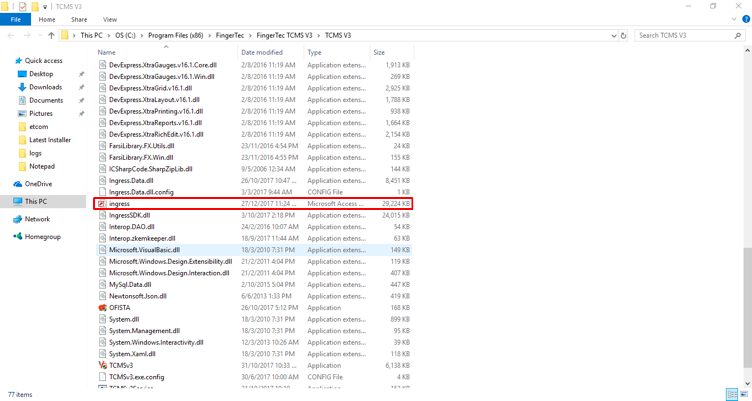
1) Go to TCMS V3 folder directory ( C:\Program Files (x86)\FingerTec\FingerTec TCMS V3\TCMS V3 ) - The file directory might be different based on your installation path


2) Rename the file name Ingress.mdb to another name, such as Ingress.mdb123
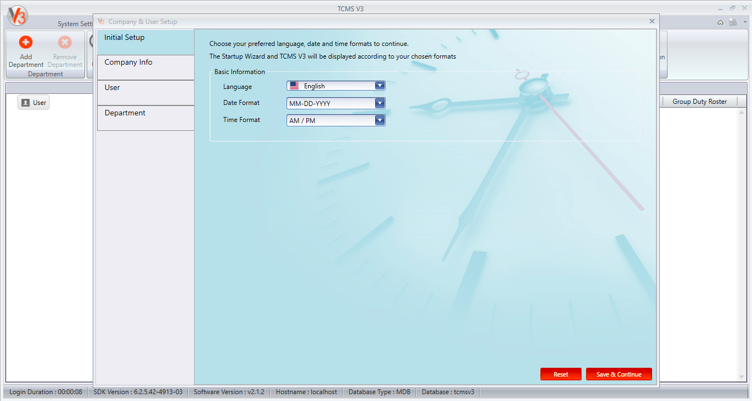
3) After you rename the file, just start the software and it will prompt a fresh database in which you will be required to key in the company info, similar with a fresh installation.


4) If you have the old database, you can restore the old database to retrieve all of the previous data.
For Ingress mdb:
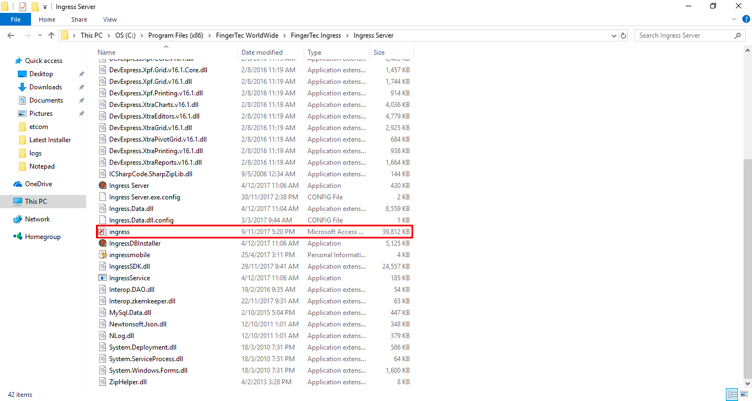
1) Go to Ingress folder directory ( C:\Program Files (x86)\FingerTec WorldWide\FingerTec Ingress\Ingress Server ) - The file directory might be different based on your installation path
2) Rename the file name Ingress.mdb to another name, such as Ingress.mdb123


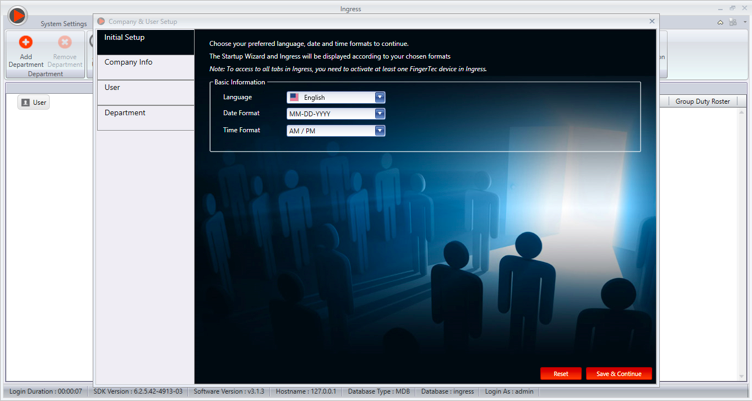
3) After you rename the file, just start the software and it will prompt a fresh database in which you will be required to key in the company info, similar with a fresh installation.


4) If you have the old database, you can restore the old database to retrieve all of the previous data. For Ingress MySQL, please follow these steps:

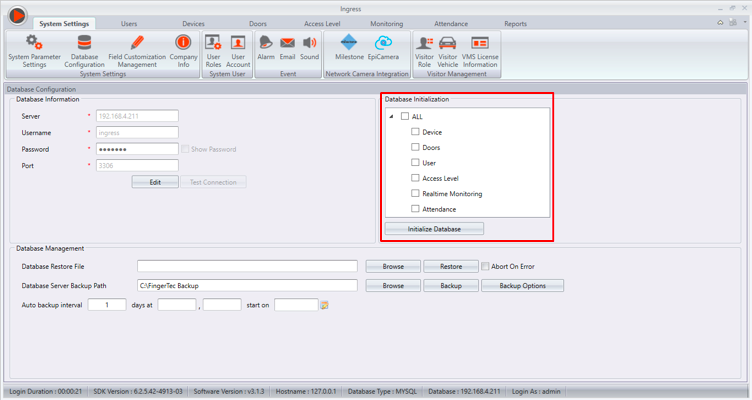
1) From Ingress software, go to System Setting > Database Configuration > Initialize Database 2) After you initialized the database, all of the data will be deleted. 3) If you’ve initialized the database and after activating the device, you will need to add 1 clocking schedule and 1 group duty roster because the default clocking schedules and group duty rosters are deleted during the process. 4) Please take note that if you do not add the clocking schedule and group duty roster, you will then not be able to add the new users as it will prompt an error.

MANAGING USER DATA BETWEEN TWO INGRESS DATABASE


Introduction

In the case of any system, database management or database administrator are some of the important aspects to lookout for in the event of a hardware or software failures. Should any of these failures occur, the major objective is to ensure that there is no loss of data and that the supposed database is still available to the users.

In Ingress system, we provide the option or procedure where you can backup, restore and manage the users’ database. In other words, you can combine, remove or migrate the data from one Ingress system or PC to another Ingress system.

ADVANTAGES
1. If you have two Ingress database file from two different PC, you can combine or transfer information such as Device Info, User data, Door/Access Level Setting, Attendance record or Scheduling from one database to another.

2. You can remove or perform housekeeping for certain modules in Ingress like Device module, User, Door, Access Level, Monitoring all while maintaining the info within other modules.

PROCESS
A - Combining User Data from Two Ingress Database
If you happened to have 2 Ingress database and you want to combine the User Data from both of these databases, you can follow the steps below:

a) Restore the first or main database by heading to Ingress > System Setting > Database Management > Select the database and click Restore.

Pic1.png

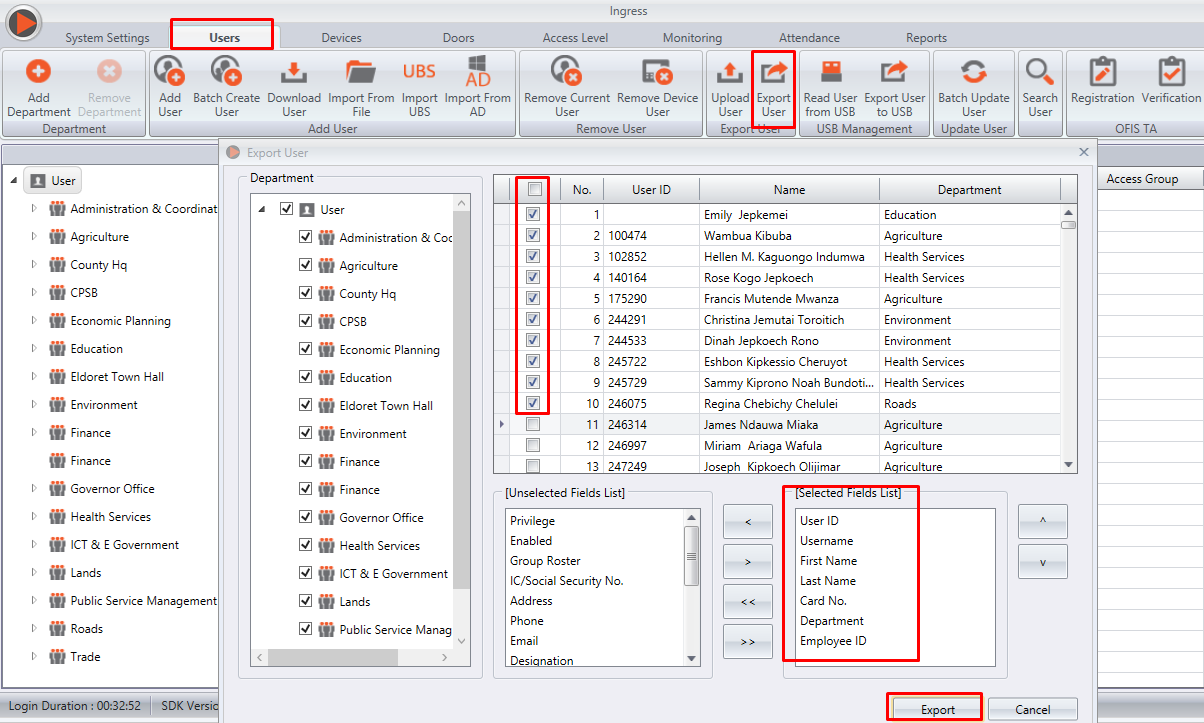
b) From the second system or PC where you have the second database, go to User module > Export User > select the list of Users that you want to combine with the first database > Field List by following the format of the picture below> Export (Choose either to export in Excel or TXT format).
** Please note that you can view the export format in the sample pictures.

2.png

3.png

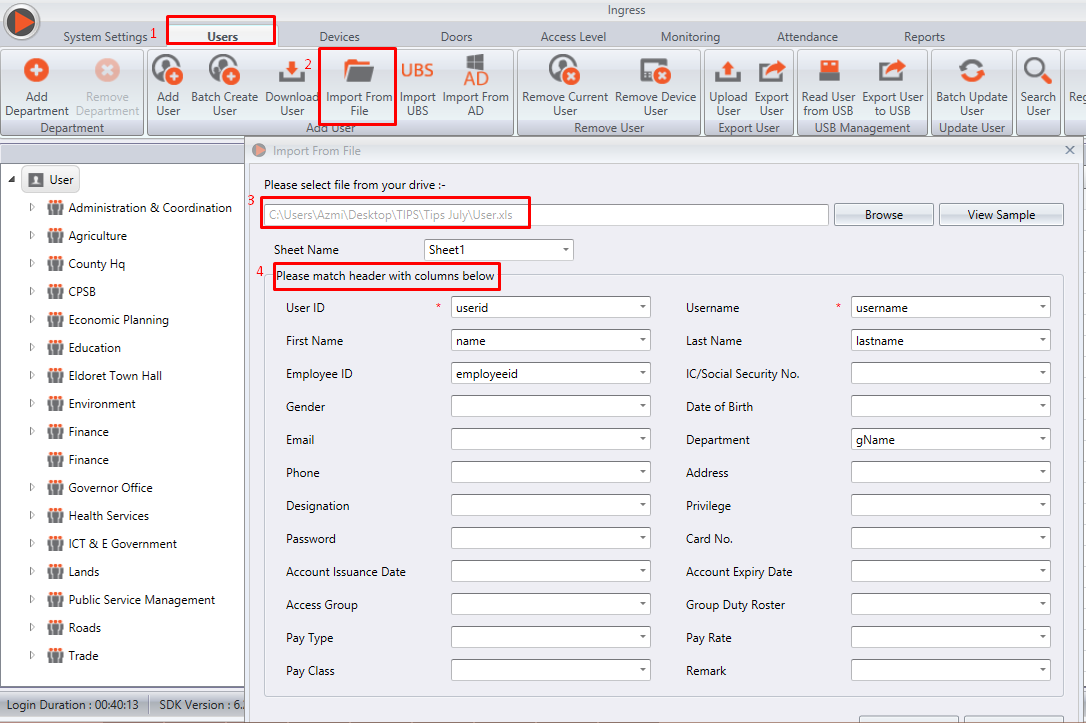
c) To combine the User Data, transfer the Excel or TXT file that you have exported to the main PC or database. Then, User module > Import from File > Excel or TXT file (The system will verify the file format and show Parse Successful) > Match the header with the column >  Next > tick the User > Read. Once you’ve finished, the system will then combine the User Data from the second database into your main Ingress database.

4.png

5.png

B - Transferring User Data, Attendance Record, Door/Access Level Setting.
If you wish to perform housekeeping on your database, you can follow the steps below in order to manage your database:

a) To remove certain Ingress modules you can go System Setting > Database Configuration > select Initialise Database. Here, you can choose which modules you want to remove from the Ingress software.

6.png

b) In the meantime, to transfer certain modules from one database to another; first of all, restore the first or main database by heading to Ingress > System Setting > Database Management > select the database and click Restore.

c) On the second database or PC, you can select which modules to backup by heading to System Setting > Database Configuration > select Backup Option > select Module > Ok > select Backup. Please note: The system will only backup the modules that you have selected.

7.png

d) In the main PC, restore the backup database that you have selected in Step c. Once finished, the Ingress system will only capture the modules that you have selected from the second database.

INGRESS SOFTWARE UPDATE - VERSION 3.1.0.7


Introduction
FingerTec are constantly making enhancements and upgrading all our systems to provide the best solutions possible to our valued customers. With that, we are pleased to inform you about our recent Ingress software update, version 3.1.0.7 with 11 added features, enhancements and fixed bugs. 

Below are the new upgrades: 

1. Added new FingerTec Cloud Center (FCC) migration feature


FCC is a web platform to store all FingerTec terminals' information and data securely on our cloud server. In the latest release, the FCC Migration Wizard feature has been made more user-friendly, as users can now login to their FCC account directly from the wizard. The new migration wizard also provides a more comprehensive data selection, FingerTec Device, User and Transaction Logs. 


Prior to the migration, user will need to get the Username and Password by login to fcc.fingertec.com > click the “Username” at the right upper corner of the window > User Profile > scroll to the bottom “Ingress / TCMS v3 Login Detail” for the Login Username and Password. 


2. Added Database T&C


Read our terms and conditions on database manipulation.

3. Added new tab in Monitoring, User Monitoring to display the last 8 verified user


A new User Monitoring tab has been added in this version where you will be able to view the latest user activity. This section will display the 8 latest verified users information with user picture, user ID and door name. This option is available at Monitoring > User Monitoring.

4. Added OFIS TA filter option for OFIS TA in Monitoring Log List selection


A new filter option, OFIS TA Records has been added in the Monitoring > Log List to enable user to include OFIS TA records in the log search. Check on the option to include OFIS TA records in the search process. 

5.  Added the following fields in Batch Update User; Designation, Privilege, Gender, Pay Class, Pay Type, and Pay Rate


6.  Added Search function in Device Module


7. Added "Group by Dept" and "Incomplete Entry - Exit pair", in Entry-Exit Transaction Listing Report

User can now group the entry-exit transaction listing either by Department (Group by Dept) or list the incomplete entry-exit pair only (Incomplete Entry - Exit pair). 


8.  Added "Work Code Description" option in Export Audit Data


9. Added option to split Terminal ID into new column when export Attendance Data

To enable this option, go to Attendance > Attendance Sheet > Export > Export Attendance Sheet > Details > Template Configuration > Select the template

Tick the “Split terminal ID into new column” option to enable. Please make sure to tick “Add terminal ID before transaction log” and “Add terminal ID after transaction log” before enabling this option. 

Example; IN = 09:00, OUT = 18:00
By default export data will be 09:0008, 18:0008
If you tick the option, data will be 09:00 08, 18:00 08


10. Added Total Absent column in Export Attendance Summary


11. Write "TIMING" file when download transaction log after delete


When “Remove transaction log after download” is ticked during auto download or download the transaction manually, transaction logs inside the terminal will be deleted, however the system will create an auto-backup file at 

Auto Download Transaction path:
C:\Program Files (x86)\FingerTec WorldWide\FingerTec Ingress\Ingress Server\TIMING\TIMING.17, storing all the transaction logs downloaded as shown at picture below. 

Manual Download Transaction path:
C:\Program Files (x86)\FingerTec WorldWide\FingerTec Ingress\Ingress\TIMING\TIMING.17, storing all the transaction logs downloaded as shown at picture below. 


To import the clocking data to Ingress again, select the path of TIMING and click download.


12. Enhanced Fire Alarm Zone to trigger open selected door when Auxiliary Input Shorted

Users can now select the doors controlled by Ingressus to open simultaneously when alarm is triggered. Set this option at Devices > Fire Alarm. 

13.  Enhanced Import User from USB and Export User to USB mechanism 
The mechanism of USB data management has been enhanced for a better data transfer.

14.  Changed "Error Times to Alarm" selection range to 0~9


15.   Remove Leave Summary in Detailed ETC Report