Showing posts with label Flexible Overtime. Show all posts

How to Create and Manage OT Flexi Schedule in TimeTec TA


Introduction
Each organization or company performs different hours of work for example on a Saturday or Sunday. This requires a schedule difference to ensure there is no confusion between normal working hours and working off / rest days. To manipulate data transactions requires a flexible schedule.

Process
Login TimeTec TA, click Schedule > choose Clocking Schedule

Click Add to create new clocking schedule

At Schedule Type choose Flexi

Select Off day/Rest day > Choose the days that are likely to be used as off day/rest day

At the overtime setting, you need to turn on the overtime rules in this schedule and turn on overtime & double time for rest day work.

After configuration is completed, click Preview for the next step.

Click Submit.

Now, you have already created one flexi schedule to use on the roster.

For a fixed offday and rest day, you can put this schedule on the roster according to the steps provided. Login TimeTec TA, click Schedule > Choose Assign Schedules and Users into Roster

Select the roster you want to add in flexi schedule > Click (2020) year of the roster

Click Auto

At the pop up page, change schedule no. to schedule no. flexi for offday and rest day on this roster.

Select effective date and click Apply

You will see changes in this roster. Staff who use this roster will use a different schedule on their off day and rest day when working. Click Submit.

To those who are using the shift schedule for work. You have 2 choices between using the Customised User Duty Roster or Import Duty Roster.

Customise User Duty Roster
Login into TimeTec TA, click Schedule > choose Customise User Duty Roster

Select the day / date to change the off day / rest day schedule to flexi OT schedule

At the pop up page, change the schedule no. to the flexi OT schedule no.

After configuration is completed, click Save & Generate

System will now generate the attendance.

You can see the change has been set in the roster.

Import Duty Roster (Excel)
Login into TimeTec TA, click Schedule > choose Customise User Duty Roster

Click Export

At the pop up page, you can directly export the template roster with the information that has already been stored in the system by selecting users and clicking submit. The system will then generate a template excel file.


In this excel file, you will need to convert the existing schedule no. to the schedule no. you want to use (Flexi OT schedule)

After the configuration is completed, save the excel file. At TimeTec TA, choose Import Roster.

At the pop-up page, click browse. Select the excel file which you have saved earlier.

Click Update

The system is now in the process of importing the data into the system.

When the process is completed, you can see the changes in the roster.

Result
If the staff works on the day off/rest day, the total work hours will be in the OT column inside the attendance sheet.


Note: If some of the screenshots or steps viewed here are different from the ones in the current system, this is due to our continuous effort to improve our system from time to time. Please notify us at info@timeteccloud.com, we will update it as soon as possible.

Weekly Accumulative Overtime Configurations (Overtime only after)


Banner02.jpg

Introduction 
FingerTec’s Ingress & TCMS V3 software is able to calculate overtime under different settings and circumstances customized by the user. Generally, Ingress & TCMS V3 will treat extra working time as overtime or OT when it exceeds a predefined value that is set by the user. Users can choose to accumulate the extra time either by week or by month.

Benefit
Some countries may have a special overtime that need to be taken into consideration where the company will only calculate overtime when it exceeds a predefined value and will pay employees biweekly, semimonthly or monthly. You can have a look at the overtime only after configuration offered by our Fingertec software and configure it based on your company pre-requisite setting.

Process
Read more for a few configuration examples that can be used according to a business organization's requirements.

Available Options: Weekly, Bi-Weekly, Semi-Monthly or Monthly
Check on Daily Totals, Auto Calculate OT and 7th Day OT if the rule applies.

For example, if a predefined working hours in a week is set at 40 hours and an employee works a total of 45 hours for that particular week, 5 hours will be considered as OT for the employee. If the total working hours does not exceed 40 hours, however, Ingress & TCMS V3 will treat it as normal working time.


Below are examples of configurations that can be used and its necessary steps needed.

Example 1
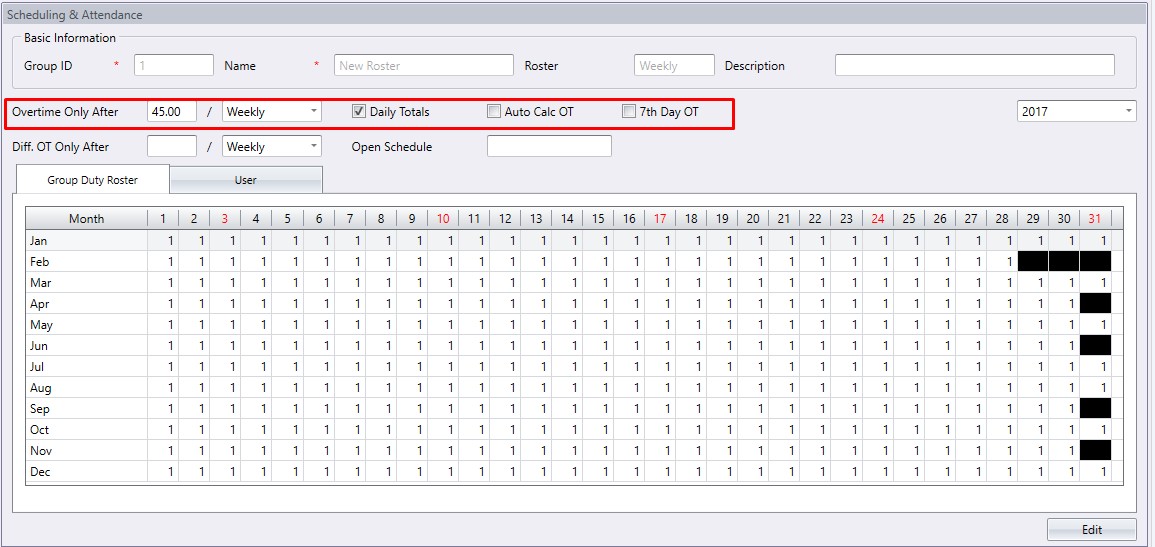
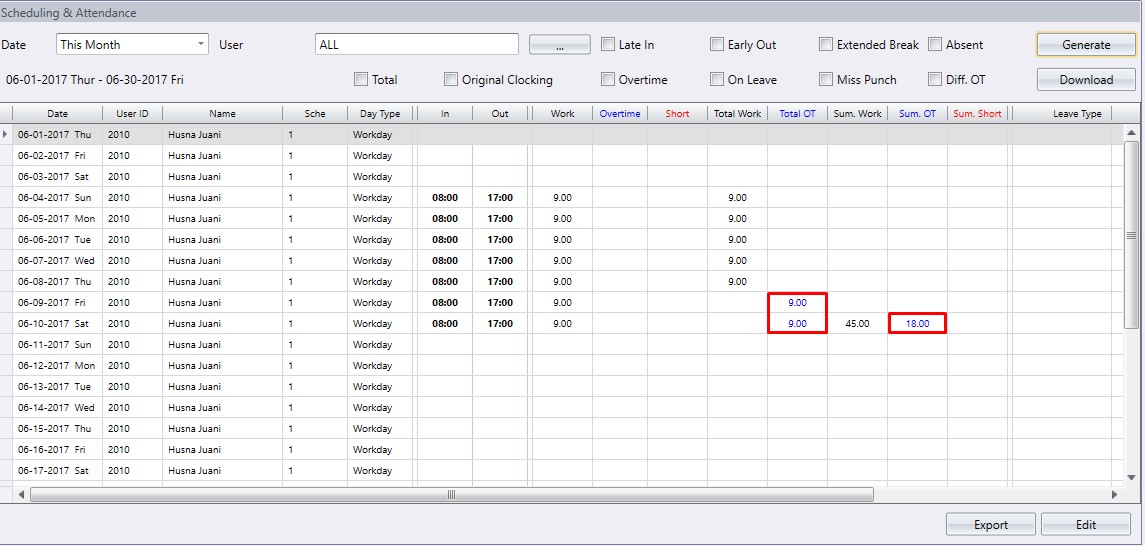
If you enable Daily Totals, you will instead get the below results:

Step 1
Create the clocking schedule. E.g.: IN - 0800 / OUT - 1700
1.jpg

Step 2
Create the group duty roster and set Overtime Only After to 45.00 hours
per weekly and select the Daily Totals option.
2.jpg

3.jpg

Example 2
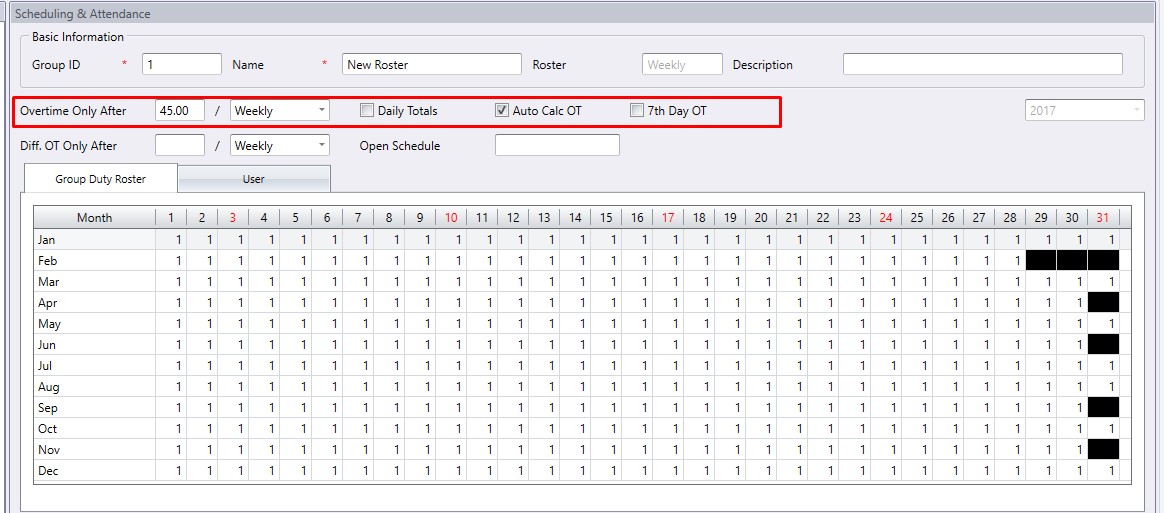
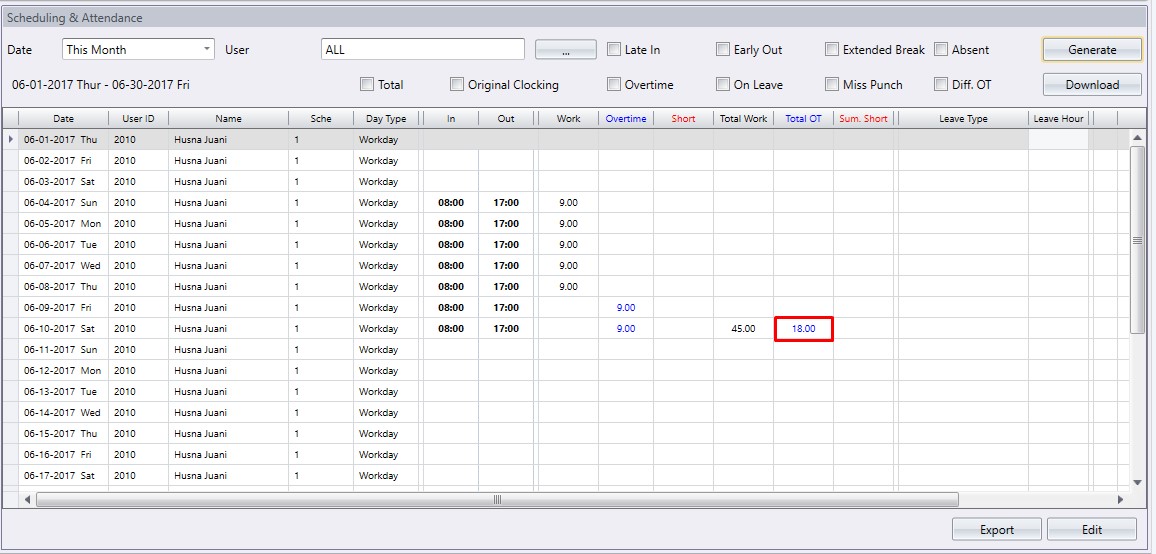
If you enable Auto Calculate OT, you will instead get the below results:
4.jpg
5.jpg


Example 3
Customized for our clients in USA, Ingress & TCMS V3 also have the 7th Day OT option. This is because of a ruling by the Californian State Government, whereby an employee is entitled to overtime whenever the employee has worked more (a) than 8 hours in a day, or (b) 40 hours in a week, or (c) when the employee has worked for 7 consecutive days (in which the whole of the 7th day is considered as overtime).

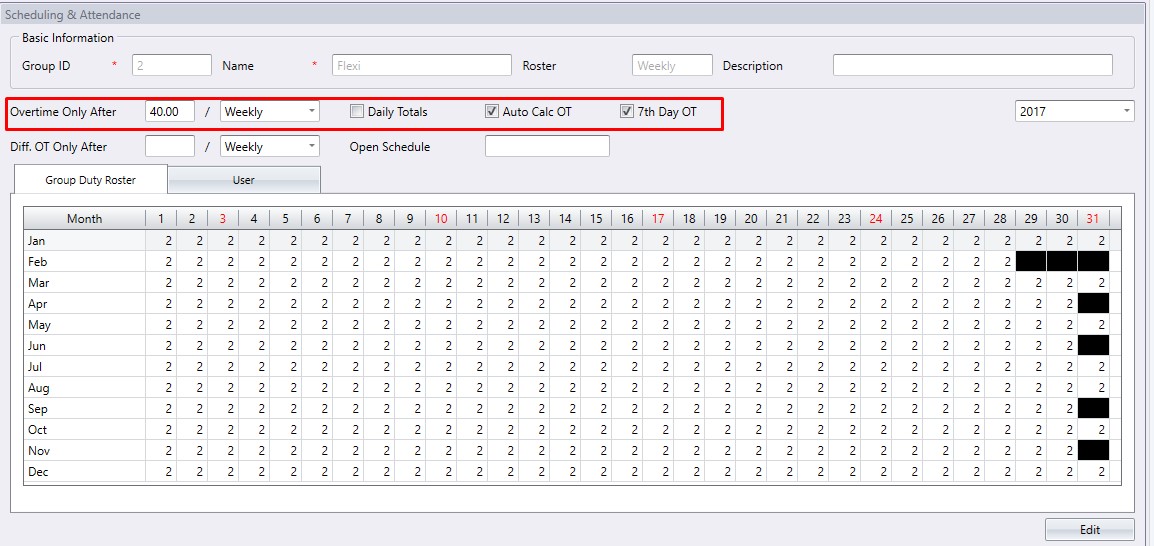
In this case, the user needs to set up overtime after 8 hours in a flexi schedule, and in the roster, overtime after 40 hours per week and 7th Day OT. Thus, the overtime will be calculated if the user works more than 40 hours in a week or has worked 7 consecutive days (even if less than 40 hours total).

Step 1
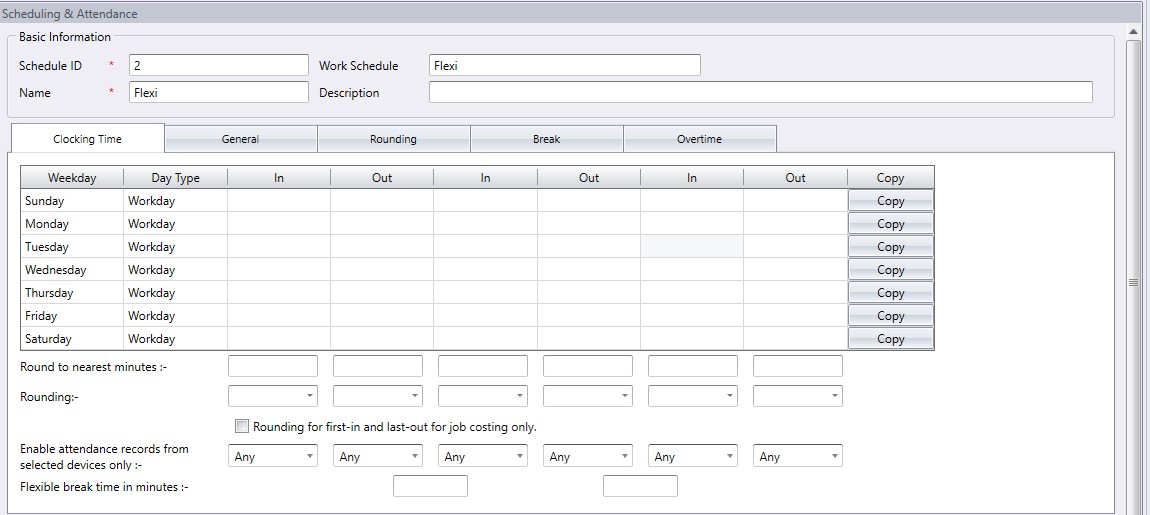
Create the flexi schedule.
6.jpg
  
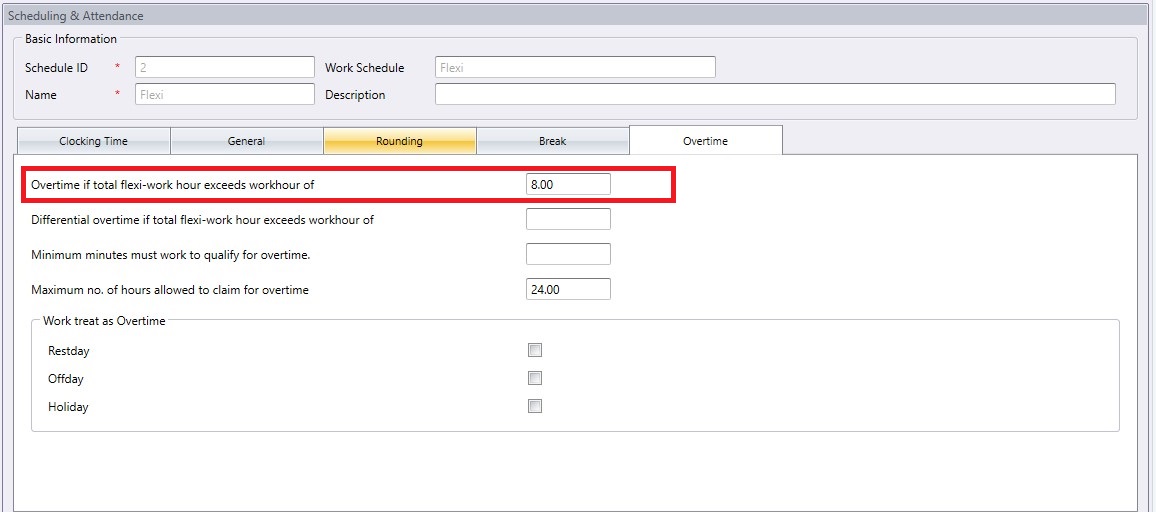
Step 2
Configure Overtime if total flexi-work hour exceeds workhour of to 8.00.
7.jpg

Step 3
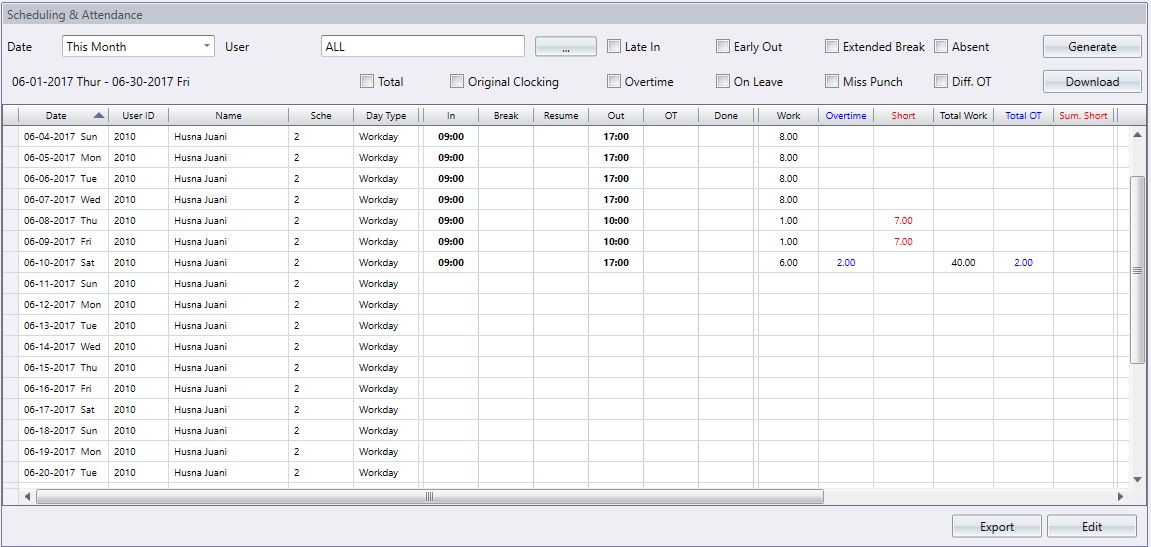
After enabling 7th Day OT with Auto Calculate OT, you will get the below results:
8.jpg

8.jpg

Creating Weekly Schedule with Flexible Overtime on Weekends in TimeTec TA - Suitable for company requiring overtimes on rest days


Introduction
There are companies that allow or need their employees to take overtime on rest days using flexible schedules. This means that the staff will only be paid for overtime based on their total work hours taken of the off days or rest days.

Benefits
By creating a new schedule for this flexible overtime, you can add this schedule into the existing group duty roster later without having to create a new group duty roster to cater for this overtime work on weekend. With this additional schedule, the admin can easily calculate the work hours and the data is compatible to payroll software of your choice.

Process:
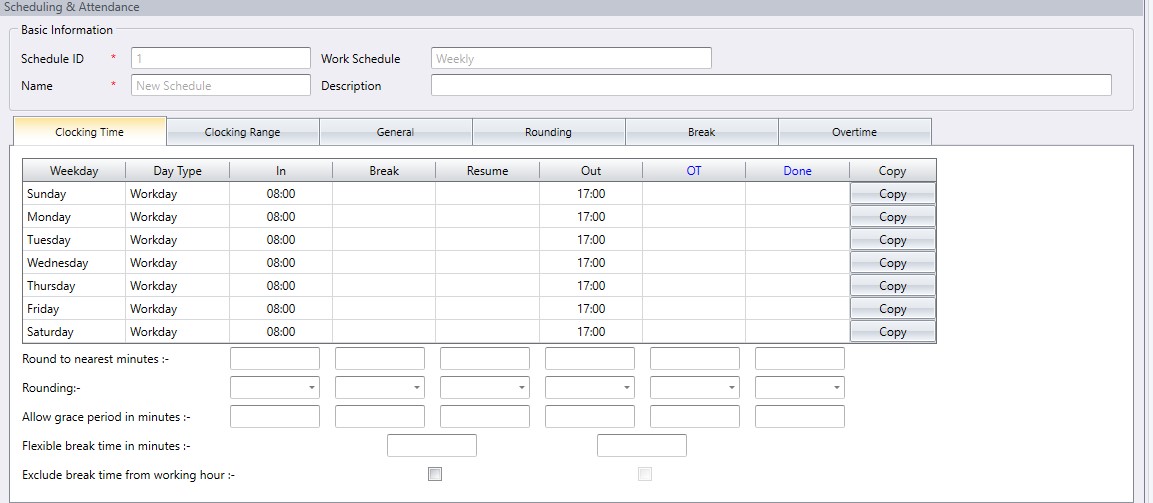
1. Create a Weekly Schedule. Key in the times for workdays only. DO NOT fill in the times for the rest days.


2. Create a new Flexi Schedule, select Day type as Restday for the weekend.


3. On the Flexi Schedule > Go to General tab, insert time range in Double Punch to prevent double transactions within the minutes defined here.

4. Go to Overtime tab > check the box for 'Overtime & double Time for restday work'.So the system will count the working hour as Overtime on Restday.

5. Go to Schedule > Assign Schedule and Users into Roster > Add > select Group Type to Weekly

6. Insert’ Weekday Normal Hour’ schedule for Weekdays and ‘Weekend Overtime’ for Weekend.

7. This is how the Roster should be after the settings.

8. With the above settings, you can see the worktime of the employee being calculated as overtime in the Attendance Sheet if they come to work on their rest days.